blankblank blank


Archive for the 'GIS' Category Page 16 of 23


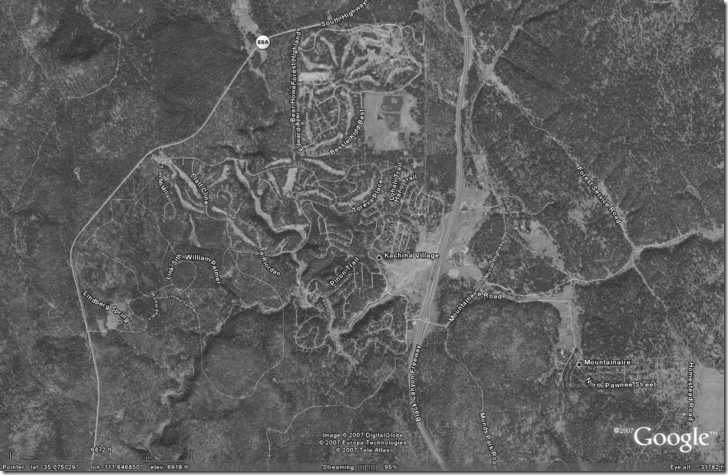
Importing Google Earth Imagery Into A GIS

This post has gotten a very strong reaction from many people, mostly negative. They say use of Google Earth imagery in the manner outlined here is inappropriate, an illegal violation of the Google Earth EULA/TOS. More specifically, words like “theft”, “stealing” and “dirty” have been used to describe this. I feel that this use of Google Earth imagery for personal and non-commercial uses falls under the guidelines of “fair use”, and I explain why here. “Fair use” is not theft. But I acknowledge that I could very well be wrong about this falling under the umbrella of “fair use” protection, in which case it would be illegal. I’d welcome opinions from those knowledgeable about the rights and limitations of “fair use”, and will pull the post if an expert on these issues says that using Google Earth imagery as described below doesn’t constitute “fair use”.

You can save the displayed view in Google Earth by using the File=> Save => Save Image command (Ctrl-Alt-S is the shortcut), which saves the contents of the view window as a JPG file. But in order to use this image in a GIS program, it has to be georeferenced, i.e. coordinates assigned to the pixels. There are free image georeferencing options out there, and I’ll cover some of those soon, but that’s not necessary in this case – there’s a simpler way to get the georeferencing data for an image exported from Google Earth.

You will need to have installed Google Earth (of course), the free GIS program MapWindow, and the Shape2Earth plugin for MapWindow. Shape2Earth’s main function is converting shapefiles to Google Earth KML files, and while the full version costs $29.95, it will work in unregistered demo mode for up to 500 shapefile vertices, and here for georeferencing Google Earth imagery.

1. Open Google Earth, and zoom in to the area of interest.

2. Double-click on the “N” in the compass at the upper right to orient north to the top of the screen. Also double-click on the “0 tilt” icon (the box with the “X” in it on the left in the tilt adjustor) to set the tilt angle to zero.

3. Open MapWindow; if you haven’t already activated the Shape2Earth plugin, do so from the plugins menu.

4. From the Shape2Earth menu in MapWindow, select “Get Image from GE”, and click on the “Capture Image” button. If you haven’t already oriented the image with north at the top and zero tilt, you will be prompted to do so.

5. Save the image with the desired name as a JPG file. This will save a black-and-white jpg image of the current view in the Google Earth window, along with a worldfile (*.jpgw) containing the georeferencing information.

6. Go back to Google Earth, and without moving or changing the view in any way, save the current view (File => Save => Save Image) with the same name and location as the image in step 5,. This overwrites the previous black-and-white image with a color one of exactly the same area.

You now have the Google Earth image with the georeferencing data contained in the worldfile (geographic coordinates, WGS84 datum), which most GIS programs can open and read successfully. If there’s a problem, try changing the extension of the worldfile from *.jpgw to *.jgw.

Limitations of this approach:

  • The view in Google Earth is orthographic, i.e. you’re looking at a sphere from above. For views that are zoomed to view a relatively small area, the area is essentially a flat plane, and the georeferenced image shouldn’t have a large deviation from the true coordinates. The larger the area covered, the greater the deviation between the true and georeferenced coordinates.
  • Coordinates in Google Earth can be off from the true coordinates even for small areas; see this post for more info. This process doesn’t correct for any such deviation.
  • Imagery in Google Earth is copyrighted, and using it for any other purpose than viewing in Google Earth falls under the restrictions of copyright law and fair use. In particular, you have to leave the Google logo and copyright notices unaltered to maintain proper attribution.


Embedding And Extracting Worldfiles With MicroDEM

As described in a previous post, the TatukGIS Viewer has the ability to open image files along with their associated worldfiles, and then convert the image to a GeoTiff with the worldfile georeferencing data embedded it. It can also open a georeferenced image file like a GeoTiff or MRSid, and then save it in JPG, PNG, BMP or TIF formats while creating an associated worldfile. The two biggest drawbacks are that it stamps every exported image at the bottom with the message “Exported with the TatukGIS Viewer www.TatukGIS.com” in yellow-accented letters, and it can’t embed coordinate system and datum data in the GeoTiff (e.g. UTM, WGS84). MicroDEM can’t do everything that the TatukGIS viewer can, and isn’t as easy to use. But it has the ability to convert image files with worldfiles into GeoTiffs, and export image files with worldfiles, but without the stamped message at the bottom. It also has a limited ability to embed coordinate/datum data into the GeoTiffs along with the georeferencing data.

To convert an image file with a worldfile:

1. From the File=>Open menu, choose either “Open image” or “Open scanned map”

2. From the “Files of type” dropdown, choose “Imagery with world files”

3. Select the worldfile for the image you want to open (e.g. *.tfw, *.jgw, etc.)

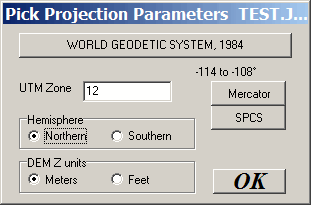
4. The “Pick Projection Parameters” window will open. Here you can select the datum for the data, and the UTM zone for UTM coordinates. If the worldfile is in geographic coordinates (lat/long), the UTM Zone setting is irrelevant.

Capture8-14-2007-1.31.17 PM8-14-2007-10.47.04 PM9-11-2007-7.24.32 PM

5. Click OK, and the image will open onscreen, fully georeferenced. If you only want to export part of the image, you can select it with the subset and zoom button on the toolbar:

subsetandzoom

6. MicroDEM saves images in the screen resolution; to save in the full native resolution, you’ll have to zoom to 1:1; to do that, click on the “No zoom (1:1)” toolbar button:

zoom1to1

7. Choose File => Save map as image => GEOTIFF, screen scale. This will save the image as a GeoTiff, with the georeferencing data embedded, and with the coordinate system and WGS84 datum information also embedded. And no watermark stamp.

Limitations:

– JPG, BMP, GIF and PNG supported natively; MRSid is supported with add-ons, but isn’t easy to work with. Search the help file for “MRSid” for more info on how to set this up in MicroDEM.

– The only coordinate systems supported are geographic and UTM; no Lambert, SPCS, etc..

– The only datum data is exported in is WGS84, regardless of what datum the original data was in, and which datum you specified in step 4 above.

– GeoTiffs are exported in 24-bit color; 8-bit or indexed color is not supported.

If you want to go the other direction, converting a GeoTiff or MRSid file with embedded geodata into an image format with worldfile:

1. Open the GeoTiff/MRSid in MicroDEM

2. Select File => Save map as image => With worldfile

3. Select the desired image format (BMP, PNG or JPG), and save the file. The worldfile will be created automatically in the same directory.


Embedding And Extracting Worldfile Data With The TatukGIS Viewer

Some image formats, like JPG and BMP, don’t support embedding of georeferencing data, so they require a worldfile to georeference them in GIS software. It can be inconvenient to move and keep track of two files instead of one, so it’s often useful to convert the original image into a format that supports embedded geodata, and then use the worldfile data to embed the appropriate georeferencing data into it. The TatukGIS Viewer is able to do that; it can open a raster image file in several different formats (JPG, BMP, PNG, TIF, ECW, SID, JP2), use the worldfile to georeference it, and then export it to the GeoTiff format with the georeferencing data embedded in it.

1. Open the image with the worldfile in the TatukGIS Viewer program (the Add Layer command)

2. Choose File => Export Image from the menu

3. Select Tag Image File Format (*.tif) as the desired export format, and enter the filename to save under

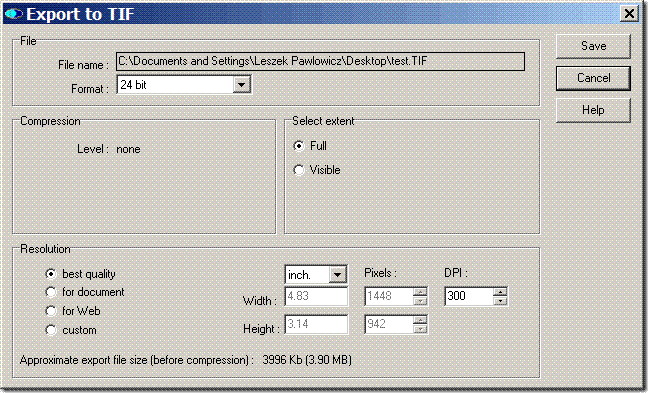
4. In the Export to TIF window that comes up, you can modify the bit depth of the image to reduce the colors/filesize of the image; you can also change the image size as well, and choose whether to export the whole image or just what’s visible on screen. TatukGIS will stamp a label on the bottom of the image, something to keep in mind when exporting part of the image.

Capture8-14-2007-1.31.17 PM8-14-2007-10.47.04 PM9-10-2007-9.13.07 PM

When you click the “Save” button, the image will be saved as a GeoTiff, with the coordinate georeferencing data embedded in it. Worldfiles don’t contain coordinate system or datum information, so that isn’t included in the georeferencing data embedded in the GeoTiff file. Also written is a *.tfw worldfile for the newly-created TIFF image, useful if the GIS program you’re using doesn’t read embedded GeoTiff coordinate data.

You can also go in the opposite direction: open an image file with embedded georeferencing data (e.g.GeoTiff, MRSid or ECW file), then convert it into a image format that doesn’t support embedded data (JPG, BMP and PNG), along with a worldfile that can used by other programs to georeference the image.

The TatukGIS Viewer is easy to use, flexible in export options like resolution and bit depth, and accepts a wide variety of raster images for export in georeferenced format. The biggest drawbacks are the label it stamps on the bottom of every exported image (which can be cropped off), and its inability to add coordinate system/datum information to the file. The next post in this series will talk about a program that’s less flexible and not quite as easy to use, but which doesn’t have a watermark, and has a limited ability to embed coordinate and datum information into the GeoTiff header.


Worldfile Basics

I’ll be doing a bunch of upcoming posts on free software for working with image worldfiles, so I thought I’d spend one post reviewing their basics. A worldfile is a simple text file that contains the information necessary to assign geographic coordinates to a raster image, to georeference it for use in a GIS program. For example, suppose I have a image like the one below (downsized by a factor of two from its original pixel dimensions of 1448 x 942 pixels):

Google Earth image with worldfile

The worldfile for the original image is:

0.000067897543
0.0000000
0.0000000
-0.0000554613012
-111.743323868834
35.1254392635083

The bottom two numbers are the longitude and latitude of the pixel in the upper-left-hand corner. The top number is the horizontal size of a pixel in coordinate units (longitude degrees in this case); the third number from the bottom is the comparable vertical pixel size in latitude degrees, negative because latitude decreases as you go from top to bottom in the image. The two other lines are rotation/compression factors for left/right and top/bottom, and are rarely used. Using the worldfile data, and the pixel dimensions of the image, a GIS can calculate the corresponding geographic position for every pixel in the image.

Worldfiles have an extension that depends on what kind of image file they’re associated with. Typically, it’s the first and last letters of the image extension, with a “w” at the end, but the full image extension with “w” at the end is also sometimes used. For example:

JPG image: worldfile has .jgw or jpgw extension.

BMP image: worldfile has .bpw or .bmpw

TIFF image: .tfw or .tifw

The extension .wld is supposedly acceptable as a general worldfile extension, but I’ve never seen it in the wild.

Worldfiles are plain text, and don’t contain any embedded information in them about the coordinate system. In the example above, it’s pretty obvious that the worldfile is in geographic coordinates, latitude/longitude. But the GIS program you open the image in won’t necessarily know that, and you’ll have to take care that the image’s coordinate system matches up with that of the other data you’re adding to the view. If your image is in geographic coordinates, and your shapefile data is in UTM, the GIS may not be able to convert the coordinates of them “on-the-fly” to match each other.

And there’s also the datum to keep in mind, since worldfiles don’t contain datum information, either. If the image is in the WGS84 datum, and your other data is in NAD27, there can be a distance discrepancy of hundreds of meters between the depicted position and the true position. Some programs can create another text file with the “.PRJ” extension that will contain information about the coordinate system and datum for a worldfile, but some free GIS programs can’t read that PRJ data.

Many image formats, like BMP and JPG, require a worldfile to georeference the image for use in a GIS. Other formats, like TIFF and MRSid, can use worldfiles, but can also have the georeferencing information embedded in the image file itself, optionally with coordinate system and datum information. For TIFF-format files, these are commonly referred to as GeoTiffs. Many GIS programs can open these files and extract the georeferencing data from them automatically, though a few can’t. And while you can open a GeoTiff file in an image editing program like Photoshop, if you save the image that georeferencing data is lost.

Upcoming posts in the series will deal with software that can do various things related to worldfiles, like:

– Combine a worldfile for an image format that doesn’t allow embedding coordinate data inside of it, and save it in a format that does support embedding;

– Extracting worldfile data from embedded coordinate data in an image, and re-embed it without modifying the image data

– Modifying an image file in Photoshop, and then re-embedding the coordinate data using a worldfile

– Creating worldfiles for map images that don’t have them, so that they can be used in a GIS

– Saving and embedding coordinate system / datum information in image formats that support it


Geographic Time Animations

While I was writing the previous post on xls2kml, which has the ability to add time data to point placemarks in a Google Earth KML file, I got an email from someone who was looking for ways to create time-animated geographic displays. Digging through my brain and bookmarks, I came up with the following:

– If you have ArcGIS 9.2, there’s a free extension called TimeSlider from Applied Science Associates that lets you animated multiple data series that have associated dates or times. Haven’t tried it myself (I’m still stuck with 8.2).

– TimeMap, from the University of Sydney’s Archaeological Computing Laboratory, creates time-based web mapping displays. From the “About” page:

“TimeMap TMJava is a novel mapping applet which generates complete interactive maps with a few simple lines of html. It provides a way of easily enriching web pages with historical or contemporary information that goes far beyond static jpg map images. It’s easy for beginners, yet provides completely customizable power and distributed backend database connectivity for the expert. It’s free for personal use.

TimeMap’s unique time-handling provides an engaging and intuitive method of delivering historical, community, government, research and business information. Combining mapping and the time dimension gives new ways of visualizing urban growth, the spread of empires, heritage sites, environmental change, weather patterns, traffic flow, earthquakes, mobile network faults, and much more ? ranging in time scale from millions of years to seconds.

TimeMap time-filters and animates maps on the fly, connects to datasets anywhere on the web and can search for and load thousands of local maps dynamically as you zoom and pan. TimeMap can filter huge datasets server-side and download only the data needed, or work standalone off a CD. It adapts legends dynamically as scale changes and generates hyperlinks on-the-fly between objects on the map and web pages, and is completely customizable with XML. Yet the applet weighs in at only 350K! ”

The TimeMap website has downloads, documentation, and sample applications. An open source version is on the way. Haven’t tried it this one yet either, but may post on it at greater depth in the future.

– Google Earth, of course, has added time-related coding to KML. But you still can’t add time information to data using the Google Earth application itself. Options for adding time coding are:

  • Add the time data manually to the KML file, as I did in my earlier sea level rise animations; this is currently the only option I know of for animating image overlays, and path/polygon KML files.
  • Use xls2kml to timecode point locations
  • Create a Google KML network link using Google Spreadsheets with timecoding added to point placemarks; Google has a tutorial page describing how to do this.
  • Create a KML network link to an EditGrid spreadsheet; OgleEarth has more info.
  • And I’m working on another way to create animated Google Earth KML files; more on this when it’s ready …

9/25/2007: Added info on EditGrid spreadsheets.


Georeferenced TerraServer Imagery With USAPhotoMaps

An earlier post described TerraClient, a program that lets you download large-area full-resolution USGS aerial photo imagery from the TerraServer website. That’s more convenient than downloading individual pieces from the USGS Seamless Server and then stitching them together, and has the additional advantage of letting you see the areas you’re selecting for download on-the-fly. But it has the disadvantage of producing images that aren’t “georeferenced”, i.e. they don’t come with the coordinate information needed to import and use them directly into a GIS viewer or editor.

There’s a free program called USAPhotoMaps that can create georeferenced TerraServer imagery for smaller geographic areas than TerraClient, and not just black-and-white aerial photos: it can also export georeferenced seamless color USGS topographic maps and high-resolution (0.15 to .65 meter) color aerial photos from selected urban areas. USAPhotoMaps has a far friendlier and faster interface than the USGS Seamless Server (which also offers this imagery in georeferenced format), and USAPhotoMaps has a bunch of additionalcapabilities that are easy and convenient to use. This post will deal with using TerraServer to view and export TerraServer imagery; its additional capabilities will be covered in future posts.

Continue reading ‘Georeferenced TerraServer Imagery With USAPhotoMaps’


AVHRR Analysis Add-On For ILWIS

ILWIS is a sophisticated GIS package that was released as free and open source software on Monday. While the open source version is available from 52North, there’s an add-on software package for ILWIS currently only available from the original ITC website. AHAS (AVHRR Hydrological Analysis System) works with ILWIS for analysis of data from the Advanced Very High Resolution Radiometer currently flying aboard many US and European satellites. Analysis products are biophysical (e.g. NDVI, Fractional Vegetation Cover, Crop Reflectance, etc.), climatic (Daily Radiation, Sunshine Fraction, Soil Heat Flux, etc.), and hydrological (Potential Evapotranspiration, Volumetric Soil Water Content, etc.). AHAS requires ILWIS to function properly, and will ask for the location of the ILWIS executable the first time it starts up (it first looks in C:\Program Files\ILWIS3.1\ for the Ilwis3.0.exe executable file).

Unfortunately, while AHAS is free, free multi-band AVHRR data is hard to find, especially recent data; if anyone knows of good free sources for this data, please post them in the comments section. You can buy AVHRR data directly from the USGS.


ILWIS GIS Is Now Open Source

ILWIS (the Integrated Land and Water Information System), a GIS software package from the International Institute for Geo-Information Science and Earth Observation in the Netherlands, has moved from paid (100 euros) proprietary status to free open source status as of today. Its key features (listed by the original website) include:

  • Integrated raster and vector design
  • Import and export of widely used data formats
  • On-screen and tablet digitizing
  • Comprehensive set of image processing tools
  • Orthophoto, image georeferencing, transformation and mosaicking
  • Advanced modeling and spatial data analysis
  • 3D visualization with interactive editing for optimal view findings
  • Rich projection and coordinate system library
  • Geo-statistical analysis, with Kriging for improved interpolation
  • Production and visualization of stereo image pairs
  • Spatial Multiple Criteria Evaluation

But that only begins to describe its capabilities.

Supervision and support of ILWIS development has been handed over to the 52 North Organization, and as of today, they have an ILWIS page up with download links and installation directions. 52North also has a download page for the 500+ page user’s guide for ILWIS, along with sample data for the demos in the user’s guide. However, 52 North doesn’t have the 700+ page Reference Guide or the Applications Guide With Data up yet on their site, and there’s no indication whether they will be posted there in the future. These additional documents are still up on the original website, and definitely worth getting. While they mainly reference version 2.1, most of the information is still valid for the final 3.3 version converted to open source.

The Applications Guide in particular contains descriptions of how to use the software in specific applications, along with the actual data used in the example applications. To give you a feeling for ILWIS’s capabilities, among the 27 chapters in the Application Guide are:

  • Modelling erosion from pyroclastic flow deposits on Mount
    Pinatubo
  • Seismic landslide hazard zonation
  • Assessing aquifer vulnerability to pollution in the Piana Campana
  • Remote sensing and GIS techniques applied to geological survey
  • Tools for map analysis applied to the selection of a waste
    disposal site
  • Analysis of urban change and spatial pattern
  • Cibodas: analyzing the fuelwood demand

I’ll have more posts on ILWIS’s capabilities in the near future.