blankblank blank


Archive for the 'GIS' Category Page 15 of 23


A New GUI For The Libgeotiff Worldfile Utilities

I posted earlier about a GUI for the libgeotiff utilities, called the GeoTIFF Tools GUI, that can extract georeferencing data and other metadata from GeoTiff files, and then re-embed the same information back into a Tiff file that has had that information stripped out of it, say by an image editing program. It’s a decent GUI marred by a few flaws:

1.You can’t use it to embed .tfw worldfile data into a TIF, even though the command line utility supports this function.

2. All the files need to be in a single folder.

3. There can’t be any spaces in the filename.

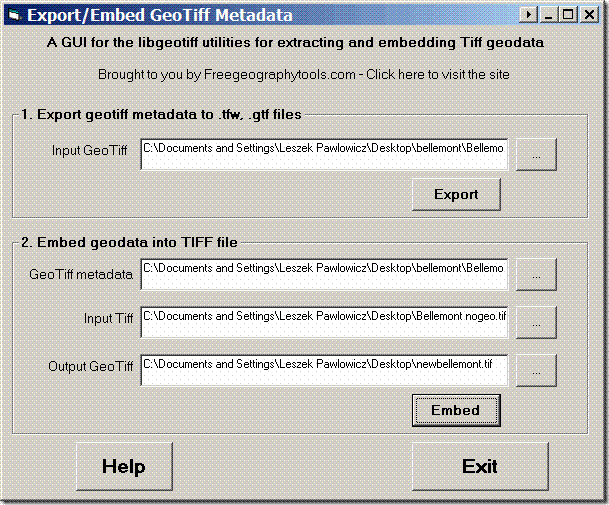
I’ve banged away for a few hours, and come up with an alternate GUI for the libgeotiff utilities, with the catchy name,”libgeoGUI.exe”. You can download the GUI along with the associated listgeo and geotifcp utilities at this link. Unzip the folder with the GUI and the associated files, and run the program libgeoGUI by double-clicking on it:

Capture8-14-2007-1.31.17 PM8-14-2007-10.47.04 PM9-13-2007-8.59.09 PM

There are two sections to the program; in both sections, a button with “…” in it opens a file selection dialog window appropriate for that section. The top section takes a GeoTiff file, and extracts the georeferencing data and any other data into two files, each with the same filename as the GeoTiff, but without the .tif extension:

– A standard .tfw worldfile with only the coordinate data;

– A .gtf file that contains not just the coordinate data but any other metadata embedded in the Tiff header (e.g. map name, coordinate system, datum, etc.). The .gtf file is plain text, so you can examine it in any text editor; here’s a sample of one .gtf file for a USGS 1:24K topo map with a extensive amount of embedded metadata:

GeoTiff_Information:
Version: 1
Key_Revision: 0.2
Tagged_Information:
ModelTiepointTag (2,3):
0 0 0
419610.38 3901689.53 0
ModelPixelScaleTag (1,3):
2.4384 2.4384 0
End_Of_Tags.
Keyed_Information:
GTModelTypeGeoKey (Short,1): ModelTypeProjected
GTRasterTypeGeoKey (Short,1): RasterPixelIsArea
ProjectedCSTypeGeoKey (Short,1): PCS_NAD27_UTM_zone_12N
PCSCitationGeoKey (Ascii,25): “UTM Zone 12 N with NAD27”
End_Of_Keys.
End_Of_Geotiff.

PCS = 26712 (name unknown)
Projection = 16012 ()
Projection Method: CT_TransverseMercator
ProjNatOriginLatGeoKey: 0.000000 ( 0d 0′ 0.00″N)
ProjNatOriginLongGeoKey: -111.000000 (111d 0′ 0.00″W)
ProjScaleAtNatOriginGeoKey: 0.999600
ProjFalseEastingGeoKey: 500000.000000 m
ProjFalseNorthingGeoKey: 0.000000 m
GCS: 4267/NAD27
Datum: 6267/North American Datum 1927
Ellipsoid: 7008/Clarke 1866 (6378206.40,6356583.80)
Prime Meridian: 8901/Greenwich (0.000000/ 0d 0′ 0.00″E)

Corner Coordinates:
Upper Left ( 419610.380, 3901689.528)
Lower Left ( 419610.380, 3885203.505)
Upper Right ( 432770.425, 3901689.528)
Lower Right ( 432770.425, 3885203.505)
Center ( 426190.403, 3893446.517)

Unlike the previous GUI, this one creates both .tfw and .gtf files automatically, rather than giving you the choice of one or the other.

Section 2. of the program handles the opposite function, taking a geo-metadata file and embedding it into the appropriate Tiff file. In the “GeoTiff metadata” box, you choose either a standard Tiff worldfile (.tfw or .tifw) or a .gtf file created in section 1 with the full set of metadata. If you have a choice, use the .gtf file, since it typically contains more information. For “Input Tiff”, select the Tiff image file that you want to embed the metadata into; for “Output GeoTiff”, enter a name for the product Tiff file with the embedded data. Click on “Embed”, and it will be done.

There’s not a lot of error-checking in the program, but if you don’t do something right, there’s no real possibility of problems – nothing will happen, that’s all. Use at your own risk; if you find any bugs, let me know.


Putting Together A Basic Linux GIS Workstation

For those who want to experiment with Linux-based GIS, or you have older hardware that just can’t handle Windows XP, Matt Perry has a nice post on his blog on adding applications to a basic Ubuntu 7.10 Linux installation to turn it into a decent open source GIS workstation. Step-by-step directions are included for installing:

  • Quantum GIS
  • GRASS
  • MapServer
  • GPSBabel
  • GMT (Generic Mapping Tools)
  • PostGIS
  • … and more

You’ll find the apps installed in the /usr/bin directory.

A few more Linux-compatible software packages to consider adding to this set (require Java to be installed on the system):

uDig extracts into a folder that contains the Java program launcher. To install a *.bin file in Ubuntu Linux (like gvSIG), open the Terminal application, change the directory to the location of the *.bin file, and type:

sudo sh *.bin

Where *.bin is the full name of the .bin file.

If you want to augment these application, there’s a fair number of Windows geographic tools (e.g. MicroDEM) that will run under the WINE emulator.

Taking this as another opportunity to give Ubuntu Linux a spin, I will say that Ubuntu 7.10 (“Gutsy Gibbon”) is another step forward for desktop Linux, but I still have major ease-of-use issues with it. I find myself pounding my head against a wall far more often with Linux than with either Windows XP or Macintosh (but don’t get me started on Vista).


Beta Version Of DNRGarmin

One of the first posts on this blog was about the 5.1.1 stable version of DNRGarmin. Long story short, if you work with GIS and you use Garmin units for your data acquisition, this program is a must-have. It can upload/download data in text, DBF and shapefile formats to/from Garmin GPS units, and also comes with an extension for direct interfacing with ArcGIS software. Version 5.1.1 had some utility for non-Garmin GPS units and applications, but version 5.2, currently in beta, has some new features that make it a worthwhile installation for anyone with a GPS.

DNRGarmin has actually been in beta for a while, and I’d been waiting to see if it would come out of beta; the date on the last release is 5/18/07. The webpage indicates in big bold letters that in the beta, “THE ERROR RELATED TO USB CONNECTIVITY AND LOGIN RIGHTS HAS NOT YET BEEN RESOLVED“. But I’ve installed it successfully on 3 different computers without encountering this problem, so there’s a decent chance it should work on yours as well.

New features in version 5.2 include:

  • Load data in KML and GPX (in addition to the previous options of text, DBF and shapefile formats)
  • Load data directly from the “My Place” pane in Google Earth
  • Save data in KML and GPX (along with the previous options of projected/unprojected shapefiles, text and DBF)
  • Convert between the different formats
  • Collects waypoint time data from supported units

Note: The new version’s ArcGIS extension no longer works with ArcGIS 8.x, only 9.x. If that’s important to you, you should stick with version 8.1.1, still available on the web page. But the new version works fine in stand-alone mode.


Another TIFF Worldfile/Metadata Program

An email pointed me towards two more programs for extracting and embedding worldfile data from TIF files: the listgeo and geotifcp utilities, part of the libgeotiff files available from the maptools.org site. Both of these are command-line utilities available for Windows and Unix, but there’s a GUI available for Windows called listgeo_GUI that is somewhat easier to work with. The GUI installation package also includes the listgeo and geotifcp files, so that you don’t have to download them separately. These utilities can not only extract and embed the basic worldfile data, but can also extract and embed a full set of coordinate metadata for a GeoTiff file; this includes not only the coordinate georeferencing data but also additional information like the coordinate system and datum.

Continue reading ‘Another TIFF Worldfile/Metadata Program’


Free ArcGIS Extensions For Municipal GIS Applications

In addition to their commercial products, MainStreetGIS has several free ArcGIS extensions available. The examples are oriented around municipal applications, but you can probably find other uses for some of them as well.

MainStreetAbutters: Choose a vector layer (point, line or polygon), a buffer distance for that layer, and a target layer. The extension will select features in the target layer within buffer distance of the buffer layer, and export them to another layer and/or a table or document file like an *.doc Word format file (the latter for use in merging with other documents like mailing labels, letters, etc.).

MainStreetSpatial: Selection of features in one layer based on their spatial relationship within another layer (intersection, lying within, etc.).

MainStreetVisibility: Stores a visibility setting (layer checkbox settings) for a project. Create multiple visibility settings forĀ  single project to turn multiple layers on and off.

MainStreetParcelSearch: Load a list of parcel IDs from a Parcel shapefile layer, select one, and have the map zoom to that parcel.

MainStreetStreetSearch: Load a list of street names from a Street shapefile field, select one, and have the map zoom to that street.

MainStreetAddressSearch: Loads a list of street names and street address numbers from a Parcel shapefile layer, then zooms to a selected street address on the map.

All extensions at the above links are for ArcGIS 9.x, but versions for 8.x are available on request from MainStreetGIS.


Handling TIFF WorldFiles With GeoTiffExaminer

The TatukGIS Viewer and MicroDEM are handy all-purpose utilities to use for embedding and extracting worldfile data from a variety of image formats. But if you’re only working with TIFF image files and their worldfiles (*.tfw, *.tifw), GeoTiffExaminer may be a better choice:

– Small program (less than 500K installed)

– Modifies only the header, and doesn’t touch the image data. Both TatukGIS Viewer and MicroDEM rewrite the images when they save them, and sometimes you can get minor shifts in the color palettes that way

– Supports indexed color (the standard format for USGS DRG topo maps); MicroDEM doesn’t, and TatukGIS Viewer doesn’t always save the color palette on indexed colors correctly.

– Simple interface

There are two modes of operation: opening a GeoTiff, extracting the geodata and using it to create a worldfile; and opening a plain TIF file with a worldfile, and embedding the geodata from the worldfile in the TIF to create a GeoTiff.

Continue reading ‘Handling TIFF WorldFiles With GeoTiffExaminer’


Goofing Around With Pan-sharpening

Orbiting satellites often have two types of digital imaging sensors:

– Multispectral, i.e. different sensors for different colors (including IR), or different filters in front of the same sensor. Each individual band can be shown as a black-and-white image; multiple bands can each be assigned a color, and combined to form an RGB color image.

– Panchromatic, “meaning all the colors”, a single broad-spectrum sensor. This are usually displayed as a monochromatic image (i.e. black-and-white).

The panchromatic sensors usually have a higher spatial resolution than the multispectral. For example, on the Landsat 7 spacecraft, the 6 multispectral bands have a spatial resolution of roughly 30 meters (a seventh has 60 meters), while the panchromatic sensor has a resolution of about 15 meters. Here’s an example of an image created from three of the Landsat multispectral bands (data from the Global Land Cover Facility):

Continue reading ‘Goofing Around With Pan-sharpening’


"Fair Use" And Google Earth Imagery

I’ve gotten a few comments on my post about importing georeferenced Google Earth imagery into a GIS, talking about the legality of using the imagery in a business context, and pointing out restrictions contained in the Google Earth user license and the general Google Terms Of Service. While my post mentions that the restrictions of the Google Earth license and “fair use” need to be followed when using this imagery, at least one person equated the use of Google Earth imagery in this manner with theft, dismissing both the concept and legal precedents of “fair use”. So I’ll add some additional thoughts on when it’s appropriate to use Google Earth imagery, based both on a layman’s reading of the user license and the principles of “fair use”. I’d welcome further input from anyone who is an expert on issues of copyright and fair use, and also from anyone from Google who wants to give their take on the issue.

By the terms of the recent revision of the license, the Google Earth software can be use both for “personal, non-commercial uses according to these Terms of Service and the Software documentation“, and for businesses, “the Software may be used by you and your employees for internal use according to these Terms of Service and the Software documentation“. The software comes with the ability to export the satellite imagery on-screen, and the Google Earth API comes with the ability to provide the bounds of the onscreen image, so the actual act of creating an georeferenced Google Earth image is not a violation of either the license or the Digital Millennium Copyright Act. In addition, the license states that, “You agree not to use the Software for any bulk printing or downloading of imagery, data or other content“, indicating that limited printing, downloads of imagery and data are acceptable. The ability to create such imagery directly from the Google Earth application using its built-in print and export functions confirms this interpretation, else Google would not have included this functionality.

Addendum (9/18/07): I should add that any use of the imagery requires you to maintain the Google logo and all the copyright notices embedded in the exported image to maintain proper attribution for the source.

The real question of “fair use” here comes down to how the imagery is used. In the general Google Terms of Service, under the “Content in the Services” section, it says:

“You should be aware that Content presented to you as part of the Services, including but not limited to advertisements in the Services and sponsored Content within the Services may be protected by intellectual property rights which are owned by the sponsors or advertisers who provide that Content to Google (or by other persons or companies on their behalf). You may not modify, rent, lease, loan, sell, distribute or create derivative works based on this Content (either in whole or in part) unless you have been specifically told that you may do so by Google or by the owners of that Content, in a separate agreement.”

The restrictions in any such Terms Of Service don’t preempt the use of any material that falls within the bounds of “fair use”, as numerous court cases have determined. Unfortunately, those bounds can be hard to define. I highly recommend the Wikipedia article on fair use and its references for more information on the topic, especially if you’re not familiar with the concept of “fair use”, since some of its implications may surprise you. Generally speaking, copyrighted material like the Google Earth images may be usable by others without explicit permission of the content creators based on the answers to number of questions:

– What is the purpose or character of the use? Does it enrich the public by adding something new, or is it merely intended to supersede the original content for profit without adding value? The first falls under fair use, the second doesn’t. Works derivative of other copyrighted material have been ruled to fall within the bounds of “fair use” as long as they don’t supersede the original and provide added value, even when the derivative works are sold commercially.

– What is the nature of the copied work? Factual information can’t be copyrighted, but expressions of factual data can be. Even here, it’s not a hard restriction. The Zapruder Kennedy assassination film was copyrighted by Time Magazine, but when they sued the publishers of a book for publishing stills from the film, they lost; publication of this material was held to be in the greater public interest than upholding the copyright.

– Is the amount of copyrighted material used significant and substantial? Reproducing a copyrighted work in its entirety is illegal, as in the case of the of the open source Google Earth clone Gaia that planned to use Google Earth imagery, or MP3 music files. Reproducing limited excerpts of copyrighted material is allowable under fair use if appropriate for the context, e.g. the use of Google Earth screenshots found on many websites and blogs, or excerpts of MP3 files when used in music review.

– Does use of the copyrighted material significantly impact the work’s value? If you use the imagery to undercut the value of the original copyrighted material, that’s an issue; if you use it in a fashion that doesn’t, that may fall under the provisions of fair use. The classic case concerning this was the Sony Betamax case, where the Supreme Court ruled that videotaping copyrighted material didn’t have such a negative impact, and thus fell under the protection of “fair use”. And this was even despite the broadcaster’s argument that this technology could be used to break the copyright law. The Supremes ruled that if a technology had legal uses, it couldn’t be outlawed just because it might be used in an illegal fashion; you had to prove that its principal use was to foster illegal use of copyrighted material (that’s why Napster got shut down).

No answer to any one of these question precludes use of the material under fair use; conversely, you might think you have a reasonable “fair use” right under all four questions, but a court might disagree. The way I interpret these “fair use” factors relating to Google Earth imagery (and I’m not a copyright lawyer, so this is a layman’s opinion):

– Use of limited amounts of Google Earth imagery for personal or non-commercial GIS usage when not distributed publicly very likely falls within the bounds of “fair use”.

– Use of Google Earth imagery for personal or non-commercial use for public distribution would seem to fall under the rubric of “fair use” when it is of a limited nature, some transformative value is added (e.g. plotting additional data on top of it, or using it as a basis for further explanatory information), and when it doesn’t impact the value of the original imagery. So, for example, plotting shapefile data on top of a Google Earth image in a GIS, and then distributing the resulting image publicly, may fall within the bounds of fair use when it’s not done for profit. Creating a large-area, high-resolution georeferenced mosaic of just the imagery alone, and then posting it for download on your website, even if you don’t charge for it, will in all likelihood earn you a cease-and-desist letter from Google, and for good cause.

– The legality of internal use of Google Earth imagery in a GIS for commercial purposes conceivably could depend on the usage, but this is a gray area shading towards black. Talk to your legal department, and be prepared for them to legitimately say “no” to any such use.

– Public use of Google Earth imagery in commercial settings likely falls under “fair use” in some cases, e.g. screenshots of Google Earth imagery for illustrative or informative purposes on a website or blog that earns revenue from displaying ads. Google has acknowledged and featured the work of several blogs that exhibit such screenshots along with ads. Beyond that, though, the legality of public use of Google Earth imagery in a commercial setting will depend on the answers to the “fair use” question above, which lies within the domain of copyright law. My guess would be that more often than not it doesn’t qualify as “fair use”, and even if you think it does, it probably doesn’t. Talk to your lawyers. I might add that if you really want to use satellite imagery for public commercial purposes, you’d be better off looking at using Google Maps instead, since the license and TOS allow for some commercial use of essentially the same satellite imagery you’ll find in Google Earth.