blankblank blank


Archive for the 'GIS' Category Page 14 of 23


The Big List Of Free Basic GIS Programs – A Through H

The backlog of topics for this blog continues to grow beyond my ability to keep up with it, and current work demands make it unlikely I’ll be able to catch up soon (though I should still be able to put up new posts at about the same rate). So I thought I’d do a quick set of posts on various types of GIS software, including both those that I have looked at in some detail, as well as those that I’ve given either a cursory look, or none at all. Let me know which ones I’ve missed, and I’ll add them to the list (and put up a separate post on them if warranted). I welcome comments on any of these programs, especially those I haven’t really posted on yet; if the comment is long enough, I’ll put it up as a full guest post. And I’m likely to come back to some of these in greater detail in the future.

Continue reading ‘The Big List Of Free Basic GIS Programs – A Through H’


Two Online Vector GIS/GPS/KML Conversion Utilities

GeoConverter: GeoConverter is an online front-end for ogr2ogr which lets you convert a limited number of vector file formats to each other. Free registration is required; while the registration page is currently in German the registration page is now available in English. Formats supported are:

  • Comma Separated Value (.csv/(.csvt))
  • GPX (.gpx)
  • Geographic Markup Language (.gml)
  • INTERLIS 1-Transfer Format (.itf/.ili)
  • INTERLIS 2-XML Transfer Format (.xml/.ili)
  • Keyhole Markup Language (.kml) (write-only)
  • MapInfo File (.mif/.mid)
  • Shapefile (.shp/.dbf/.shx)

You can convert to/from any of these formats except for KML, which is write-only currently. Formats with multiple files (e.g. shapefiles with .shp, .shx and .dbf files) require that all files to be upload are zipped up into a single file (100 MB max). I suspect the conversion system is Unix-based, which is usually happier with files that have no spaces in their filenames. Also worth remembering that certain formats like GPX and KML require the coordinates to be lat/long WGS84, so you’ll have to make sure your source data is in that coordinate system. I converted a fairly complex polygon shapefile into a KML file successfully, with the attributes written into the KML polygon properties, but there’s no ability to modify display based on attribute properties, as with shp2kml or Shape2Earth.

Thanks to Professor Stefan Keller, one of the creators of this utility, for the tip.

D2M Converter: 5/2/2009: May be dead. A new online utility from Data2Map, currently in beta; free registration required. Converts from any of these formats:

  • Access
  • Excel
  • MS SQL
  • ASCII
  • MapInfo (.mif)
  • ESRI shapefile (.shp)

to either Microsoft MapPoint (.ptm) or Google Earth (KML).

A few notes:

  • You have to create a “Conversion Definition” label, or bring up an saved one, for every conversion
  • For data formats like shapefile or MapInfo with multiple files, you have to upload every datafile (e.g. shp, shx, dbf for shapefiles).
  • 10 MB / 10,000 record limit.
  • You need to select one of the attributes with a unique value for each record as the “ID”.
  • You can clip out data by geographical bounds, and also to a limited degree by attribute values.
  • There are limited abilities to use filters assign colors/pushpin images based on point attributes, and they’re working to add more capabilities. But for now, line/polygon KML files have one color for all shapes.

The service is still in beta, so it may have some quirks, but Data2Map has been very responsive to any issues I’ve encountered.


Free Neighborhood Boundary Shapefiles

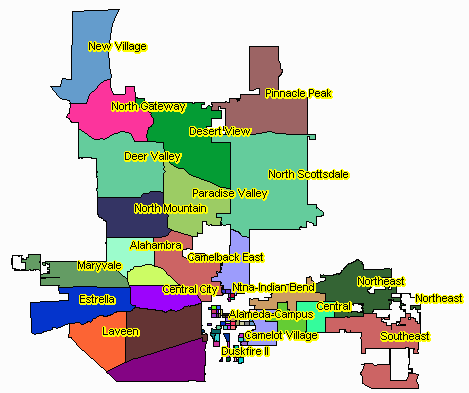
Zillow has released shapefile boundaries describing neighborhoods in 150 major cities, grouped by state. Available under the Creative Commons license, they’re free for general use in any application as long as you attribute Zillow as the source. Coverage is still limited; in Arizona, only the two largest urban areas (Phoenix and Tucson) are included. But Zillow encourages submissions of neighborhood boundaries for cities not currently covered in their database, and will work on including those submissions after they’re verified. Projection is geographic (latitude/longitude), NAD83.

phoenix neighborhoods

Phoenix neighborhoods (created with the TatukGIS Viewer)

Via the James Fee GIS Blog.


A Simple DBF Editor

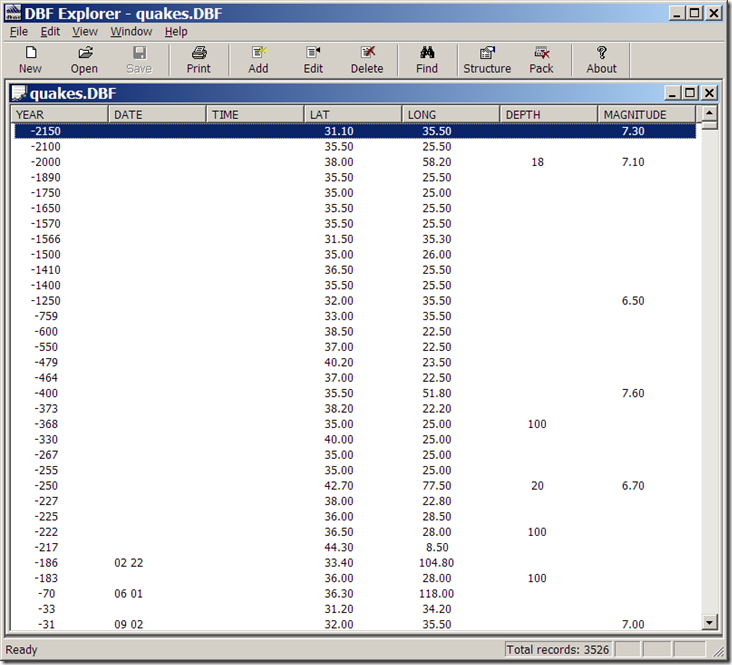
I’ve posted before about using OpenOffice’s Calc spreadsheet for use as a DBF editor (and why it doesn’t have the serious problem Excel 2003 has with editing DBF files). But Calc isn’t really designed to be a DBF file editor per se, which means that if, for example, you want to add new data columns to your shapefile’s DBF file, you’ll need to know a bit about column data formatting, and that’s kind of a pain. For basic DBF file editing, I find DBF Explorer easier to use, since it’s designed specifically and exclusively to work with DBF files. Adding and defining data column types is easy using the “Structure” button, as is modifying the values of individual data elements and searching for specific text elements (hint: use the Tab key to move to the data record you want to change). You can also delete full individual records, but that can easily screw up the relationship between the shape data and the associated DBF records, and should be done with care. Also be aware that the DBF file is updated continuously as you modify records, so if you want to keep the original unchanged, you should edit a copy of the original file.

Not a particularly fancy interface:

DBF Explorer

but it doesn’t need to be. And the help file tells you everything you need to know.

Addendum (1/29/08): Dave McGraw points out that if you use the “Structure” button to modify some of the parameters of an existing field, like the name, it will wipe out the data in that field, which is a bad thing; it will give you a warning first, though, that you may lose some data after such a modification. Other parameters, like field type and width, seem to be modifiable without nuking the original data; adding or deleting a field does not seem to cause any problems, either. Another argument in favor of editing a copy of the original, rather than the original itself.

The author also has some other free utilities on his site, including FTP/Web/Mail server software, and a simple install file builder.


Fixing "Broken" Shapefiles

Ever get an error message when opening a shapefile like, “Number of shapes does not match number of table records”? Yeah, well, neither have I. But if you ever do have such a problem, the Shape Checker utility might be able to rescue at least some, if not most of your data. It can re-generate a new .shx index file for your .shp file, add or delete lines to the .dbf file to match the number of shapes, and if your DBF file is totally hosed, can recreate a blank DBF for that shapefile. Not great, since you’ll lose whatever data you had in that datafile, but better than losing everything.

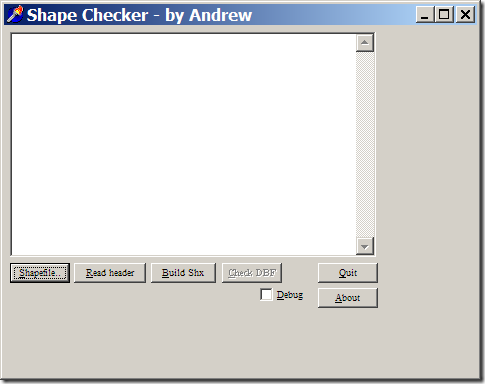
As the web page suggests, it’s probably best to do this on a copy of the corrupted file, rather than the original itself. Run the program:

shapechecker

Select the problematic .shp file with the left button, then recreate the .shx file with the “Build Shx” button. You can then check the DBF file for the proper number of records with the Check DBF button; if there are problems, or if the DBF file is missing, you’ll be given the option to fix it or create a blank one from scratch. I’ve tried it on point, line and polygon shapefiles I screwed up deliberately, and it worked as advertised. The program hasn’t been updated since 1999, but the author also provides the Delphi source code if you want to modify it yourself.


Converting Digital Elevation Models To Shapefile/DXF Contours

There are any number of ways to convert a digital elevation model (DEM) to shapefile vector contour lines, but most of the ones I’ve come across have had limitations of one sort or another. The best solution I’ve come across is the free program dem2topo; while it only supports a limited number of DEM formats, it has more flexibility in units and simplification than other methods, and the graphical interface is easy to use (unlike some command-line programs).

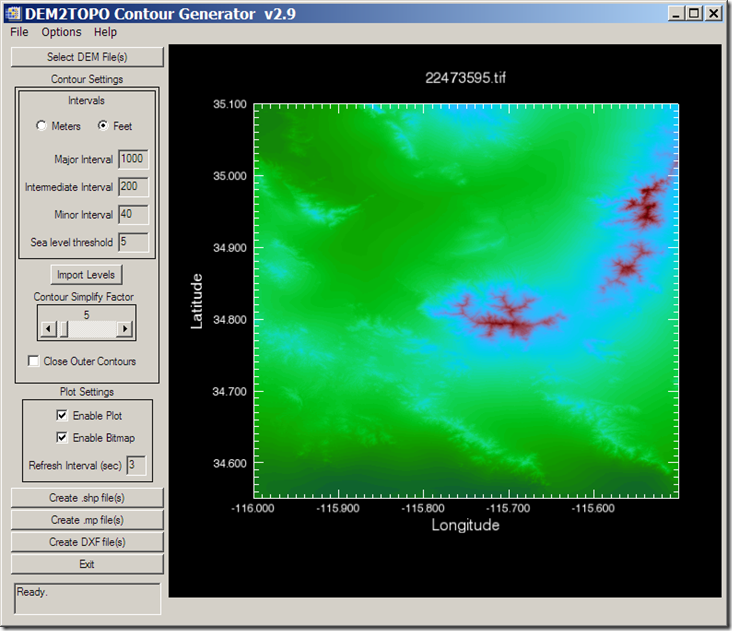
The program is written in IDL, an interpreted language, and you’ll have to download and install the IDL Virtual Machine first (free, but a 100 MB download, requires registration, and you may get a sales call). DEM formats supported are Canadian Digital Elevation Data (CDED), and nominally the GeoTiff format, but I’ve had some GeoTiff DEM rejected by the program for unknown reasons. NED GeoTiffs from the USGS Seamless Server work fine, and if you can open your DEM in the program 3DEM (which supports a number of DEM formats) and export it as a GeoTiff DEM from there, those should work with dem2topo as well. Once you’ve loaded your DEM into dem2topo:

11-24-2007-8.02.08 PM11-24-2007-8.03.14 PM12-15-2007-11.09.23 PM

you can choose contour intervals (meters or feet, regardless of what the original units were), the simplification factor (larger simplifies more, but at the cost of detail), whether to close the outer contours, and whether to display the contours as they’re being processed (for faster processing speed, leave these unchecked. More on these options is available in the helpfile.

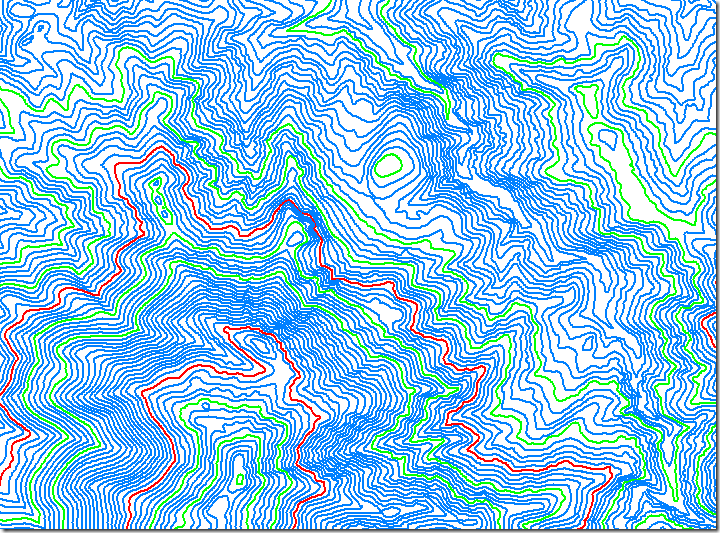
Once configured, you have the option of converting the DEM into either shapefile contours, DXF contours, or into the .mp format used in creating maps for Garmin GPS units. For the shapefile format, major/intermediate/minor contour intervals are defined in the DBF file by the same hex code used in the .mp format: 0x0020 for minor contours, 0x0021 for intermediate, and 0x0022 for major . Processing speed will depend on the size of the DEM and level of detail, but don’t expect instant results. Converting the above 10-meter DEM to shapefile contours took well over an hour, albeit on my fairly pokey 2.4 GHz system; more memory also speeds up the process. But the results are worth the time; here’s a blow-up of the shapefile contour map of a very small section of this DEM:

contours

A simple process, and if you run into problems, the help file is well done.


A Good Introduction To Geospatial Data Analysis

Jeff at Vector One asks, “Why is there so little geospatial analysis?” I can think of any number of possible reasons:

  • People aren’t aware of it, or what it can do; for some people, geographic analysis ends when you put a point on a map
  • It can involve advanced analytical and statistical techniques that are challenging to learn
  • Commercial software can be expensive, and difficult to learn; ArcGIS’s Spatial Analyst and Geostatistical Analyst extensions list at $2500 apiece.

While there are many freeware programs available for geospatial data analysis (I’ll post on some of them on the future), there’s one program I’d select as the best choice to address the above issues: GeoDA, spearheaded by Luc Anselin at Arizona State University. And that’s as much for its teaching materials and documentation as it is for its capabilities. There’s a 100+-page user’s guide, a 200+-page workbook that’s a mini-course on analyzing spatial data, multiple publications, dozens of sample datasets, even a QuickTime movie. It’s by no means complete; for example, there’s no geostatistical interpolation capabilities in this program (e.g. variograms, Kriging). But just by itself, it’s a great introduction to many techniques for analyzing spatial data correlation. It’s only for Windows now, but they’re working on a cross-platform open source port for Windows, Linux and Mac; no word on when that might become available.


Recoloring Or Modifying GeoTiff Images

I’ve been posting about various ways to extract and embed geographic metadata from GeoTiffs, image files that have coordinate information in them that can be used by GIS software to georeference the image, i.e. assigning a geographic location to each pixel. Here’s an example of how extracting geographic metadata (like a worldfile) from a GeoTiff might be useful.

USGS 1:24K topo maps are freely available on the Internet from a variety of locations, like LibreMap or the USGS Seamless Server. Maps of forested areas often include green shading to indicate the presence of tree vegetation, but this coloration has always struck me as inaccurate, superfluous, and interfering with reading more critical map features. The US Forest Service apparently feels the same way, as they have removed that green coloring from their updated versions of these topo maps. But if you have a digital topo map with this coloration, it’s possible to get rid of it without losing the geographic metadata.

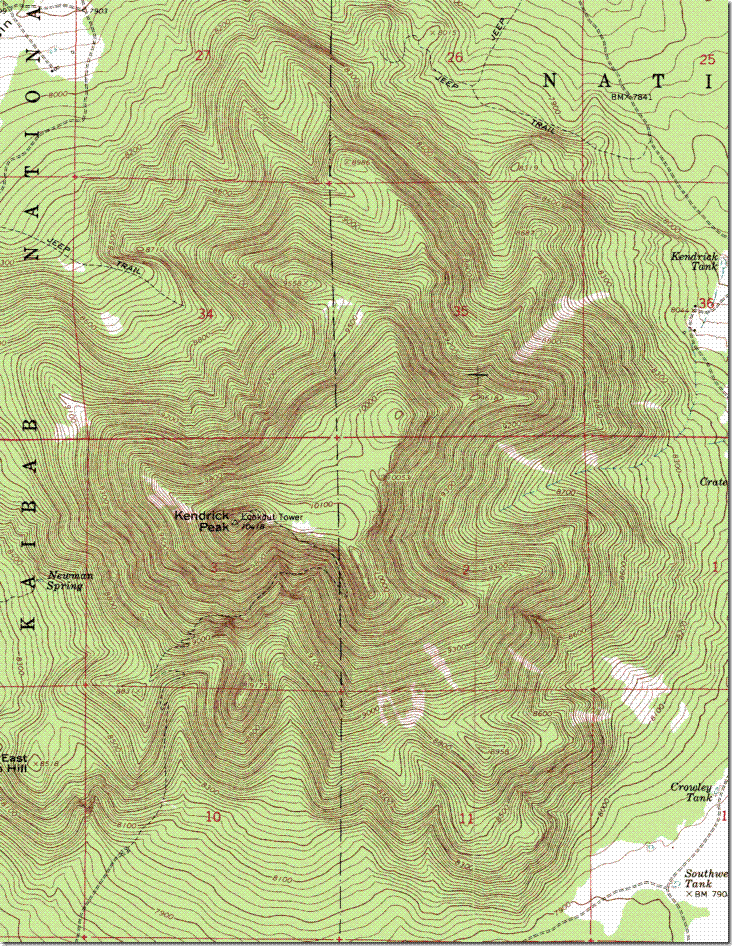
I’ll start with the USGS 1:24K topo map of Kendrick Peak in Arizona, available here among other locations. This map has a large amount of green shading on it, which was arbitrary to begin with, and is now unfortunately out-of-date because of a serious fire a few years ago:
original

If I open this map in virtually any editor and save it, the geographic metadata will be lost. So the first step is to extract and save the full metadata using the libgeoGUI along with the libgeotiff utilities. Next, I’ll open it up in Photoshop Elements. Yes, Photoshop isn’t a “free geography tool”, but Photoshop Elements is a lot cheaper than the full version while still containing much of its functionality. If you look around on eBay or Google, you can often find a brand-new copy of an older version of Photoshop Elements very cheaply, $20-30. And it’s a useful tool to have for general image manipulation, including the purpose I’ll be describing here.

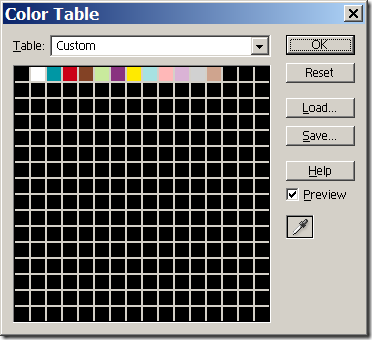
To keep the filesize down, USGS GeoTiff topo maps are often saved in “indexed color” mode, where there’s a limited palette of colors assigned to each byte of pixel information. If it is indexed, Photoshop will show “(Index)” at the top of the image window; if you go to Image => Mode, “Indexed Color” will be checked as well. As long as we’re in Image=>, I’ll select “Color Table”:
colortable

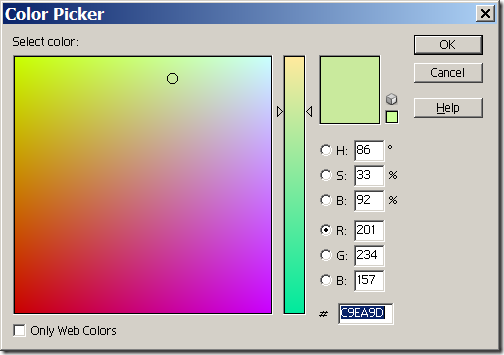
This shows the full palette of colors used in this topo map, only 13 in this case. If I double-click on the green, the color I want to get rid of, the color picker comes up:
colorpicker

This lets me modify that index color to whatever I want; in this case, setting R, G and B to 255 will turn everything colored green in the original to white. If I now save the newly-modified image as a TIF with a different name, the map area from above, with lots of green, will now look like this:
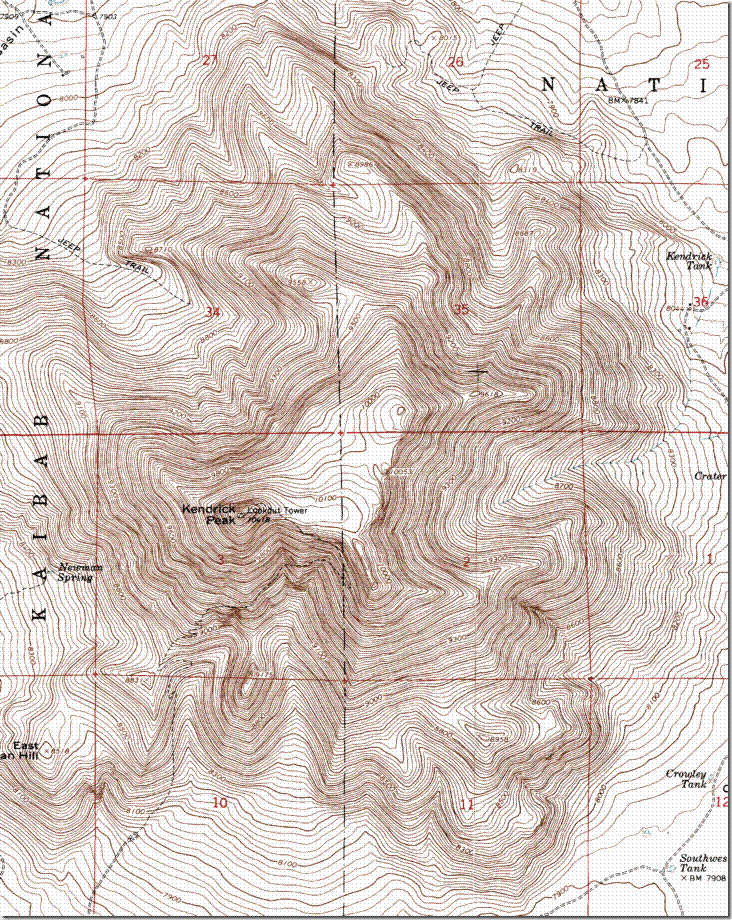
mod

All the green has been transformed to white, while all the other colors were unaffected. One could have at the same time modified any of the other colors to white to make them disappear, or modified them to a different shade. If you create a modified color scheme you plan to use again, you can save that palette using the “Save” button in the Color Table window.

For images with standard RGB color instead of indexed color, you can use the “Replace Color” function (Enhance => Adjust Color => Replace Color) to perform a similar function.

Opening and saving the map image in Photoshop removes the geographic metadata, but as long as you don’t resize the image, you can use the metadata of the original image to convert this modified image into a GeoTiff. In libgeoGUI, specify the .gtf metadata file created in the first step as the input worldfile, specify the modified Tiff image with the green removed as the input Tiff, and enter a name for the output GeoTiff. Click the “Embed” button, and you now have a GeoTiff with the same geographic metadata as the original, but modified to remove the green. And this approach will work not just with color modifications; as long as you don’t resize the image, you can modify it any way you want, drawing lines and shapes, putting other images on top of it, etc., and then embed the metadata into the saved image when you’re done.