blankblank blank


Archive for the 'GIS' Category

Great Introductory GIS Tutorial And Screencast Series

The Department of Land Affairs, Eastern Cape, South Africa has created a terrific tutorial series on GIS called “introducing GIS”. PDF worksheets and video screencasts cover topics like vector and raster data, attributes, topology, coordinate systems, map production and spatial analysis in a clear and easy-to-follow fashion. The worksheets are freely distributable under the terms of the GNU Free Documentation License, while the screencasts are released under Creative Commons. While you can watch the screencasts in your browser, they are a bit small – I would recommend downloading them so that you can open them in a stand-alone video viewer that you can resize to larger dimensions for easier viewing. Right-click on the video link and choose “Save as”. For that matter, if you download all the screencasts and worksheets and put them on a DVD, you have a great educational resource to share and distribute.

The site has a custom Windows installer of the open source GIS Quantum GIS, including the data presented in the tutorials. However, Quantum GIS also runs on Mac and Linux, and they offer the tutorial data as a separate download; find the link at the bottom of the web page. For that matter, the Quantum GIS Windows installer they have is version 1.0.2, while the most recent stable release version for Windows is 1.2.0-1. So even if you have Windows, you may want to download the data separately, and install the most recent version of Quantum GIS using the osgeo4w installer.


The Big List Of Image Registration / Georeferencing Software

If you want to use a raster map image in a GIS program, it needs to be calibrated so that the software will know the geographic position of every pixel in the image. This calibration data can be embedded in the file, as in GeoTiffs and MRSID files, or external as in worldfiles. If you have a raster map image which doesn’t include this calibration data, you’ll need to create it yourself; this process is called  “image registration” or georeferencing. There’s a number of free programs that can perform this function, and I’ve put together a list of some of them below; if you know of others, please let me know and I’ll add them. And if I’ve included a program that doesn’t do georeferencing (very possible, since I haven’t used all of them), let me know that as well and I’ll drop it from the list.

One thing to keep in mind: some of the programs only work correctly if the map image is already in a specific map projection like UTM or geographic, and you use the same coordinate system to georeference the image. As a general practice, it’s always best to use the same coordinate system the map was created in to georeference it. For example, if you have a map in the UTM projection, and use geographic coordinates to georeference it, the resulting calibration is unlikely to be accurate over the entire map (unless you’re at the equator). Some programs let you warp the map image to get it to match the coordinate system, a process known as “rubber-sheeting”; this is especially useful for those maps that aren’t drawn accurately, like old or hand-drawn maps, or maps created in no-longer-used coordinate systems.

BTW, I haven’t used most of these for georeferencing – GlobalMapper is my program of choice for this function. It’s not free, or even cheap, but it works great for georeferencing, including rubber sheeting. For beginners, I’d suggest looking at MapWindow, qGIS or MicroDEM first before going on to the more advanced software.

CHIPS For Windows

DIVA GIS

e-Foto

GRASS

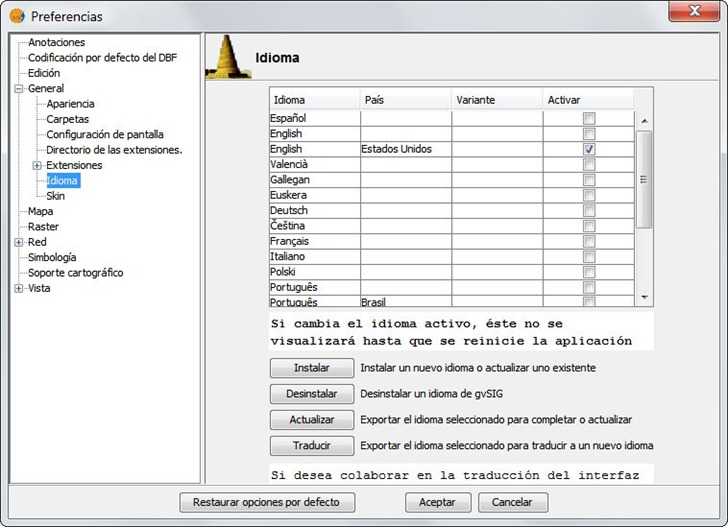
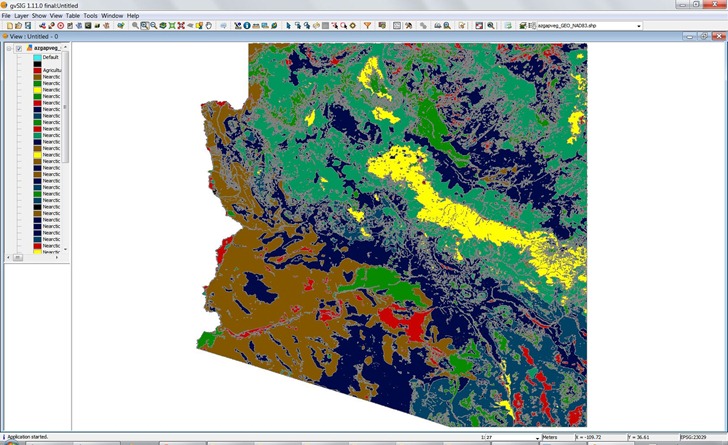
gvSIG

HyperCube

ILWIS

Image Georeferencer

LandSerf

MapWindow

MicroDEM

MicroMSI (link may be dead)

Opticks

OSSIM

qGIS

QLandKarte

RasterStretch

Regeemy

SAGA

SavGIS

Spring GIS

TransGen

xBit

Online map rectification tools

MapWarper

Metacarta Map Rectifier

NYPL Map Rectifier

Old Maps Online Georeferencer (in development)


Free Sampling Design Tool Extension For ArcGIS

The Sampling Design Tool is another free ArcGIS extension from NOAA’s Center for Coastal Monitoring and Assessment, the source of the Habitat Digitizer Extension I posted about last week.  Key features (from the PDF manual):

  • Spatial sampling –sampling and incorporation of inherently spatial layers (e.g.
    benthic habitat maps, administrative boundaries), and evaluation of spatial
    issues (e.g. protected area effectiveness)
  • Scalable data requirements – data requirements for sample selection can be
    as simple as a polygon defining the area to be surveyed to using existing
    sample data and a stratified sample frame for optimally allocating samples
  • Random selection -eliminates sampling biases and corresponding criticisms
    encountered when samples are selected non-randomly
  • Multiple sampling designs – simple, stratified, and two-stage sampling
    designs
  • Sample unit-based sampling – points or polygons are selected from a sample
    frame
  • Area-based sampling – random points are generated within a polygon
  • Analysis – previously collected data can be used to compute sample size
    requirements or efficiently allocate samples among strata
  • Computations –mean, standard error, confidence intervals for sample data
    and inferences of population parameters with known certainty
  • Output – geographic positions in output simplifies migration to global
    positioning systems, and sample size estimates and sample statistics can be
    exported to text files for record keeping

Example of random sampling (from the manual):

randomsampling


Free Vector Country Borders, Administrative Boundaries, And Soon More

Wish I’d known about this site when I was hunting for a high-res border outline for the province of Umbria in Italy. The Global Administrative Boundaries website offers free vector GIS data for country borders and administrative areas within those borders. Data is available in geographic coordinates (lat/long), WGS84 datum, in multiple formats:

Coverage is worldwide for level 1 data (country borders), but diminishes as you go down as far as level 4 (sub-administrative units), though for the latter there are some countries for which such a data level isn’t relevant. You can see maps of current level coverage here, and missing data will likely be added in the future. Data is licensed under Creative Commons for the US; other unspecified terms may apply for the rest of the world. Here’s the Italian province of Umbria, with the best free data I could initially find plotted in purple, and the high-res GADM data in blue:

umbria

Via Slashgeo.

Just around the corner, scheduled for unveiling at the October 2009 NACIS conference, is Natural Earth Vector. While there’s some overlap with GADM at the upper boundary levels, Natural Earth Vector may not include some of the finer administrative boundaries available in the GADM . But it will have a wide variety of other geographic features not available in GADM in vector format at multiple zoom levels (list from the web post):

  • Continents (North America, Europe, Asia, etc)
  • Cultural regions (South Asia, West Africa, etc)
  • Countries (US, Canada, Mexico, etc)
  • Country sub-divisions (for the US, states, semi-independent territories, dependencies, associations)
  • Disputed territories (like Kashmir, Northern Cyprus)
  • 1st order admins (states, provs)
  • Bathymetry
  • Lakes
  • Lake Center Lines
  • Rivers (including attributes that allow easy “tapering” of drains)
  • Islands
  • Glaciers
  • Populated places (urban boundaries, not city points)
  • Cities (point locations)
  • Physical features like peaks, ranges, valleys, plains

I’ll try to post again when it’s officially released.

Via Kelso’s Corner.


Portable GIS 2.0 Released

A little more than a year ago, I posted about the release of Portable GIS 1.0, aka “GIS on a stick”, a suite of portable GIS programs that could be installed on a thumb drive and run from any computer. Jo Cook of Oxford Archaeology has just released version 2.0, which offers more features, including updated versions of software available on version 1.0:

  • gvSIG (1.1.2)
  • Quantum GIS (1.02)
  • Grass (accessed through Quantum GIS)
  • PostgreSQL (8.4.01)
  • PostGIS (1.4.0)
  • Xampplite: PHP, MySQL, Apache (1.6.2)
  • Geoserver (1.7.6)
  • FWTools: ogr, gdal, python, mapserver, openEV (2.4.2)

Plus a bunch of new apps for 2.0:

  • Tilecache (2.10)
  • Featureserver (1.12)
  • PgAdmin III (1.10)
  • OpenLayers (2.8)
  • uDig (1.1.1)
  • SqlSync (cross-platform database synchronization)
  • Shp2Text (converts shapefiles into csv, with coordinate columns)
  • Ogr2Gui (GUI for OGR toolkit)
  • ShapeChecker (Checks and fixes corrupt shape files)
  • GeoMetadataExtractor (extracts metadata from georeferenced images)
  • libgeoGUI (extracts and embeds worldfiles and metadata to/from GeoTiffs)

Was surprised to see the last two, as they’re a couple of my own modest utilities:

Program comes with a self-contained installer that lets you select the drive you want to install the package on. This would normally be a thumb drive, but you could also install it on your own root drive or an external hard drive if you like for a quick and easy set of hard-drive-based GIS apps. If installed on a hard drive, I’d recommend deleting the autorun.inf file, as that will change the drive icon to that of the PortableGIS control panel app. You’ll find the latter in the root directory of the drive you installed it on:

PortableGISCP

I found configuring the original system variables a bit of a pain with version 1.0, and simply couldn’t get some apps to work correctly; version 2.0 makes it a lot easier by just clicking the Setup Portable GIS button above and following the directions in the command window that pops up. You have to do this every time you run Portable GIS with a different drive letter, which means only once if you install it on a hard drive. The other tabs let you select the desktop apps to run:

PGModules

And start and stop server apps required by some of the desktop apps:

PGWeb

As installed, the Portable GIS suite takes up about 1.2 GB of space, which means it won’t fit on a 1 GB thumb drive by itself as version 1.0 would with a bit of extra effort; but two GB thumb drives are pretty cheap these days.

A final tip: as installed, the Portable GIS menu will come up automatically whenever you plug the thumb drive into a computer that has AutoPlay enabled. If you don’t want this (like me), just delete the autorun.inf file on the thumb drive.

Portable GIS 2.0 is free, and freely distributable; however, if you want a custom enterprise-ready version of this suite, OA Digital offers this as a paid service.


Habitat Digitizer Extension For ArcGIS

Stumbled across this the other day, and while I don’t currently have the need for it (or a copy of ArcGIS to try it out on), it sounds useful enough to post about. NOAA’s Center for Coastal Monitoring and Assessment offers a free extension for ArcGIS called the Habitat Digitizer:

The Habitat Digitizer Extension is designed to use a hierarchical classification scheme to delineate habitats by visually interpreting georeferenced images such as aerial photographs, satellite images, and side scan sonar. The extension allows users to create custom classification schemes and rapidly delineate and attribute polygons, lines, and points using simple menus. The extension allows new hierarchical classification schemes to be easily created, modified, and saved for use on future mapping projects. There are several advantages to using classification schemes with a hierarchical structure including: the detail of habitat categories can be expanded or collapsed to suit user needs, the thematic accuracy of each category/hierarchical level can be determined, and additional categories can be easily added or deleted at any level of the scheme to suit user needs.

Habitat_Digitizer

While written for habitat digitization, it could prove useful for any digitization projects with extensive classification requirements. Versions are available for ArcView 3.0, ArcGIS 9.0, and ArcGIS 9.2 from the product page; download files include a PDF manual.


GUI For Generic Mapping Tools (GMT) Plus Added Geophysics Tools

The Generic Mapping Tools (GMT) is a collection of 60-odd command line tools for manipulating gridded and vector data, and creating high-quality output in EPS (Encapsulated PostScript) format. Working with it in command-line format isn’t the most user-friendly experience. Mirone offers a far-more accessible GUI interface to GMT’s features, and adds a few geophysics-related capabilities of its own:

  • Multibeam mission planning
  • Elastic deformation studies
  • Tsunami propagation modeling
  • Earth magnetic field computations and magnetic Parker inversions
  • Euler rotations and poles computations
  • Plate tectonic reconstructions
  • Seismicity and focal mechanism plotting

If you have MatLab installed on your system, there are source code versions available for Windows, Mac and Linux. If not, there’s a stand-alone executable for Windows systems that runs slower than the MatLab version.

Other graphical front-ends for parts of GMT include iGMT (requires Tcl/Tck), Win4GMT, and SeaTree.


FalconView Released As Open Source

FalconView is the Windows mapping part of the Air Force’s Portable Flight Planning Software (PFPS), under development by Georgia Tech since 1994; see this link for an interesting history of the politics of software development in the military. This mapping part, stripped of all mission planning components, has recently been OK’ed by the Air Force for release by as Open Source software. The program has an strong list of features, including:

  • Support for many raster/vector map formats
    • GeoTIFF
    • TIROS TopoBath
    • Digital Terrain Elevation Data (DTED) / LIDAR
    • Vector Product Format (VPF)
    • CADRG
    • MrSID
    • GeoPDF
    • WMS
    • ArcMap .mxd (requires that ArcGIS be installed)
    • Shapefiles
    • KML/KMZ (including network links)
  • Moving map supported if you have a connected GPS
  • Generate and overlay contour lines from elevation data
  • Skyview mode lets you fly through terrain with overlays by keyboard/joystick control

skyview

But this open source version is labeled as alpha software, and it definitely is:

  • It wouldn’t install successfully on two separate Vista systems, claiming problems with MapServer initialization; was finally able to get it installed on a Windows XP system
  • It’s a huge download (about 500 MB), partially because it also contains critical supporting applications like DotNetFX and Windows SQL Server that must be installed in order to run the program
  • Some operations can run slowly on older systems
  • Occasional crashes on my system

A bigger problem is that it’s a complicated program with lots of features and a non-intuitive interface. Documentation is currently limited to the help file, which is clearly intended for someone who’s already familiar with the program; no manuals or other documentation is currently available. I struggled for several hours trying to figure out  the simplest task possible, add a raster image to the map and view it, before finally giving up. I may not be the sharpest tool in the shed, but I’m not the dullest, either.

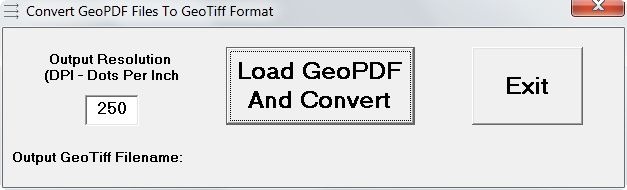
FalconView also installs GeoRect, a program to georectify imagery and export it in GeoTiff format. I had hopes that this could be used to convert GeoPDF files into GeoTiff format, since it does open GeoPDF files. But I was defeated on this score as well; while the help file is substantially more helpful than that for FalconView, I was unsuccessful even following their step-by-step instructions. And it appeared as though it would only convert a beta USGS quad in GeoPDF format to a GeoTiff far smaller than would be necessary for full resolution.

I welcome comments from anyone who’s used this program before, and can offer pointers, and I’ll keep an eye on it for the future. But until there’s substantially better documentation available, I’m not going to spend a lot of time struggling my way through this software.

HT to Thomas Larsen.