blankblank blank


Archive Page 33 of 106


Identify Garmin Map Tiles And The Area They Cover

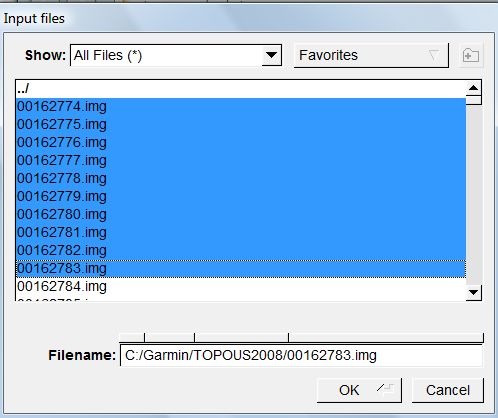
If you load a Garmin mapset into MapSource, individual tiles are identified by a geographically-related name, and they area they cover plotted on a map. But the tile files themselves (*.img) have cryptic 8-digit filenames that don’t correlate with their name or the area they cover. But there’s a simple way to look at a file, or multiple files, and determine both their name and the geographic area they cover using the freeware utility GMapTool.  Start up the program, click on the Add Files button, and go to the directory containing the .img files, here from the Garmin Topo 2008 mapset:

selectfiles

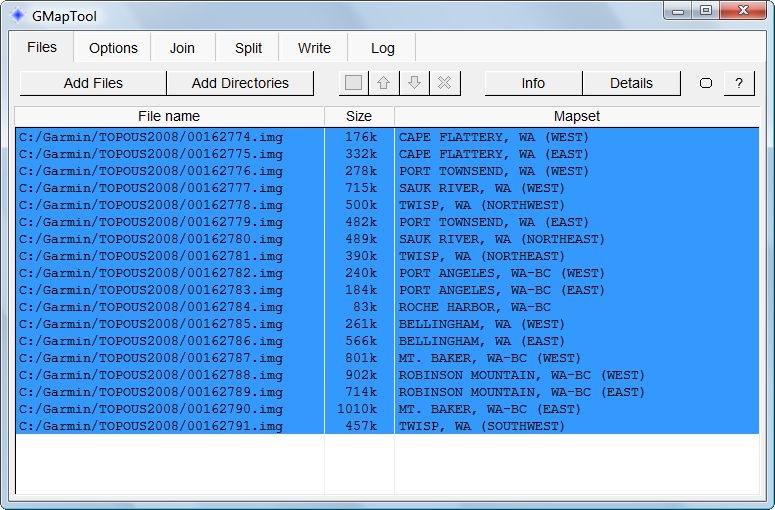
Select one or more files, click OK, and you’ll get a listing of the filenames, their sizes, and their names in the Garmin mapset:

listing

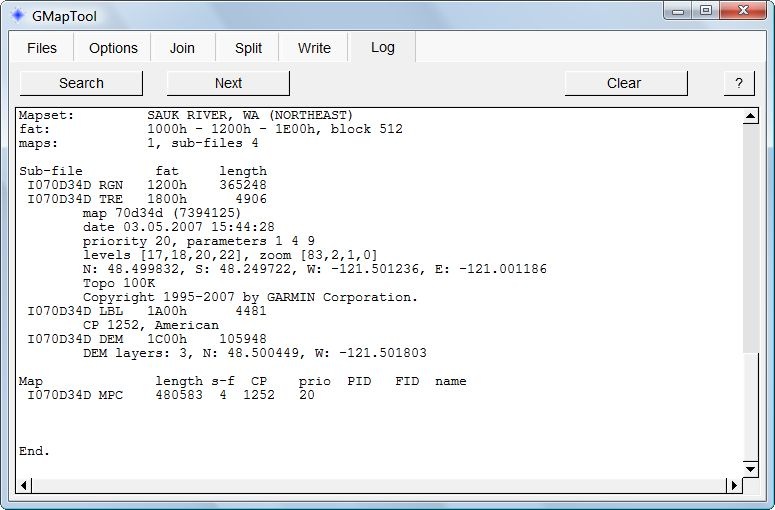
To determine the geographic area covered by a map tile, click on the tile, then press the Details button:

details

The geographic extents of the tile in latitude and longitude are buried in the middle of this listing:

N: 48.499832, S: 48.249722, W: -121.501236, E: -121.001186

Useful if you want to create a mapset that’s a subset of a much larger mapset, and want to figure out which tiles you need.


A PC GPS Application That Lets You Use Garmin Vector Maps For Live Navigation (OSM, Google And Bing Maps, Too)

I’ve used Garmin’s MapSource long enough to remember when you could display a live GPS position in it on a standard Garmin vector map. A few years ago, Garmin removed GPS functionality from MapSource, and put it into a separate free application called nRoute. nRoute could display your live GPS position on a Garmin vector map, do routing, and more. But just a few months ago, Garmin pulled all links to nRoute, and now sells an application that does basically the same thing. Edit: In comments, Thomas Larsen offers this still-active Garmin download link; grab it while you can.

But if you have an NMEA-capable GPS receiver, like a Bluetooth GPS module, and a Bluetooth-enabled Windows PC, there’s a full-featured application that will let you plot your live GPS position on standard Garmin vector maps: gpsvp. Using gpsvp, you can:

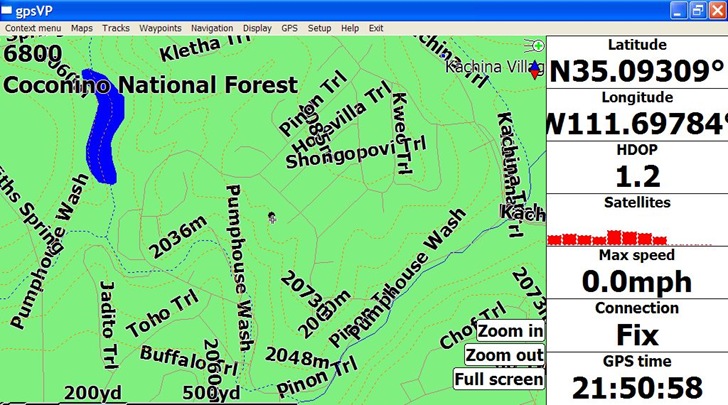
  • Load Garmin .img files, and display them on your PC with your current position plotted on top:

gpsvpgarm

This is a free Garmin Arizona topo map, available at the GPS File Depot along with free maps for most of the rest of the US; a search for “Garmin maps” on this website will bring up sources for free maps for much of the rest of the world.

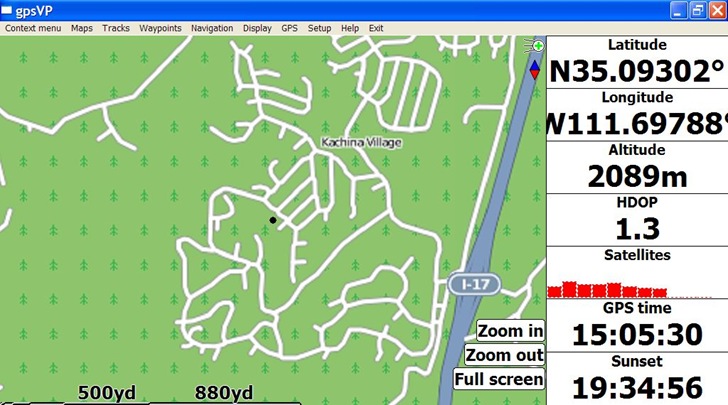
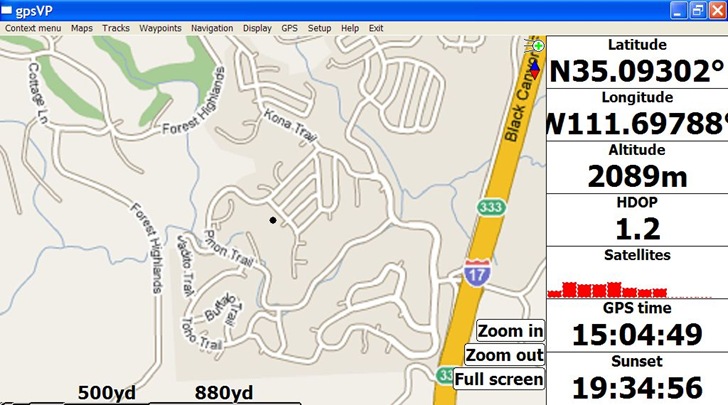
  • If you have an Internet connection, you can download raster map tiles for a location from Google Maps, Bing Maps, and OSM (including satellite, terrain and hybrid views):

gpsvposm

OSM Map

gpsvpgoogle

Google Map

  • Display position, GPS status, time, altitude and other data in the monitor bar at left; you can customize this to show whatever you want
  • You can also drop the map display, and only display parameters in a full screen monitor bar
  • Open, create and export waypoint and track files in GPX and PLT formats
  • The website documentation seems to suggest that you can convert your own raster imagery, or WMS imagery, into a format compatible with this program, but I’ll be danged if I can figure it out.

Documentation overall is a bit weak, so you’ll have to figure it out by experimentation; but, most of the menu items are fairly easy to understand.

Here’s a few tips:

  • To download and view raster maps, you have to turn off the Garmin maps (from the menu: Maps => Garmin Maps, and uncheck the “Show Garmin maps” item), and also set a folder to use as a cache folder for downloaded imagery (Maps => Raster maps => Set raster cache folder). Then set the Raster map type you want (Maps => Raster maps => Raster map type), and download the maps (next menu item down from the previous one). It looks as though map tiles can be cached for use offline, but I’m not sure about how that works.
  • You select the Garmin .img maps to use, either by individual .img map file (Maps => Garmin maps => Open map), or all the maps in a folder (Maps => Garmin maps => Open map folder). Be careful with the latter option if you have a large number of maps, as this can crash the program. For example, I could load the entire folder of Arizona topo maps into gpsvp at once, about 150 MB of maps; trying to load all of the US Topo 2008 Garmin maps in froze the application.

Unfortunately, all Gamin .img map files are identified by an eight-digit number that offers no real clue as to what area is covered by the map. But there is a way to find out what area is covered by a specific numbered map file, and its name as well, and I’ll cover that in a future post.

One final irony: the program only works with NMEA GPS data, and if you own a Garmin unit that doesn’t output in that format, you can’t use this program directly; you’ll need to buy a copy of GPSGate, which can convert the proprietary Garmin protocols into an NMEA-compatible data stream.

gpsvp is an open source project, with access to the source code available anonymously via svn.


Followup On Comments From GPS Accuracy Posts

Got some good comments from several of the recent posts on GPS accuracy (one, two), comparing GPS receivers from Garmin and Holux, and thought I’d feature them here with additional comments from me.

Peter Guth (author of the freeware GIS MicroDEM) notes that measurements by his students of a NOAA tidal marker showed that its measured position was off from the specified position by a distance comparable to what I saw with the Holux GPS receiver, suggesting that perhaps the NGS benchmark position I had was off by a comparable amount. His marker has been removed during pier reconstruction and then replaced, so it wasn’t clear whether the position he had was the current position, or possibly an older one before it had been moved and replaced. My NGS benchmark showed no signs of being moved, and sits on a hill in a National Forest where it’s unlikely there was any reason to ever move it; that doesn’t mean the position I had for it wasn’t wrong.

Peter also asked about quantization of positions, i.e. what was the minimum difference in latitude or longitude for the two GPS receivers I looked at. His older Garmin units only give positions to the nearest tenth of a minute, roughly a meter or so. For both the Garmin and Holux receivers, the value was the same: 2E-06 degrees in latitude and longitude was the minimum difference, corresponding to roughly 0.2 meters N/S, 0.16 meters E/W. So the difference in measured positions is unlikely to be due to differences in positional resolution between the two units. With display set to decimal degrees, my Garmin only shows five decimal places, corresponding to an accuracy of about 2 meters or so, but downloaded data is available with more significant figures. Didn’t look at the NMEA numbers for the Garmin, but for download waypoints, accuracy is given to 8 decimal places, or 2mm accuracy; this is not a degree of precision that the Garmin, or most GPS units, can determine in real-time.

He also noted he had also seen a skewed distribution of positions in some Garmin units, similar to the diagram in this post.

PMarc suggests that I measure the benchmark position with a Differential GPS, to see whether the measured and given positions match. Don’t have access to that, but might be able to borrow a GPS unit in the future with 0.3 cm accuracy after post-processing, and I’ll update these posts if I get more data. He also asks about the stability of the benchmark, and when it was last surveyed. It’s very stable, sitting on top of a hill with a thin layer of soil on top of solid basalt and limestone. There is a fault nearby, but it hasn’t been active during recorded history, and certainly not since the benchmark was installed (1959). The last surveyed position was done in 1992 using “standard geodetic survey methods”; this is a heavily-wooded area, so establishing clear lines of sight for such a survey might have been difficult. Both receivers were pumping out raw NMEA data streams, so there was no screening of positions by either unit based on DOP.

Terry notes that in the position plots shown in the first post, the Garmin values appear to be even distributed around the center point, while the Holux points might have a directional skew. Tough to say from those posts, since the Holux points are very tightly plotted, and you’d need to expand the scale to know for sure (which VisualGPS doesn’t let you do). Follow up plots for both Garmin and Holux units using SA Watch, which Terry hadn’t seen at the time of his comment, seem to show a pretty strong NE to SW axis for Garmin points, with a less-pronounced directionality for Holux points.

Nick Hopton notes that DNRGarmin uses the Proj.4 library for re-projecting coordinates, and that might be introducing errors. Good point, and I’ll try to find a more accurate coordinate conversion program; finding a free one (or even a paid one) that doesn’t use Proj.4 isn’t easy.

Not sure what the moral of all this is; perhaps that if you’re going to use a GPS receiver to measure field positions, using tools like VisualGPS,  DNRGarmin and SA Watch to evalute its accuracy, repeatability, and variability might be a good idea.


One Final Look At GPS Positional Accuracy With SA Watch

In previous posts (one, two), I’ve compared GPS positional accuracy for a Garmin 60Cx handheld GPS unit and a Holux M-1000 Bluetooth unit and seem to have found that:

– The Garmin’s average position seem to be better, but the distribution in measured positions is large

– The Holux’s positions have a much tighter distribution, but the average is further off from the true position than the Garmin

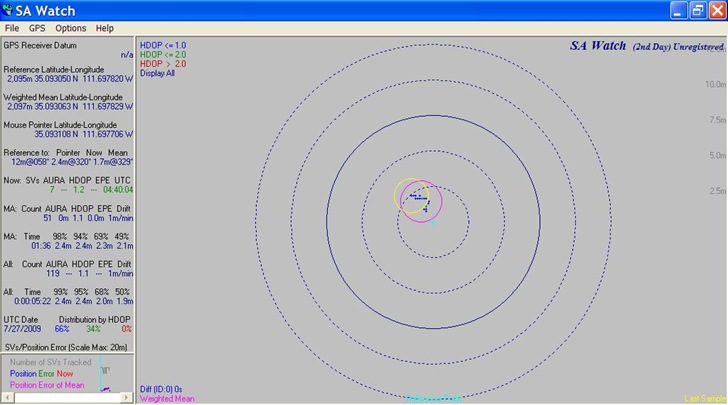
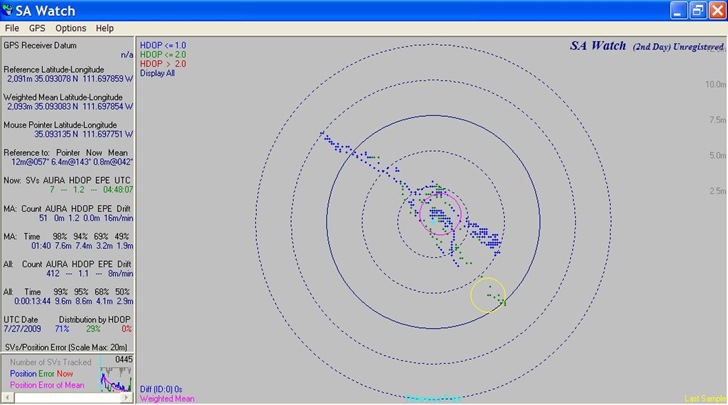
Just for the heck of it, I took a look at results from both receivers with one more program that’s been around a while: SA Watch (shareware, $20; 30-day demo evaluation version available). SA stands for Selective Availability, the pre-2000 government policy of degrading GPS signal accuracy to non-military GPS receivers. The idea was that you could run SA Watch for a prolonged period of time, hours if not days, and the effects of SA would get cancelled out leaving you with a reasonably accurate position. SA is now turned off, but SA can still be used to evaluate the stability of a GPS-measured position, and calculate an average. While VisualGPS gives you an arithmetic and least-squares mean, SA Watch lets you calculate a mean weighted by the Dilution Of Precision, a measure of the amount of error in the position that’s due to GPS satellite geometry.

Here’s a plot of 119 positions measured by the Holux M-1000 GPS unit; the position grouping is pretty tight:

holuxsa

And a plot of  412 positions measured over the same time period by the Garmin:

garminsa

As with previous measurements, the distribution of Garmin positions is far larger than that of the Holux. Based on all this, I’d have to say that a single position from the Holux is likely to be more accurate than a single measurement from a Garmin, even if the Garmin’s average value is better. And for my applications, that’s what really matters; you may have a different requirement. If I get the time, I may do a similar analysis in the future from a different location, and see if the results are comparable.


Determining GPS Circular Error Of Probability (CEP)

In a previous post, I used the program VisualGPS to compare the positional accuracy of a Garmin 60Cx GPS receiver with a Holux M-1000 Bluetooth receiver, measured at a National Geodetic Survey marker of known position. The average position of the Garmin wound up being closer than that of the Holux, but the distribution of positions for the Garmin was far wider than that of the Holux. To compare the GPS receiver results another way, I measured positions from both units over the same period of time, then determined the Circular Error Or Probability (CEP) for both.

The CEP is determined by the number of points within a certain distance of a specific location as a percentage of the total number of points. So the CEP for 50% would be the distance within which half the points would lie closer to a specific location. The free program DNRGarmin can calculate the CEP from the following sets of point data:

Continue reading ‘Determining GPS Circular Error Of Probability (CEP)’


Evaluating GPS Receiver Accuracy With VisualGPS

The last post dealt with VisualGPS, a program that monitors NMEA GPS connections, plots measured positions as a function of time, lets you average those position measurements for improved accuracy. I took a laptop with VisualGPS and two GPS receivers out to a National Geodetic Survey benchmark with a well-defined position to see how well it works at position averaging, and to compare results from the two receivers.

Continue reading ‘Evaluating GPS Receiver Accuracy With VisualGPS’


Viewing And Analyzing NMEA GPS Data With VisualGPS

If you own an NMEA-capable GPS receiver, there are a substantial number of programs available for free that can monitor and display NMEA data. But my current program of choice is VisualGPS, because in addition to several commonly-found functions, it has one potentially very useful function that I haven’t found in any other similar program. Note: A version of VisualGPS with similar functionality is also available for Windows CE/Mobile devices.

After you’ve installed the Visual GPS program, started it up, and configured it to connect to your NMEA COM port (perhaps the one defined by XPort, described in yesterday’s post), you’ll have access to five function panels from the toolbar:

VGToolbar

From left to right:

Continue reading ‘Viewing And Analyzing NMEA GPS Data With VisualGPS’


Splitting A Single NMEA Serial GPS Connection Into Multiple Virtual NMEA Ports

If you have a GPS connected to your computer with a serial NMEA connection, either old-school (a hardwired serial port) or new-school (a wireless Bluetooth connection), the connection to the program you’re using to monitor the data is typically made through a single serial Windows COM port. Normally, if one program is accessing the NMEA data stream through this COM port, no other program can access that port at the same time; you’ll get an error message saying something like “Unable to open port” or “ “Port is already in use”. Which is a pain if you want to run multiple applications at the same time, and have each one receive the same GPS data. You could have multiple GPS receivers, each with its own COM port, but that can get expensive.

The donationware program XPort takes the input data from a single serial COM port, the one your NMEA GPS data is coming through, and lets you split the serial data stream between up to 8 user-designated COM ports. You can then have each application access a different COM port, so that at least  8 applications can receive, store, display, analyze, etc. the NMEA GPS data stream. And as it turns out, maybe even more than eight apps …

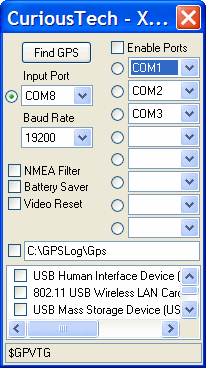
No installation required; just run the executable, and the program both puts an icon in the traybar, and opens up the program window:

XPort

Here, I’ve already configured the program to connect to my Bluetooth GPS on COM port 8, and with my auto-connect feature enabled, it started up the Bluetooth connection to the GPS receiver automatically. If you don’t have this capability, you may have to manually establish the Bluetooth link between your GPS receiver and its assigned COM port, which can be a real pain (more below). The default serial speed for NMEA is 4800 baud, but I’ve found that sometimes setting it higher (19200 in this case) can improve reliability; other times, it has to be set at 4800 or it won’t work. In this case, clicking on the “Enable Ports” button starts splitting the COM8 input between COM ports 1, 2, and 3. You can select any COM port numbers unassigned by your system from COM1 to COM255, but some applications only let you choose from a limited set of preset COM port numbers.

It’s probably safest to connect each program you have running to a separate COM port. By accident, though, I discovered that at least under some circumstances, you can have more than one program accessing a single COM port. Unlike system COM ports, XPort won’t block access to a COM port already opened by another program. For example, I’ve had as many as 5 programs accessing data through the COM2 port with no apparent problems. Not sure what the limitations are on this, and it’s probably best to have each program have its own unique COM port. But if you ever have to run more than 8 programs that require GPS data, it may be possible just by having two programs share the same COM port for data.

For the checkboxes:

  • NMEA Filter: Filters noise and unneeded data. Haven’t seen this making a difference with my receiver.
  • Battery Saver: Keeps the hardware serial port closed until you enable the virtual ports. If you have a Bluetooth GPS receiver, this may save on battery use by keeping the Bluetooth connection off until absolutely necessary.
  • Video Reset: Turns the display off and on to keep the monitor from going into blanking/power-saving mode

The tray icon also changes color depending on the status of the GPS connection:

  • Black=Not Connected
  • Cyan=Connected-No data
  • Red=Connected/No Fix
  • Yellow=2D Fix
  • Green=3D Fix

The download page has additional technical data.

If you have a Garmin GPS unit that connects to a computer only via USB, it uses a proprietary Garmin protocol that is not NMEA-compatible. For those units, you might want to consider the paid utility program GPSGate from Franson. Note: Haven’t tried it myself, but have heard from others who swear by it. For $12.95, the express version converts the USB Garmin protocol into one or two virtual NMEA ports; the more expensive standard version lets you add even more virtual ports. Other functions include a Google Earth GPS connection interface, a conversion of NMEA serial data to the Garmin proprietary serial protocol, and a direct connection function to Bluetooth GPS devices to simplify the task of establishing a link between your computer and the Bluetooth GPS receiver. In my case, I struggled unsuccessfully for a while to get the standard Windows XP Bluetooth interface to work correctly with my Bluetooth GPS receiver before giving up and using the BlueSoleil Bluetooth manager that came with my Bluetooth dongle; if you run into similar problems with your system, GPSGate might be able to help.