Not too long ago, Magellan announced that they had upgraded the firmware and PC software for their Triton line of handheld GPS receivers, noted for their ability to display raster imagery, and offered to send out review units to interested people. There are several free utilities for the Triton series that I’d been interested in posting on, plus I’d always been interested in the raster map capabilities of these units. I requested a review unit, and they were good enough to send a Triton 2000 to me a few weeks ago. I’ve had the opportunity to evaluate it in both recreational and field work environments, comparing it with my current GPS receiver of choice (Garmin 60Cx), and thought I’d post a review of the GPS unit itself before posting about free utilities.
Continue reading ‘A Review Of The Magellan Triton 2000 GPS Receiver – Part I: Hardware And Software’
d-maps.com offers over 4000 outline maps of countries/regions of the world, each available in 6 different formats:
- GIF (Note: to acquire the image in this format, right-click on the map image and save it)
- PDF
- CDR (Corel Vector Graphic Drawing)
- AI (Adobe Illustrator)
- SVG (Scalable Vector Graphics)
- WMF (Windows Meta Format)
Some maps are partially colored in, others just black and white. Maps can include just country borders, or more information like cities, provinces, hydrographic data, and more:
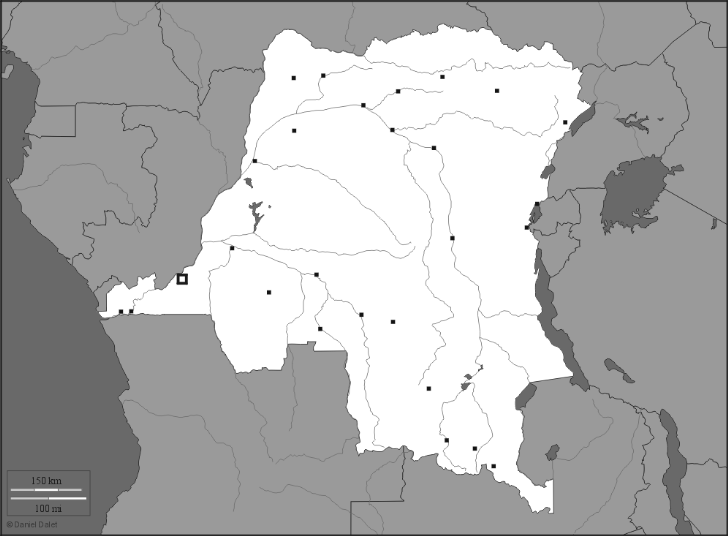
A small handful of historic maps as well, in an eclectic set of topics. The total number of maps is growing, so check back on a regular basis.
Via Catholicgauze.
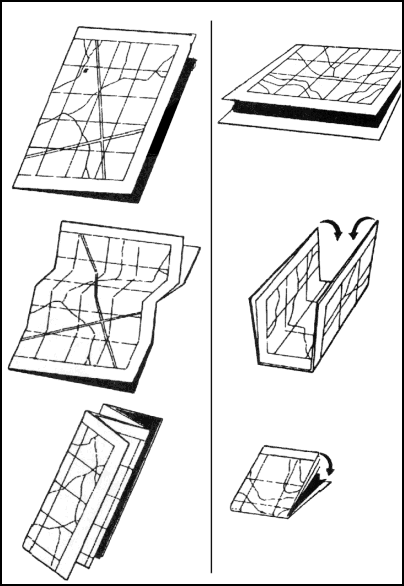
If you still do old-school navigation with map and compass, the US Army’s Field Manual on Map Reading And Navigation is an excellent resource. You can buy a copy if you like, but there’s an HTML version here, Google Books has it available in poor quality scanned form here, and you can view/download a PDF copy from Scribd here (book is in the public domain). In one of the appendices, it has diagrams showing three different ways to fold a map so that you can view parts of it without completely unfolding it. The first two are self-explanatory:
The third one, the “Protection Method”, is a nifty way to fold a map so that it takes up 1/4 of its original size so that you can paste it into a notebook, but still have all sections of it accessible for viewing:
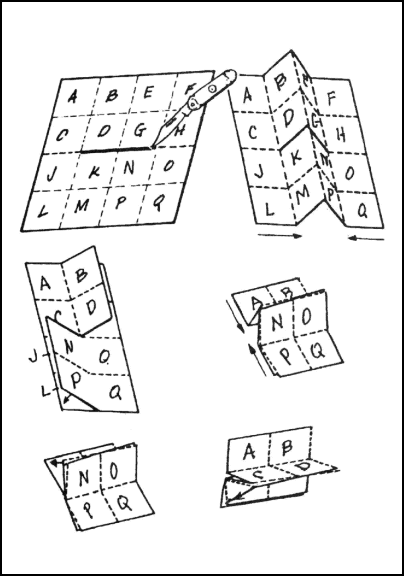
Had to try it out to figure out what was going on. After you’ve completed the full set of folds, adhere the undersides of sections A, F, L and Q to your notebook page. You can then view the various quadrants (A-D, E-H, J-M and N-Q) by flipping the sheets over the horizontal and vertical folds that cross the quadrants. Try it with a scrap piece of paper first :).
If you have a square map and want to try something different, you might try the Turkish Map Fold; I couldn’t quite figure it out myself.
The Generic Mapping Tools (GMT) is a collection of 60-odd command line tools for manipulating gridded and vector data, and creating high-quality output in EPS (Encapsulated PostScript) format. Working with it in command-line format isn’t the most user-friendly experience. Mirone offers a far-more accessible GUI interface to GMT’s features, and adds a few geophysics-related capabilities of its own:
- Multibeam mission planning
- Elastic deformation studies
- Tsunami propagation modeling
- Earth magnetic field computations and magnetic Parker inversions
- Euler rotations and poles computations
- Plate tectonic reconstructions
- Seismicity and focal mechanism plotting
If you have MatLab installed on your system, there are source code versions available for Windows, Mac and Linux. If not, there’s a stand-alone executable for Windows systems that runs slower than the MatLab version.
Other graphical front-ends for parts of GMT include iGMT (requires Tcl/Tck), Win4GMT, and SeaTree.
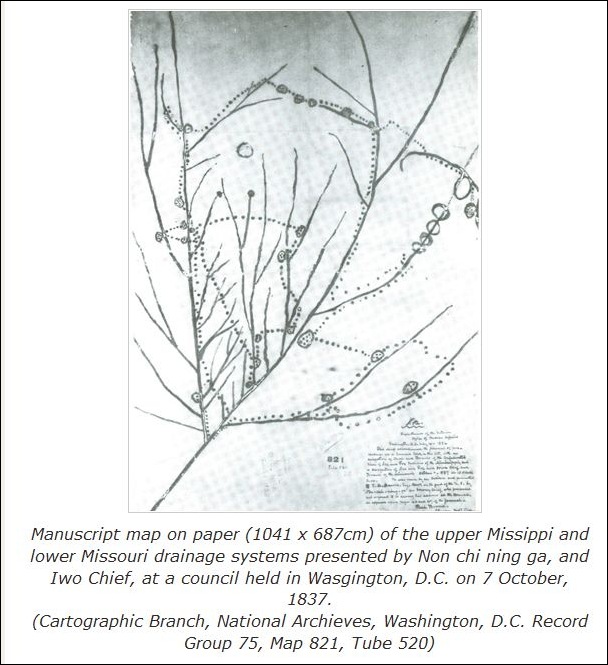
Published between 1977 and 1996, “The Map Collector” published articles on the history and lore of maps and mapmakers. Kunstpedia, the “knowledge base on fine- and applied arts, popularly stated arts and antiques”, has gotten permission to put articles from Map Collector online, with more articles going up on a regular basis in either HTML or PDF format. There’s a wide range of articles, like:
The Indigenous Maps And Mapping Of Native Americans
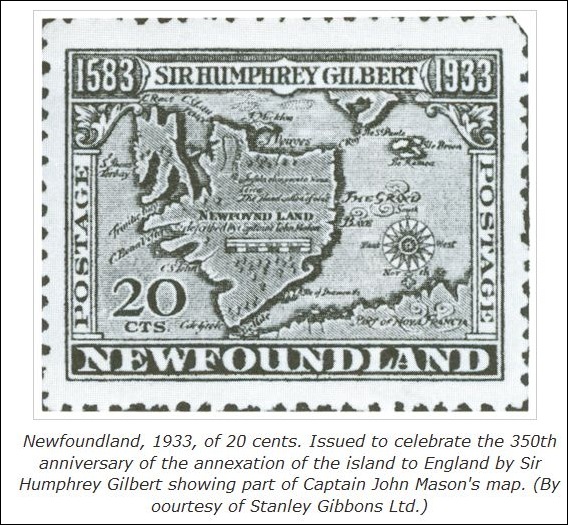
Collecting Maps On Stamps
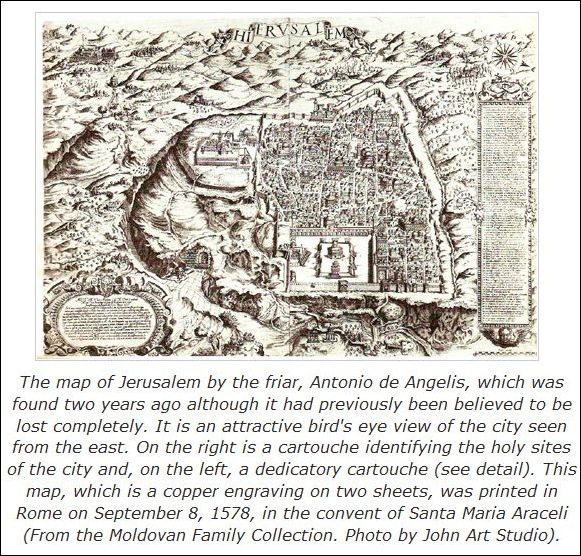
The Lost De Angelis Map Of Jerusalem, 1578
To browse all the articles, find the navigation bar on the home page:

and click through all the pages.
Via Making Maps.
Not too long ago, I covered an online application from indiemapper that converts shapefiles into SVG format, a standard format for vector illustration programs like Adobe Illustrator or the open source Inkscape. One drawback of that site was the inability to color/shade the SVG output based on shapefile attribute data. Ken Hardy has a Perl utility called shptosvg that will take shapefiles and convert them into SVG format, and includes the ability to color files based on their attributes:
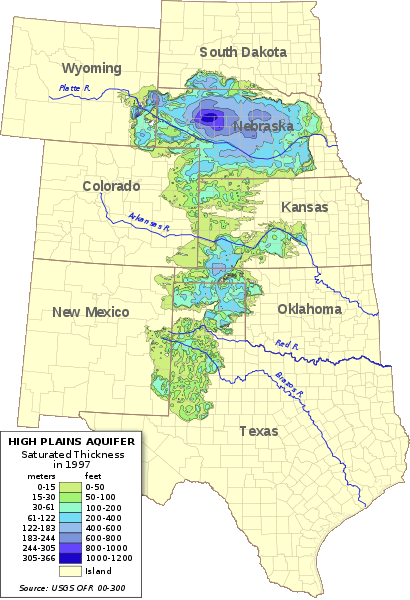
Features (from the website):
- Accepts source SRS specs on the command line, allowing multiple input files to have disparate coordinate systems.
- Generates the results projected to any SRS using Geo::Proj4.
- Works on multiple shapefiles at a single invocation, layering them in order into the SVG map.
- Supports specification of color and other rendering options, per source file, on the command line.
- Optionally select subset of shapes by regex on arbitrary attribute fields.
- Support coloring of shapes by value of an attribute field.
- Allow specification of a shapefile to use in scaling but not in rendering. That supports independent production of layers to be later combined in an SVG editor; they can all be scaled and translated according to the geometry of the base/largest layer to aid layering after the fact.
You’ll need to have Perl installed on your system; see the download page on the official Perl site for links to several different versions. And you’ll need to be comfortable working in a command-line interface; no GUI available yet. Ken has a page documenting usage, along with an example page that describes how he created the image above.
HT to Ken (of course).
FalconView is the Windows mapping part of the Air Force’s Portable Flight Planning Software (PFPS), under development by Georgia Tech since 1994; see this link for an interesting history of the politics of software development in the military. This mapping part, stripped of all mission planning components, has recently been OK’ed by the Air Force for release by as Open Source software. The program has an strong list of features, including:
- Support for many raster/vector map formats
- GeoTIFF
- TIROS TopoBath
- Digital Terrain Elevation Data (DTED) / LIDAR
- Vector Product Format (VPF)
- CADRG
- MrSID
- GeoPDF
- WMS
- ArcMap .mxd (requires that ArcGIS be installed)
- Shapefiles
- KML/KMZ (including network links)
- Moving map supported if you have a connected GPS
- Generate and overlay contour lines from elevation data
- Skyview mode lets you fly through terrain with overlays by keyboard/joystick control
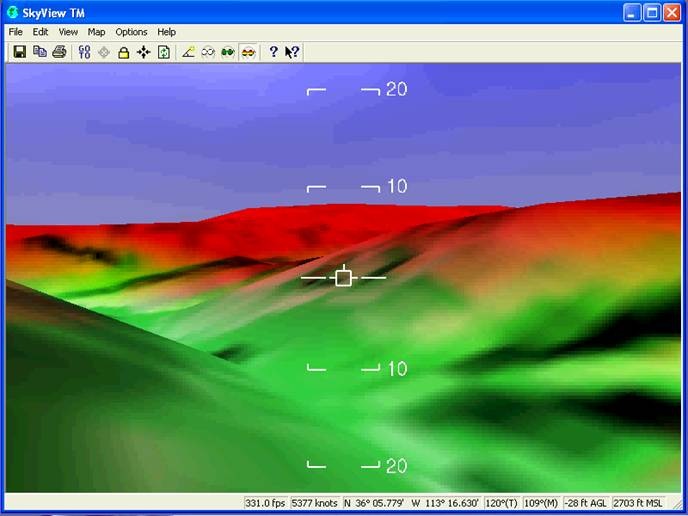
But this open source version is labeled as alpha software, and it definitely is:
- It wouldn’t install successfully on two separate Vista systems, claiming problems with MapServer initialization; was finally able to get it installed on a Windows XP system
- It’s a huge download (about 500 MB), partially because it also contains critical supporting applications like DotNetFX and Windows SQL Server that must be installed in order to run the program
- Some operations can run slowly on older systems
- Occasional crashes on my system
A bigger problem is that it’s a complicated program with lots of features and a non-intuitive interface. Documentation is currently limited to the help file, which is clearly intended for someone who’s already familiar with the program; no manuals or other documentation is currently available. I struggled for several hours trying to figure out the simplest task possible, add a raster image to the map and view it, before finally giving up. I may not be the sharpest tool in the shed, but I’m not the dullest, either.
FalconView also installs GeoRect, a program to georectify imagery and export it in GeoTiff format. I had hopes that this could be used to convert GeoPDF files into GeoTiff format, since it does open GeoPDF files. But I was defeated on this score as well; while the help file is substantially more helpful than that for FalconView, I was unsuccessful even following their step-by-step instructions. And it appeared as though it would only convert a beta USGS quad in GeoPDF format to a GeoTiff far smaller than would be necessary for full resolution.
I welcome comments from anyone who’s used this program before, and can offer pointers, and I’ll keep an eye on it for the future. But until there’s substantially better documentation available, I’m not going to spend a lot of time struggling my way through this software.
HT to Thomas Larsen.
In a previous post, I covered the PC version of gpsvp, a program that lets you view Garmin vector maps on your PC, and plot your live GPS position on them; it also has multiple other functions like waypoint/track management, raster maps from the Internet, and more. In addition to the PC version, there are also versions available for a number of Windows Mobile Platforms that turn them into the functional equivalent of Garmin GPS devices :
- PocketPC 2003
- Pocket PC 5, 6
- Smartphone 2003
- Smartphone 5, 6
The look and feel of the app, and most of the functionality, are virtually identical to that of the PC version:
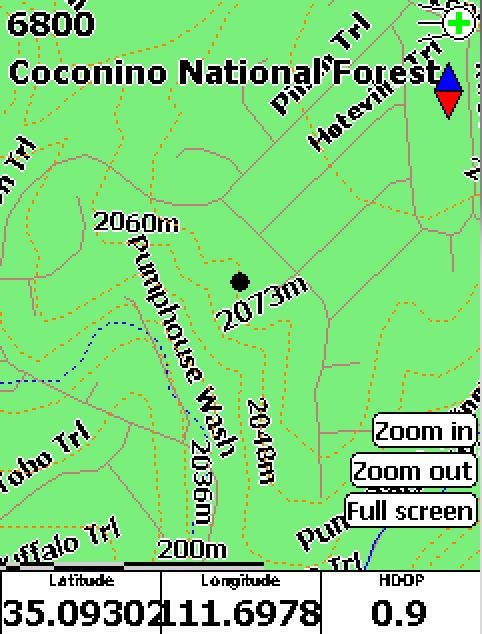
This is the Pocket PC / Windows Mobile 5 version, with a free Garmin topographic map of Arizona loaded (available at GPS File Depot), with my current GPS position plotted as the black dot. Obviously, you’ll need either a built-in GPS receiver in your Windows Mobile device, or a Bluetooth-connected GPS receiver, to get this full functionality.
Getting the maps on your mobile device involves copying them over onto the device using the ActiveSync File Explorer. While you can put it into the device’s main RAM, you’re probably better off installing it on the device’s SD card if it has one, since it likely has more memory space available. gpsvp will automatically search the device and SD memory to find Garmin .img map files, and let you select either an individual file or a folder full of files. Don’t load too many files in, as gpsvp can choke on large numbers of files; I was able to have all the Arizona topo map files loaded up, but it took a while to load them in. As described in this post, you can use GMapTool to select the map tiles you plan to use, then copy just that limited set of files over.
There’s also a version for Java VM enabled portable devices listed as GPS4Mobile.jar in the file list; don’t have such a device, so I don’t know what it’s functionality is.

