

In the lower left-hand corner of Google Earth, there’s a latitude/longitude readout that shows the position at the cursor position:

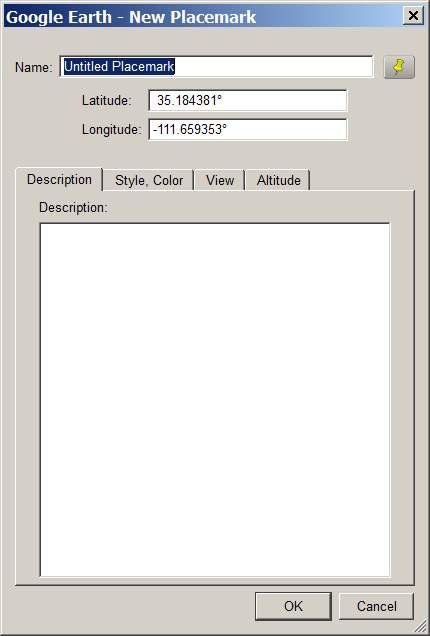
But if you want to record this position, the screen readout is graphical, so you can’t copy the numbers directly from Google Earth using a copy-and-paste operation; you have to write them out manually. One way around this is to create a placemark in Google Earth, and drag it to the desired location; the latitude and longitude will show up in the placemarks properties window, from which you can copy and paste them into a different app:
Another option is to use David Tryse’s Google Earth Position application. No installation, just run the program at the same time as Google Earth:
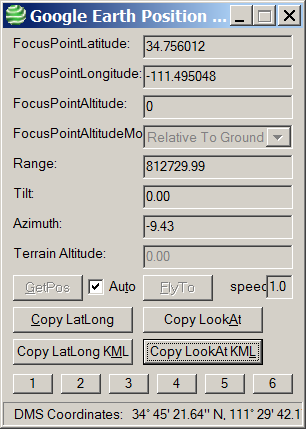
With Auto checked, it will update the position at the center of your Google Earth display continuously; unchecked, you’ll need to click the “GetPos” button to update the position. Clicking on the various “Copy” buttons copies position data into your clipboard for pasting into various programs:
Copy LatLong: 34.756012 -111.495048
Copy LookAt: 34.756012 -111.495048 0 812729.99 0.00 -9.43
Copy LatLong KML: <coordinates>-111.495048,34.756012,0</coordinates>
Copy LookAt KML: <LookAt>
<longitude>-111.495048</longitude>
<latitude>34.756012</latitude>
<altitude>0</altitude>
<range>812729.99</range>
<tilt>0.00</tilt>
<heading>-9.43</heading>
</LookAt>
With Auto unchecked, you can also enter a position into the Latitude and Longitude boxes at the top, and “FlyTo” that position in Google Earth. The numbered boxes at the bottom can save a current location (Shift-Click on the button), fly to a saved position (click on the button), or recall a saved position without flying to it (Alt-Click).
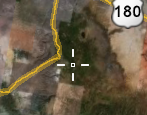
One big problem: there’s no center cursor or marker in Google Earth to indicate the center of the screen, so finding the position of a specific location might be difficult. Fixed in the latest version. But here’s a simple little KMZ file that puts a crosshair overlay at the center of the Google Earth screen, getting around this problem:
David’s website has several other apps worth a look. Google Earth Photo Tag lets you use Google Earth to embed location information into JPEG pictures (note: requires the Exiv2.exe command-line program in the same directory) . While I prefer Picasa for this task, GE Photo Tag does let you modify the balloon style for KML image files, which Picasa doesn’t. LatLong Conversion converts from degrees-minutes-seconds to decimal degrees and vice-versa, supporting more formats for the input data than other similar converters.
“Google Earth Position application” should be changed to “Google Earth Position application if you have Windows”
If you don’t have MS-Windows but do have Google Earth, Wikipedia’s geographic coordinate tips point out the hjl_get_Coor tool, a KMZ file which shows a crosshair and coordinates. Remember to toggle it off when not using it, to reduce your need for that server.
Many thanks for the blog post, and for the crosshair idea – I’ve added it as an option to the right-click menu in the latest version of the tool now.
Thanks,
David