USAPhotoMaps has built-in GPS interface capabilities for Garmin GPS units; it also supports the general NMEA GPS interface for other units. While there are a lot of GPS functions, they’re a mixed bag. Waypoint creation, export, and import on the fly are pretty easy (with some minor quirks), and USAPhotoMaps is my program of choice for quickly creating waypoints on a topo map or aerial imagery and then exporting them to my GPS unit. Saving and manipulating waypoint data is more problematical, and dealing with routes and tracks is a major headache. It seems as though some of these features were bolted on rather than integrated with the main program in a logical fashion. My experiences were with a Garmin GPS (60Cx); YMMV.
In USAPhotoMaps, use the GPS menu to set the interface parameters for your GPS. USAPhotoMaps supports serial, Garmin serial and Garmin USB interfaces for sending and receiving waypoints, tracks and routes, but only serial is supported for position information. If your GPS is connected to the serial port, you can display your current position by pressing the spacebar. Unless you have a wireless Internet connection to your computer, you will need to have pre-cached the imagery for that location on your hard drive; see this port on TerraFetcher for one way to do that.
If you want to create a set of waypoints to be saved in a file, you have to first specify a filename in which to save them. If you create waypoints, and then specify the filename, all the existing waypoints you’ve created will be erased. To create a waypoint file, choose Waypoints => Open/New File, and enter a new filename. USAPhotoMaps stores waypoint data in XML format, but if you change the extension to GPX, it can be read by most programs as a standard GPX file. You can also open a previously-saved waypoint file using that command. Once a new filename is specified, or an old file is opened, any waypoints you create from that point on, or import from your GPS, will automatically be stored in that file – no need to “Save” them with a menu command.
Once that quirkiness is out of the way, waypoint creation is very easy. Just click on any point on the image, and you’ll get a green dot plotted at that location, and a “Create Waypoint” window pops up:
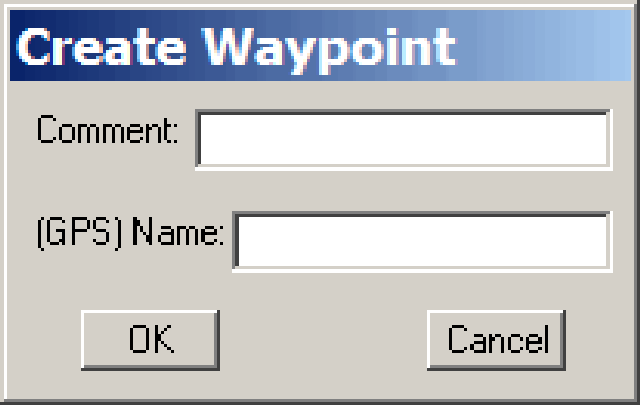
While you should only need to enter the GPS point name (up to 20 characters, and all letters will be converted to capitals), USAPhotoMaps requires you to enter both a comment and a name before it accepts the point. Click on OK, and enter as many more waypoints as you like. You can see a list of the waypoints you’ve created with the Waypoints => Show current menu item:
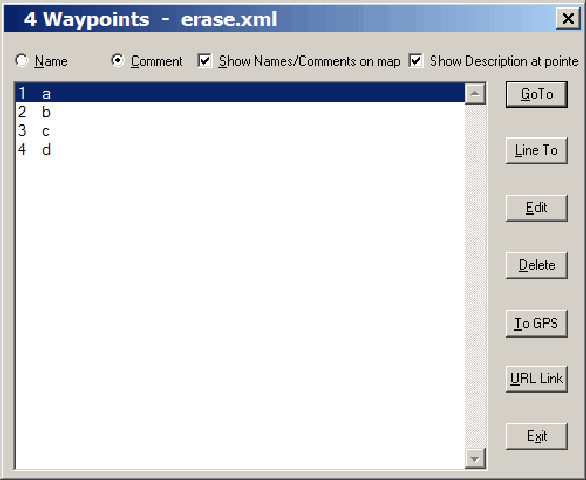
Here you can edit or delete waypoints you’ve created, add a description, assign a URL, go to a specific waypoint in the map display, or send a single waypoint to your GPS with the “To GPS” button. You can send all the waypoints you’ve created on-screen using the GPS => Waypoints => Send function from the main menu.
Waypoints can be downloaded from your GPS with the GPS => Waypoints => Receive function, but will only be saved if you have already specified a new filename, or loaded in a file created earlier. And USAPhotoMaps won’t open GPX waypoint files directly; you’ll have to convert them to .loc files or Streets And Trips Pushpin files (with GPSBabel or some other program) before using the “Import” function in the File menu. Not terribly convenient.
Route creation is a bit odd in that you can’t create a route from individual waypoints, but have to create it in one continuous action. Choose Route => Create from the menu, then start clicking on the locations in the image display that constitute the points of the route; double-click on the last point to end the route, and you’ll be given the option to save it as a text file (not a GPX file). If you now want to send that route to your GPS, choose GPS => Route => Send, then select the text file you saved (no, you can’t send it directly from the on-screen data). And while the route will get uploaded to your GPS with the name of the text file, the waypoints that make up the route may be given odd names. Not a very logical scheme, and in practice not very easy to use. I tried downloading routes from my GPS to USAPhotoMaps, but was unsuccessful.
You know, I was going to talk more about creating, sending and receiving tracks to a GPS, but it’s too much of a pain to bother with. You can’t create a track directly in USAPhotoMaps – you have to create a route, save it, then convert it to a track, which is saved in CSV format, but can be converted to a GPX format. Uploading tracks from a GPS to USAPhotoMaps and displaying them is also painful – you have to save them first as a CSV file, then “Display” them on-screen. And I’ve had little success with importing tracks from a GPS to USAPhotoMaps and then getting them to show up correctly. Read the regular help section, and the help section under the GPS menu, and maybe you’ll have more luck than I did.
USAPhotoMaps is a great program for downloading and exporting TerraServer imagery, and for some of its other functions. And as I said at the beginning, for marking waypoints on a topo map or aerial photo quickly, then exporting them to a GPS, USAPhotoMaps is fairly convenient. But for all other GPS data display and management functions, especially routes and tracks, you’re better off using either the proprietary software that may have come with your GPS, or any number of other free GPS interface programs like EasyGPS or GPSTrackMaker. Heck, if you can live with the small position error it may introduce, creating points and tracks in Google Earth in KML format and then exporting them to a GPS is a better choice.