blankblank blank


Archive for the 'Google Earth' Category

Current National Weather Service Radar Data In Google Earth And GIS Formats

I’ve been using the website of my local National Doppler Radar Station for years now to monitor the animated radar precipitation loop, but I just noticed that there are a pair of links labeled KML and GIS Users. The KML link takes you to a page where you can select and generate a KML/KMZ link to live radar data from any single radar station, or from custom combinations of multiple radar stations. You can select from the data type you want:

  • Short-Range Reflectivity
  • Long-Range Reflectivity
  • Composite Reflectivity
  • Velocity
  • Storm Relative Motion
  • 1 Hour Precipitation
  • Storm Total Precipitation

and choose either animated loops or static images to display in Google Earth:

radar

For animated loops, I’d recommend setting the animation speed slider in the middle of the range or higher, and checking the Loop Animation box:

slidercontrol

And it usually takes several loops before all the image overlays fully load in for display.

The generated KMZ files are network links, updated every two minutes so that they’re always current. So if you download a KMZ link from this site, open it in Google Earth, then save it in My Places, you’ll always have it available for up-to-date radar views.

The GIS Users link takes you to a general info page, and then to a directory page where you can download static GIF images with current radar data. You’ll need to know the three-letter code designation for your desired radar station, but there doesn’t seem to be an easy way to look that up; go to the main page, click on the desired radar station, then hunt around on the page to find the 3-letter code. The GIF images have corresponding .gfw worldfiles for georeferencing (latitude/longitude, NAD83), so you can load them into your GIS viewer. The GIF background color is transparent, so if your GIS viewer supports it, you can display the data as an overlay on top of another map, like this one of one-hour-total precipitation on top of a topo map:

onehourprecip


Removing Time Data Out Of A GPX Or KML File To Make It Work Right In Google Earth

In the process of writing yesterday’s post on Garmin Basecamp, I found an annoying flaw on how Google Earth handles GPX files. In a recent GPS talk I gave, I surprised some people when I told them that Google Earth can open some GPS-related formats like GPX, LOC and others directly; you just need to select the type of files you want to open with the drop-down in the lower-right corner:

open_gpx

But if the waypoints in GPX files come time-stamped, either with the time you created them in the field or in a program, Google Earth assumes that you want to use this time-related data, and brings up a time slider in the upper-left-hand corner:

timeslider

The first time you open the file, the time slider will run from start to finish, with waypoints popping up and disappearing as the time indicator hits their creation time. You only see all the waypoints when the time slider has run all the way through to the end. Very annoying.

But it gets worse. If you uncheck the GPS data box in the Places pane to hide the data, then check it again, you’ll see nothing at all except the time slider:

timeslider1

Hitting the play button on the time slider will make the waypoints appear and disappear quickly, and at the end the only waypoint visible will be the last one created; the time slider will look like this:

timeslider2

To see all the waypoints, you’ll need to move the “start-time-extent” slider all the way to the left:

timeslider3

Same behavior if you save the data permanently to “My Places”. This is pretty retarded behavior; I hope Google adds the option to turn off time-related data display when it’s not wanted. Until then, I banged together a simple Windows-only program called GPXTimeStripper that will remove all time-related data from a GPX file (KML files, too, although this may not work in every case).  Download the file at this link; it’s a zipped stand-alone executable. Run the program (won’t win any interface awards):

Click on the main button, choose the GPX or KML file you want to process, and the program will remove the time data from the file, and save it with “_TS” appended to the filename. You’ll get a pop-up box with the name and location of the new file, which should always be the same location as the input file.  If the pop-up becomes annoying (which it will), check the box in the lower-left-hand corner to turn it off. Help button takes you to this page; Exit does what you’d expect.

No real checks for overwriting older files, and may not work on every file correctly (report bugs). Use at your own risk. BTW,  Google, would it kill you to have KML files created in Google Earth terminate in CR-LF instead of just LF?  It would simplify the job of reading them in correctly.


Convert An Excel Address Spreadsheet Into A KML File (And Then Into A Geocoded CSV Text File) With KMLGeocode And KMLReport

KMLGeocode (full UTK download page here) takes an address file in Excel (or XML) format, and creates a Google Earth KML file that plots geocodable addresses in the correct position. Load an address XLS file into the program (like this sample data also available on the download page):

KMLGeocode

You have to specify the column names that contain the key address fields required for geocoding, as well as the output KML filename. Once done, create the KML output file and open it in Google Earth. Addresses that could be geocoded will be plotted with orange pushpins:

geocoderesults

Clicking on  pushpin will bring up all the data fields for a record in the spreadsheet, not just the specified ones. Addresses that couldn’t be geocoded are given yellow pushpin designations, and will either show up plotted in a general location, or not plotted at all in Google Earth (though they will be listed in the Place pane under the KML file listing:

geocodeplaces

To embed the actual geographic coordinates for each of these addresses, right-click on the KML file listing (people.kml in the above example), and save it as another KML file with a different name. You can now open this different KML file in the KML Geocode Report program:

geocodereport

Specify the name of a text output file; this output will be a spreadsheet-readable CSV file that contains the original spreadsheet data with the longitude and latitude of geocodable addresses appended at the end as X and Y coordinates:

ID,Name,Group,Street,Street2,City,State,Zip,Phone,Email,X,Y
 11, Suzanne White, Office of Information Resources, 312 8th Ave North, Suite 1600, Nashville, TN, 37243, 615-253-4799, suzanne.white@state.tn.us,-86.784031,36.164133
 12, Kurt Snider, US Fish and Wildlife Service, 446 Neal St, , Cookeville, TN, 38501, 931-528-6481, kurt_snider@fws.gov,-85.497903,36.138056
 14, David Tirpak, Comptroller of the Treasury, 505 Deaderick St, Suite 1700, Nashville, TN, 37243-0277, 615-401-7820, david.tirpak@state.tn.us,-86.781603,36.165238

The “UnMatched” file is supposed to contain the non-geocodable addresses in KML format (at least, according to the PDF manual for these programs), but it didn’t show up for the sample data when I tried it. When you “Process” the files, in addition to the output file above, you’ll get a pop-up telling you the overall geocoding success percentage:

matchpercent

Note: When installing both programs, the installation directory is listed simply as “C:\Program Files\”; however, unless you specify the new name, it is installed in the directory “C:\Program Files\BRalston”, and “BRalston” is the folder in the Start Menu where you’ll find the program shortcut icons.


Grab Google Earth Coordinates Into Your Windows Clipboard

The GE Coords program simplifies the job of grabbing coordinates for a point in Google Earth, and putting them into your clipboard, from where you can paste them into the application of your choice. Not terribly complicated to use (and the website has more complete instructions if you need them):

1. Install the program (you’ll find it in the “Thots Utilities” folder)

2. Fire up Google Earth, press the yellow pushpin icon on the toolbar, and drag it to your desired location:

meteor

3. After closing the placemark properties box, right-click on the pushpin and select “Copy” from the drop-down; this will copy the full KML code for the placemark into the clipboard

4. Run the GE Coords program; it parses the KML code, extracts the position, and copies the coordinates into the clipboard. You’ll hear a beep when it’s done. DM is the default format:

N 35° 01.640 W 111° 01.364

But running the program without any placemark code in the clipboard brings up the option to “Setup” the desired default coordinate format:

gecapoptions


New At HeyWhatsThat: Solar Eclipse Simulator, WebApp For iPhone And Android

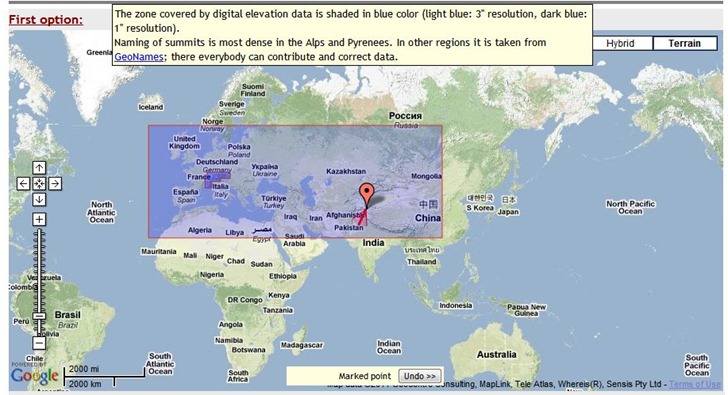
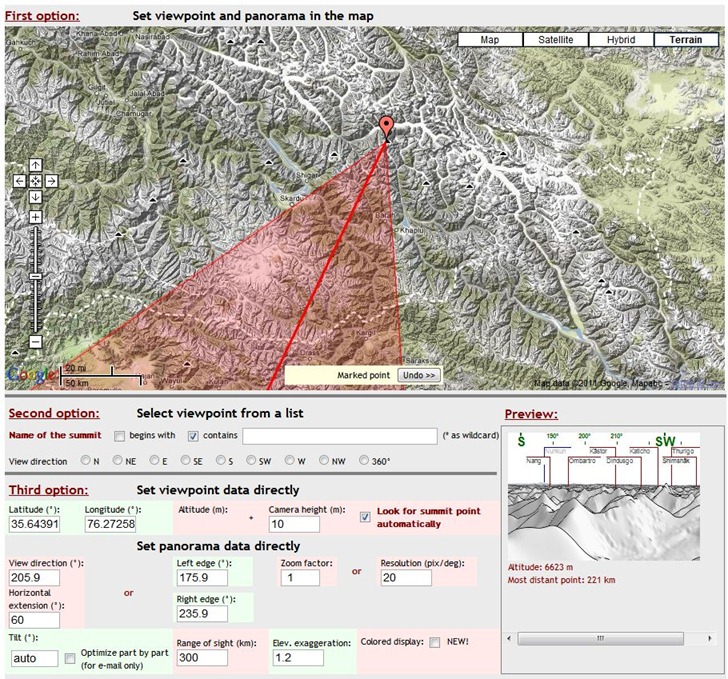
I first posted about HeyWhatsThat 2+ years ago; its initial functions included:

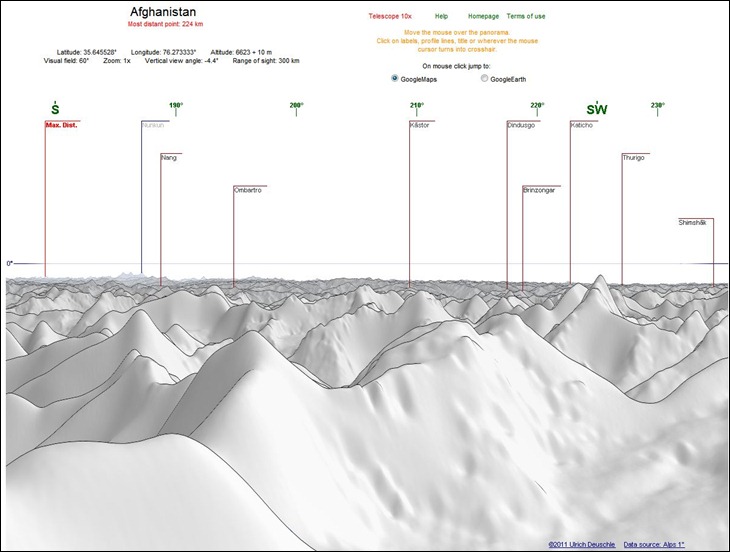
  • A panorama of what’s visible from that location, marking the position of peak geographic landmarks
  • A list of the peaks, and the ability to show their position relative to your location on Google Maps
  • Terrain profiles (elevation versus distance from the location to any point on the map).
  • A plot all the areas visible from that location in red on Google Maps (aka the “viewshed” or “weapons fan”).
  • Contour lines.
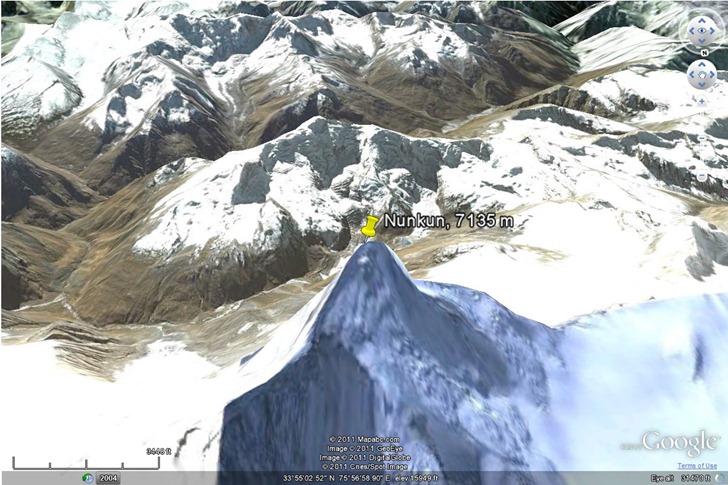
  • Google Earth export of position, viewshed, horizon line and horizon extent.
  • Mike Kosowsky has been adding functions to HeyWhatsThat since then, and writes to announce two more:

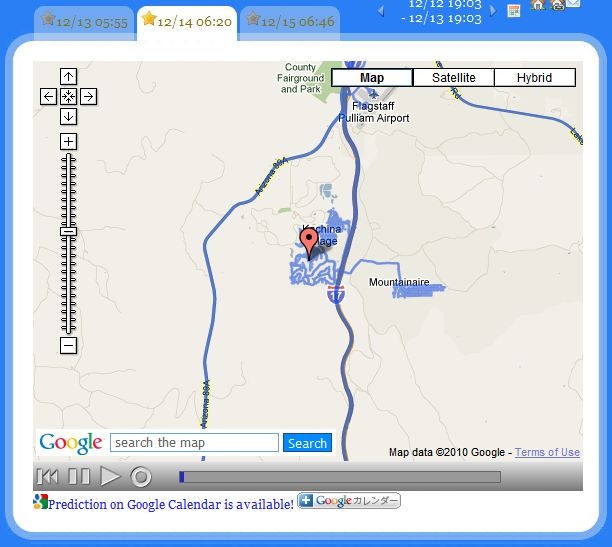
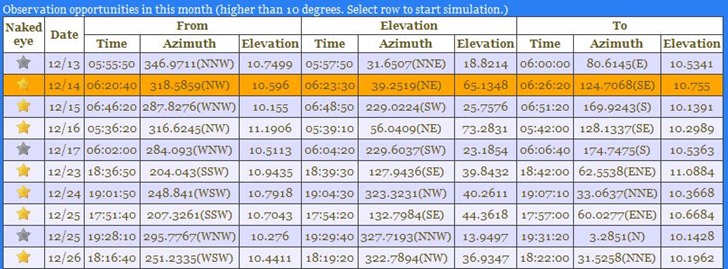
    1. A simulator of Friday’s annular solar eclipse:

    eclipse

    2.  A web app to let you find out what you’re looking at using your iPhone or Android; point your phone’s browser to m.heywt.com.


    Multiple Embeddable Web Maps With Switch Maps

    New from MapChannels is Switch Maps, an easy way to embed multiple web maps in a single frame. A simple web interface lets you set the geographic extents, size of the map frame, and which maps to include:

    Continue reading ‘Multiple Embeddable Web Maps With Switch Maps’


    Natural Earth Data In Google Earth

    Last week, I posted about the new Natural Earth datasets, free medium-scale vector data for the earth to go along with the previously-available Natural Earth physiographic raster data. The Google Earth Library now has a KML network link that lets you view much of this data in Google Earth as layers, like here with lakes and rivers:

    lakesrivers

    Obviously, most of these features will be visible in Google Earth as soon as you zoom in, but these datasets let you view features with names at lower zoom levels, and more distinct colors. Plus, this offers a quick preview of the data available from Natural Earth, so you can see whether it meets your needs for use in a GIS or mapping program in shapefile format. There’s also an overlay with the raster physiographic imagery:

    him

    All of the data is in KML network links in subfolders of the main link, and some datasets will take a while to load. It’s also probably a good idea to not check the box next to the main network link, as this will load all the data into Google Earth, which will take a while.


    Create KML Range Circles, Arrows And Wedges With An Excel Macro

    I’m currently running OpenOffice only, so I can’t try it out, but “Planeman” has created an Excel macro that will create KML range circles, arrows and wedges for a list of decimal latitude/longitude points. Should be able to create these for hundreds or even thousands of points simultaneously. Pictures are from Planeman’s description. Excel spreadsheet view:

    mvsppi

    And a view of the results from the sample data in Google Earth:

    23wqxhc

    Download the spreadsheet macro at this link; be sure to scroll down to the bottom to get the latest version. From the picture above, looks like additional features are coming soon.