

Creating custom icons for Garmin POI files is similar to, but actually easier than, creating them for custom waypoints. I’ve covered the basic details of creating custom waypoint icons in two previous posts (part one and part two), and refer you to those for the general process. But the graphic format requirements are somewhat relaxed for custom POI icons compared to custom waypoint icons:
| Property | Waypoint Icon | POI Icon |
| Size | Has to be 16 x 16 pixels exactly | Can be any size from 1 x 1 to 24 x 24 pixels |
| Image DPI | Only 96 dpi acceptable for upload | Doesn’t matter |
| Image file format | Windows BMP | Windows BMP |
| Bit-depth | 8-bit only | Accepts 24-bit, but icon colors may be off in GPS display; best to use 8-bit |
| Transparency | Yes, for magenta (R=255, G=0, B=255) | Yes, for magenta, but only if image is in 8-bit format when uploaded |
| Name | Must be in standard format (e.g. “Waypoint Symbol 000.bmp) | Must have same filename as the datafile or category you want to associate it with |
So, if I have a CSV POI file called “Uranium mines.csv”, I can put a BMP file with the characteristics listed above in the same directory as the POI file, called “Uranium mines.bmp”:
 |
8-bit graphic file “Uranium mines.bmp”, 24 x 24 pixel, magenta as transparent(displayed 3x original size) (never said I was an artist …) |
If I now select the folder containing both files for uploading with the Garmin POI Loader program, I’ll see this at the location of a uranium mine in the data file:
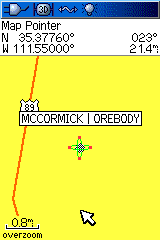
Magenta is transparent, so it doesn’t display. If I uploaded it as a 24-bit graphic file, though:
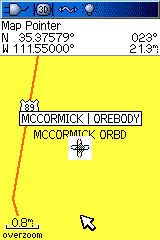
Colors are changed, and there’s no transparency.
If I organize multiple POI datafiles by putting them into subfolders (see this post for more info), I can assign the same icon to all the points in that subfolder by putting an icon into the root folder with the name of the subfolder. For example, if the root folder is called “Root”, and a subfolder containing multiple POI datafiles is called “Landmarks”, putting an icon file called “Landmarks.bmp” into the Root folder assigns that bitmap as the default icon for all the datapoints in the Landmarks subfolder. But I can override that default for a datafile in the subfolder by putting an icon file with the same name as the datafile into the subfolder.
Here’s an example:
- Root (root folder): contains the datafile “Uranium mines.csv”, and icon files “Uranium mines.bmp” and “Landmarks.bmp”
- Landmarks (subfolder inside of “Root” folder): contains datafiles “Springs.csv”, “Kelsey.csv” and “Km.csv”, along with icon files “Springs.bmp” and “Km.bmp”
If I now run the Garmin POILoader program, and upload the data from the “Root” directory:
- The points in the “Uranium mines.csv” file are plotted with the “Uranium mines.bmp” icon
- The points in the “Springs.csv” file are plotted with the “Springs.bmp” icon
- The points in the “Km.csv” file are plotted with the “Km.bmp” icon
- But there’s no icon file called “Kelsey.bmp”, so the points in the “Kelsey.csv” file are plotted with the default icon assigned in the Root to this subfolder, “Landmarks.bmp”
- If there were no “Landmarks.bmp” icon in the Root folder, the custom POI icon would default to a circled dot

Thank you for the article.
I have Colorado 300 and the magenta thing is not become transparent in my unit.
Help me please.
Don’t have any experience with Colorado/Oregon units, so don’t know specifically what the problem might be. Try opening up one of the icon BMP files in a graphics editor to check whether it’s true magenta or not (ffff00; 255, 255, 0). Some free editors can shift this value; for example, Paint.Net shifts it to fefe00.
Sorry. Apparently I forgot to change the file to 8-bit format. It’s nicely working now.
Thanks a lot!
I created a .csv file and named it substations and saved it in a Garmin folder on my desktop. I went in that same folder and saved a substations.bmp with a custom .bmp that I want displayed. I used POIloader and pointed to that directory. The POI’s went in correctly but all I got was the default gray circle symbol. Any ideas?
My best guess would be that the BMP file is not in exactly the right format; I’ve made icons that I would swear were in the right format, but weren’t. Another suggestion might be to change the filename so that it has only 8 letters (e.g. “substatn.csv” and “substatn.bmp”); it may a problem with filenames longer than the old 8.3 DOS standard. That’s just a guess, and I could be wrong about that.
I created all of my symbols in WindowsXP’s version of Paint. To use the MAGENTA (R:255,G:0,B:255) as a transparent color, save the file as a 256 Color Bitmap. This will work the same as the 8-bit once inside the Garmin unit.