

Orbiting satellites often have two types of digital imaging sensors:
– Multispectral, i.e. different sensors for different colors (including IR), or different filters in front of the same sensor. Each individual band can be shown as a black-and-white image; multiple bands can each be assigned a color, and combined to form an RGB color image.
– Panchromatic, “meaning all the colors”, a single broad-spectrum sensor. This are usually displayed as a monochromatic image (i.e. black-and-white).
The panchromatic sensors usually have a higher spatial resolution than the multispectral. For example, on the Landsat 7 spacecraft, the 6 multispectral bands have a spatial resolution of roughly 30 meters (a seventh has 60 meters), while the panchromatic sensor has a resolution of about 15 meters. Here’s an example of an image created from three of the Landsat multispectral bands (data from the Global Land Cover Facility):
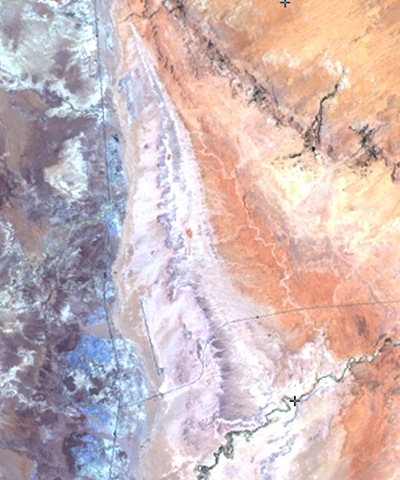
And here’s the panchromatic image of the same area:
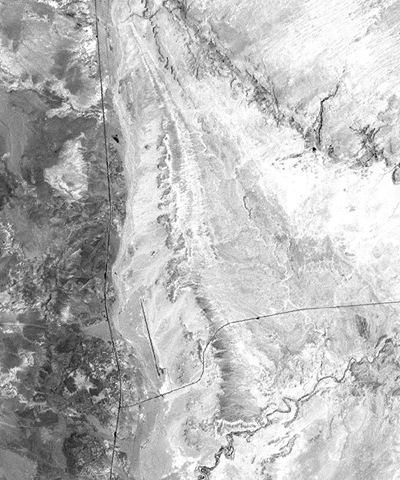
The higher spatial resolution of panchromatic yields better detail, but with no color. But it’s possible to merge the color data from the lower-resolution multispectral image with the luminosity data from the high-resolution panchromatic image to create a hybrid color image with greater apparent resolution; this process is called “pan-sharpening”. There are any number of commercial and free software tools that can do pan-sharpening (and I’ll cover more in the future); I’ll use MicroDEM now just because I have it handy.
Open the georeferenced panchromatic and multispectral images in MicroDEM, and display them at 1:1 screen:actual resolution with the “No zoom 1:1” button:

Then select the panchromatic image, and choose Modify => Merge color scene from the top menu. MicroDEM will resize the color resolution from the multispectral image to match the higher resolution of the panchromatic, then merge the multispectral color information with the panchromatic image to create a hybrid with higher apparent color resolution. Compare the image below with the ones above:
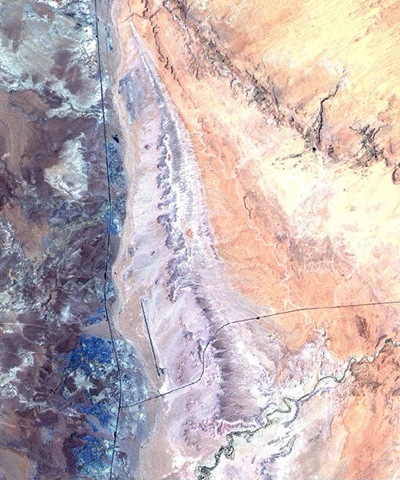
As a quasi-useful goof, though, you can use this technique to make hybrids of any black-and-white and color images. For example, if I have a black-and-white aerial image:

And combine that with a color topo map of the same area (converted to RGB color from indexed):

You get this odd-looking hybrid:
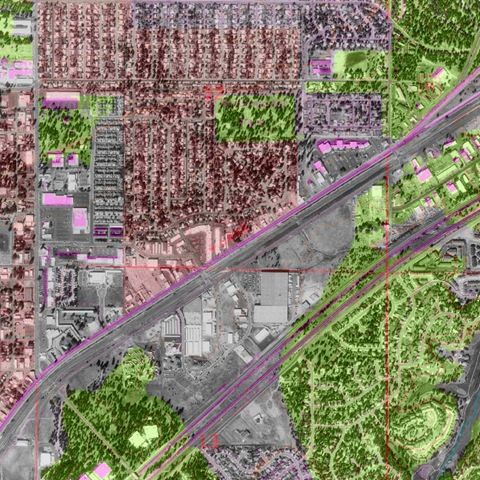
This would work better if some of the colors in the original topo map were brighter (especially the black), and I’ve got a post coming up on how to easily change topo map colors to whatever you want without losing the georeferencing.
Thanks to the Bullsworld blog for inspiring this post.
2 Responses to “Goofing Around With Pan-sharpening”