

If I need to convert a paper map to digital format, and the map is larger than my scanner, I usually scan the map piecewise, and then mosaic the pieces back together into a single image. If I’m lucky, I can get the Photomerge feature of Adobe Photoshop to put all the pieces back together into a single whole, and get good matching at the edges. More often, though, Photomerge can’t get all the pieces to fit together, and I have to match up the sections manually using control points, which is a real pain. But I’ve found a program that automates the process of finding control points and mosaicking map sections, and produces far better results than Photoshop’s Photomerge function. It can also mosaic images shot at different angles and rotations (like satellite/aerial photos) and overlay images to look for temporal changes. If the first image is georegistered, it can automatically georegister the product mosaic image as well.
More after the jump ….
Regeemy is a joint project of the National Institute for Space Research (INPE), Brazil and the Department of Electrical and Computer Engineering, University of California, Santa Barbara, CA, USA. It’s available as a stand-alone downloadable program (registration required) with no limits on image size, and also as a limited web demo that lets you upload your own images up to 1 MB in size, or use demo images, to test out its abilities. The examples below will come from the web demos.
Here are two aerial photos shot near UCSB at two different angles, with the first one used as the reference:
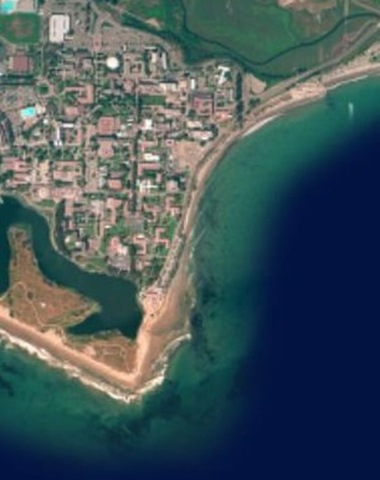
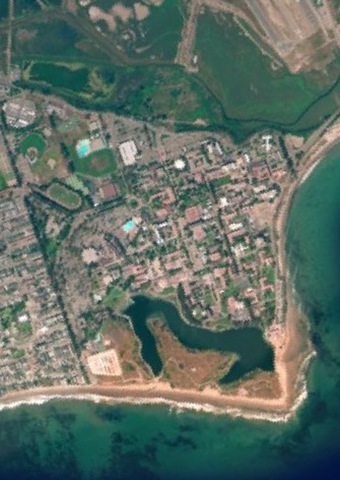
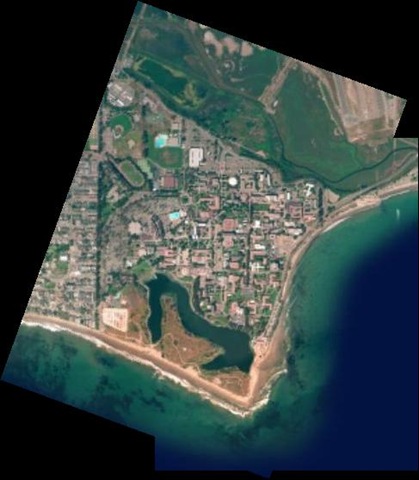
And here’s the mosaicked result from the web demo:
Another web demo overlays two images with significant overlap, and with different color channels, to highlight temporal differences over four years:


The downloadable version offers much more control over mosaicking and georeferencing, and the ability to use files larger than 1 MB, but at the cost of more complexity; there’s not a lot of documentation for all the features. The basic process is wizard-driven, which makes it a bit easier. Open the program, select Image 1 (your reference image) and Image 2 (the one you want to mosaic or overlay on top).

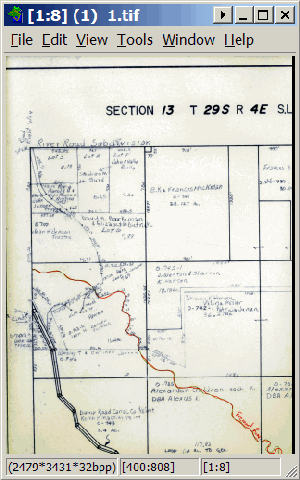
Each image will show up in its own window:
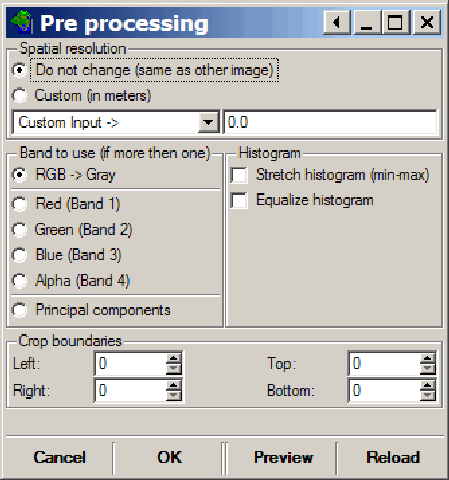
Pre-process lets you set image parameters like channels, histogram equalization, spatial resolution, etc.:
The Register section sets the parameter for finding the control or tie points that match up the two images:
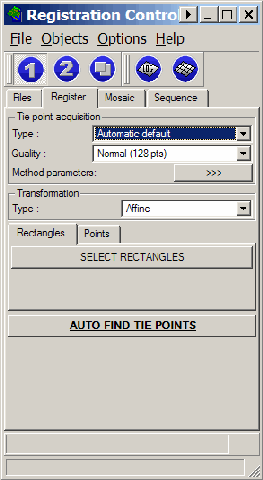
If you want to define the sections of both images that you want to use to match them up, click on the “Select Rectangles” button, then select the parts of both image windows that contain the same features. You can try skipping this step, but unless your pictures mostly overlap, you may not get good results. You’re also welcom to set the tie points manually if you like ;-). Click on “Auto Find Tie Points”, and Regeemy will determine and number control points on both image windows, so you can see how well they match up.
Click on the Mosaic tab:
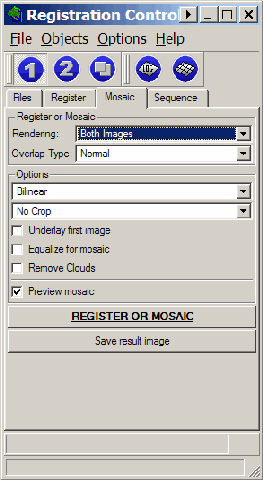
Set the parameters, and then click on “Register Or Mosaic” to put the pictures together. If “Preview” is checked, the results will show up in a third window, and you can save the resulting mosaic from this preview window. “Sequence” appears to be for cases like a series of aerial photos or video images that you want to stitch together, but the help file is “unhelpful” on this point. As I said, documentation is a bit weak, and the presentation data downloadable from the website only helps a little bit; you’ll have to poke around and experiment with it to figure things out. But the results are worth it: best free automated mosaicking software I’ve found to date.
Regeemy can also be used to mosaic digital camera shots to create a panorama, but I prefer using AutoStitch for that. Autostitch is fully automated, finds all the segments of the panorama, does a great job of blending/exposure matching, and truncates 360-degree panoramas at the right spot.
1 Response to “Advanced Image Mosaicking With Regeemy”