1:24,000 scale topographic maps from the United States Geological Survey (USGS) are a convenient cartographic resource, readily available from regional state GIS agency archives or the Internet Archive / Libre Map Project. However, many of the maps are seriously out of date, as much as twenty years or more.
Continue reading ‘Updated USGS 24K Topographic Maps From The US Forest Service’
Converting point text files to shapefiles is easy; converting sets of text coordinates describing lines and polygons, not so much. I’ve found a way to convert sets of text vertex coordinates into line and polygon shapefiles, but there are some limitations:
- The sets of vertex coordinate points need to be in the right order, i.e. all the points describing a line or a polygon need to be listed in the order they define a shape.
- You can only create a single line or single polygon at a time; if you have multiple shapes described by sets of points, you’ll have to generate the shapes one at a time and then merge all the shapefiles later on.
- No attribute data gets converted – you’ll have to enter it manually for every shape in the final product file. Fun.
The basic process is straightforward:
1. Create a CSV file with the vertex coordinates for the individual shapes. The first row should contain field names for the coordinates (e.g. Lat, Long), separated by commas. This is probably most easily done in a spreadsheet program.
2. Change the file suffix from CSV to TXT.
3. Open the file in DNRGarmin (File => Load From => File, with “Text File” as the file type).
4. Specify the field names that correspond to the spatial information, and click OK.
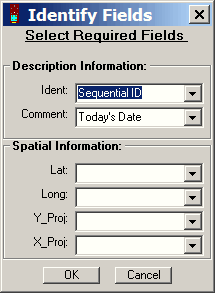
5. Select “Track” or “Route” from the radio buttons above the data table.
6. Choose File => Save To => File; enter a filename, and select “Arc View Shapefile” as the file type.
7. In the pop-up window that shows up after you click OK, specify whether you want the point data to be converted to a line shapefile or a polygon shapefile. Click on OK, and the points will be converted to the specified shapefile type.
A post from a few days ago describes a somewhat convoluted multi-step process for converting shapefiles to text/spreadsheet format. Zonums Software has let me know that a new version of his free Shape2Text utility is available which simplifies the process tremendously.
Download the Shape2Text zipfile, and unzip it and the supporting .bpl files into its own directory (no install program). Run the program, and select the shapefile you want to convert to a text format:
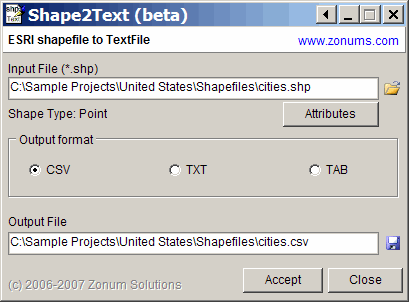
For point shapefiles, an Attributes button will become active; click on it, and you can select which of the shapefile attributes will be exported along with the coordinates. You can delimit the file with commas (CSV), spaces (TXT) or tabs (TAB). An output file name and location will be auto-generated, but you can change that as well. Click on Accept, and the text file will be created. A lot easier than the earlier method!
The program also exports line and area shapefile vertices, but without attribute data, there’s no separation of data from individual shapes in the shapefiles, and there’s some additional data in the header section that you may need to edit out.
Addendum: The program requires Borland .bpl files, which should come included in the zip file. If you get an error message indicating that .bpl file is missing, you can download the needed file from this site. Copy it to the program directory, or put it in your Windows/System32 folder for access by any program in the future that might need it.
It’s sometimes useful to convert the location data in shapefiles to a text format, for viewing and manipulation in spreadsheets or other programs. You’re likely to want to include the associated data from the attribute table as well. Haven’t found a single-step solution for this, but there’s a fairly simple two-step process that works well for point shapefiles; lines and areas are somewhat more problematical.
Continue reading ‘Converting Point Shapefiles To Text/Spreadsheet Format’
No new content – just a consolidated listing of the posts in this series.
Description of basic shapefile viewing, and modifying views using attribute data.
Opening, querying, editing, and otherwise modifying shapefile attribute tables.
Creating shapefile layers, adding shapes, modifying shapes, and adding attributes.
Advanced shapefile manipulation, including merging, erasing, clipping, selection by mask, and buffering.
Using MapWindow to re-project shapefiles into different coordinate systems and datums.
This is the final installment in my screencast series on MapWindow GIS. In addition to an easy-to-use shapefile editor, MapWindow has some advanced tools for combining, manipulating, and selecting from shapefile layers that aren’t all that common in freeware GIS software.
Continue reading ‘Intro To MapWindow IV – Advanced Vector Tools’
Third in the MapWindow screencast series is a quick runthrough of MapWindow’s shapefile editing capabilities. I think it’s one of the easiest to use of all the freeware GIS programs I’ve seen.
Continue reading ‘Intro To MapWindow GIS III – Shapefile Editing’
In 1999, the United States Geological Survey published a two-volume atlas of distribution and climatic data for the trees and woody shrubs of North America. The two-volume set costs $63, but the entire contents, including digital versions of the climate and distribution data, is available online for all you treehuggers out there.
Continue reading ‘Digital Atlas Of North American Woody Plants’

