

Some GPS models, such as most Garmin handheld units, allow you to record up to 10,000 points as the active track. But if you save an active track with more than 500 points, the unit will automatically simplify the track to a maximum of 500 points, dropping what it considers to be redundant or unnecessary points; you have no control over which points get dropped by the unit. One option is to simplify the track yourself with GPS Trackmaker’s Tracklog Reducer, which also drops points but gives you some control over the degree of simplification. But if you absolutely have to preserve all the points, there’s another option; GPX Track Splitter lets you chop a track with more than 500 points into a set of smaller tracks that come in under this limit, but which preserve all the points.
Download the active track from your GPS with the software of your choice (like GPS TrackMaker or EasyGPS), and save it as a GPX file. Then start up GPX Track Splitter, and load in the active track GPX file:
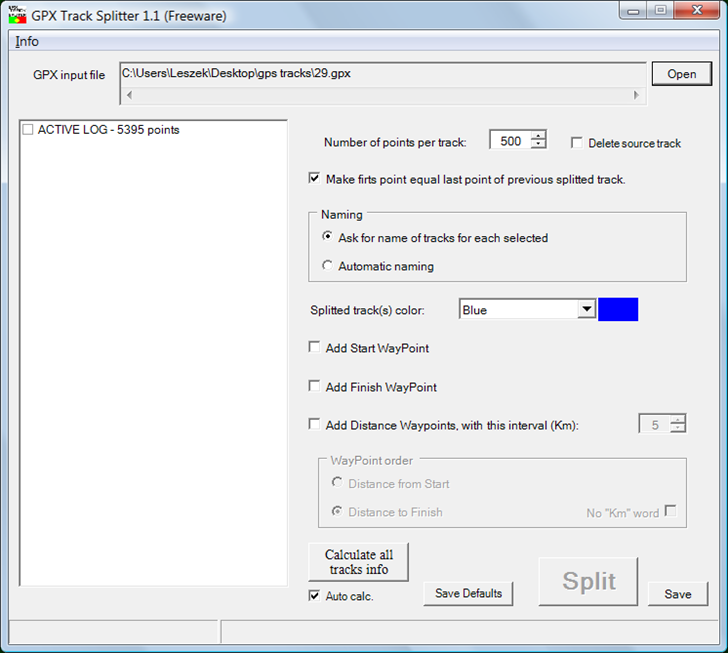
In this case, the active log had over 5000 points, so simplification would have cut over 90% of the points out. The default track subset size is 500 points, which is max size for most Garmin units, but you can adjust it up or down for other units. The “Make firts (sic) point equal …” option insures that the track segments will overlap on your GPS display, even when you’re zoomed in to the closest view. You will normally want to have the “Delete source track” option checked, as otherwise the final set of GPX tracks will include your original large track, defeating the purpose. To split the active log track, check the box next to it, then click the Split button; if you have “Ask for name of tracks …” selected, you’ll be prompted for a name, “test_split” in this case:
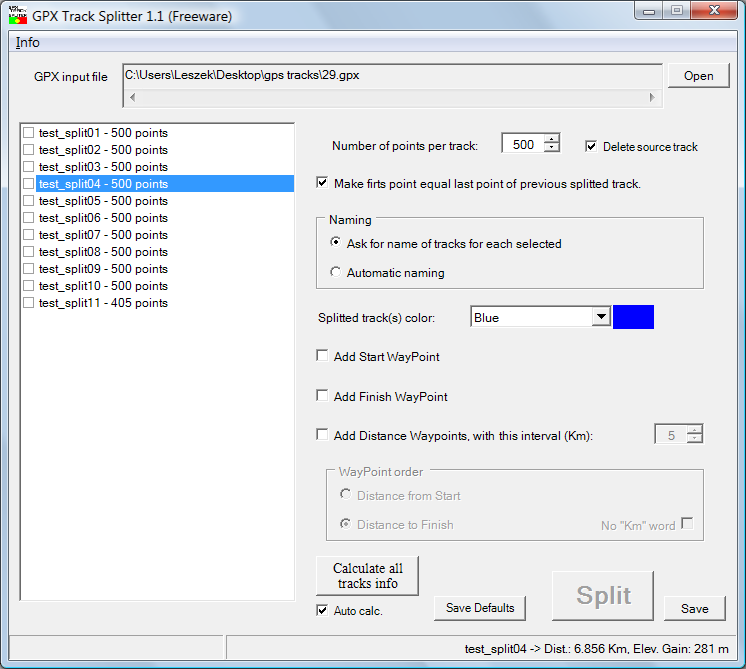
The original track has now been split into 11 subtracks, each with the name you assigned plus a number appended. If you have “Auto calc” enabled at the bottom, clicking on any of the tracks will give you the distance covered by the track and the elevation gain. The GPX file with this track info is not created by the Split operation; you have to click the “Save” button to do that. Other options add Start/Finish waypoints, and evenly-spaced waypoints, along the track.
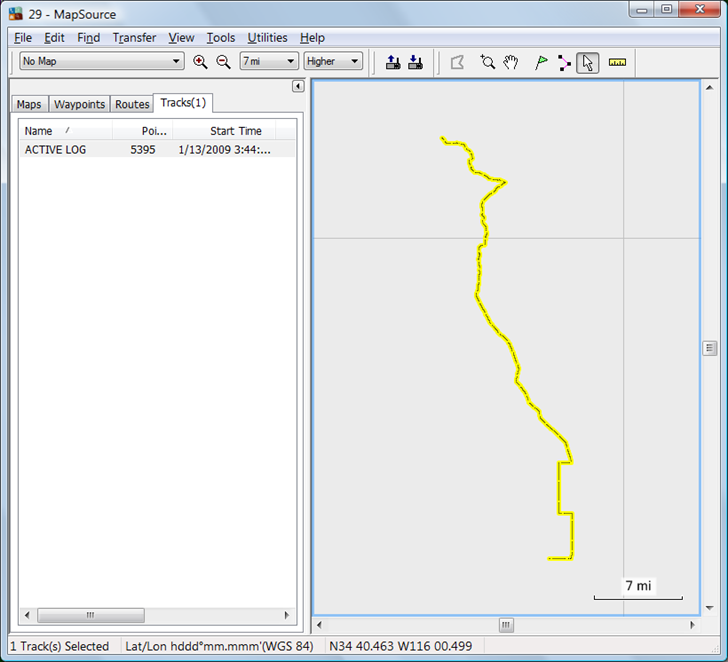
Here’s the original GPX track file, loaded into Garmin MapSource:
And here’s the split GPX track file loaded in, with one of the multiple segments highlighted:
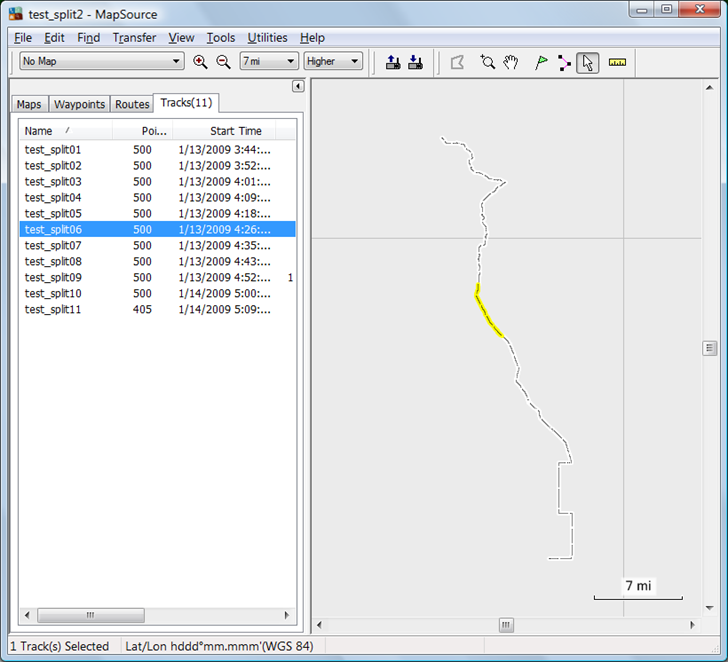
MapSource sometimes has problems opening GPX files created by GPX Track Splitter; if that happens, just open the file in EasyGPS, and save it under a different name; the new file should open in MapSource without a problem.
Note: Typically, the track memory for both active and saved logs is combined, so if you have saved tracks, the memory available for active tracks is diminished. In the example above, if I upload those track files, they will use up 5405 points of memory, leaving only 4595 points for a new active track log.

Of course, you could always convert the original track file into a transparent Garmin map file, and display it on top of another map that way. But that’s a topic for another post.
The Garmin Oregon allows saving 20 tracks of 10000 points each, but it does not save a gpx track on the memory card every 24 hours as the Garmin 60CSx can. The 20 tracks are available to be used/viewed on the Oregon.
Amir K9CHPwoodeu