Many GPS-related programs require an NMEA connection to your GPS through a serial port. But many new computers don’t include a serial port anymore, while many new GPS models, particularly Garmin, only have a proprietary USB interface and not a serial NMEA interface. For computers that don’t have a serial port, you can always buy a USB to serial converter like those from Keyspan. And for Garmin USB-only GPS units, there’s a program called GPSGate from Franson that converts the USB connection to multiple virtual serial NMEA ports, $10-30 depending on how many ports you need. Garmin offers a similar program for free called “Spanner” for their GPS 18 model, a USB receiver/antenna that’s designed to plug in to a notebook’s USB port and interface with programs running on it. What Garmin doesn’t say is that “Spanner” will also work with some, albeit not all, of its other GPS receiver units; you’ll have to experiment to see if it works with your model. And even if your Garmin has both serial and USB interfaces, like my Garmin 60Cx, using this program can save you the expense of a GPS-to-serial cable, a USB to serial converter if your computer doesn’t have a serial port, or both. Note: Only works with XP; doesn’t work with Vista and Windows 7.
Download the Spanner program from the Garmin website, and install it. The program has only one configuration window:
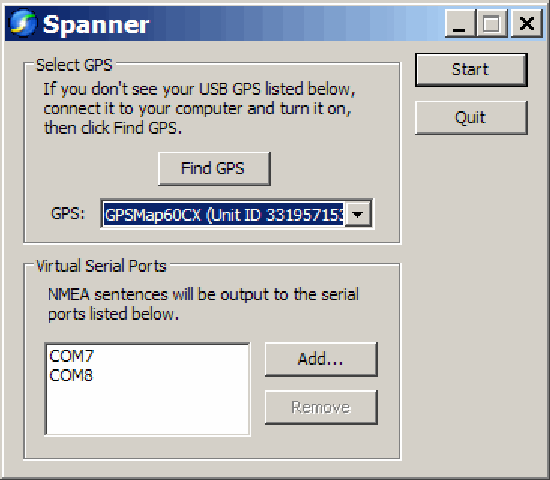
You need to have your GPS turned on, connected to your computer via USB, and using the Garmin protocol; if any of these isn’t true when you start Spanner, make it so, then click “Find GPS”. At the bottom, use the “Add” button to add a virtual serial port to your computer for use by your software as an NMEA connection. Make sure you choose a number for your COM port that doesn’t conflict with any your computer currently has. I believe that Windows can handle COM1 through COM 255, but keep in mind some software programs won’t support ports higher than COM8, or even COM4.
I’ve had two programs running simultaneously, each one getting NMEA data from a different COM port, and given that COM ports are pretty slow, I’d guess that you could add a few more without putting a serious strain on your computer’s resources.