blankblank blank


Archive Page 2 of 65


US Nautical Chart Overlay For Google Earth

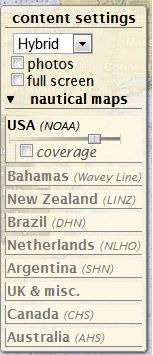
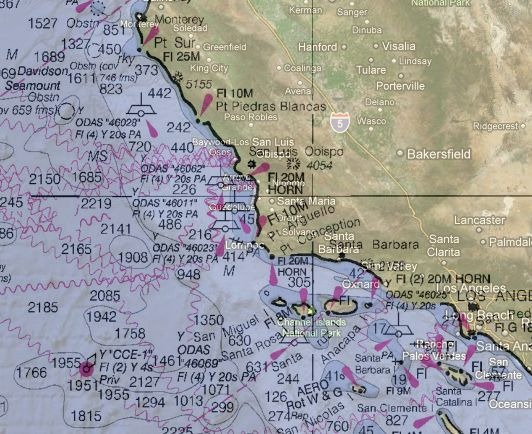
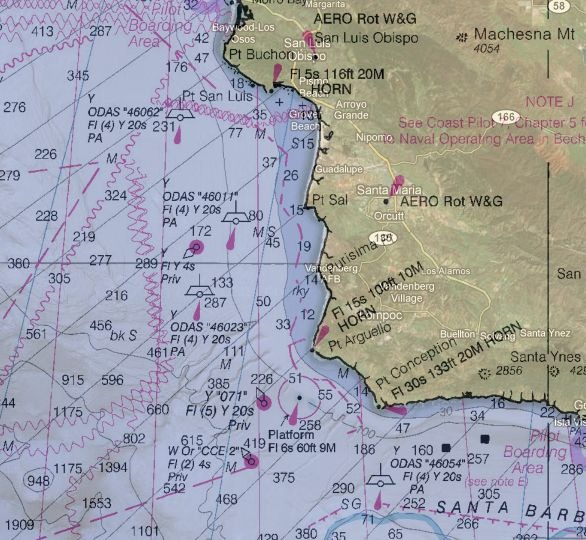
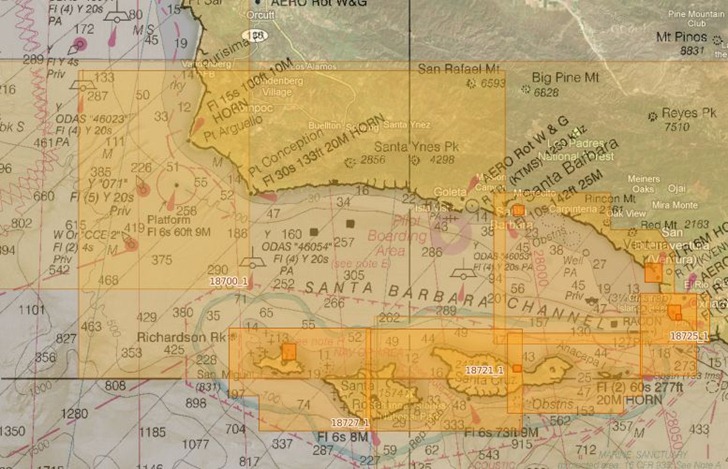
Navimatics has created a KML network link that overlays marine charts derived from NOAA data onto Google Earth. Coverage includes all of the US coastline for the contiguous 48 states, but not Alaska and Hawaii yet. From high altitudes, coverage areas are outline with yellow lines:

Continue reading ‘US Nautical Chart Overlay For Google Earth’


SPOT Medium-Resolution Multispectral Imagery For Canada

Slashgeo links to an announcement on Canada’s GeoBase site that SPOT imagery will become available for all of Canada by 2010. Panchromatic (black-and-white) imagery will be at 10-meter resolution, while four multispectral bands (Green, Red, Near IR, short-wavelength IR) will be available at 20-meter resolution; this is compared to Landsat 7 data (also available from GeoBase), with 15/30/60-meter resolution but more bands (one panchromatic, 6 multispectral, 2 thermal IR). A fair amount of imagery is already available:

canadaspot

Free registration required for access to GeoBase’s downloadable data, which includes a lot more Canadian geographical datasets (road networks, hydrography, topography, and more).


The Simplest Windows Photo GeoTagging Tool

The website for GEOTaggingTool is in Russian, there’s no English documentation there, and there’s no help file included with the program. But as long as you can find the download link at upper left for version 0.5.1, that’s all you need. The program itself is in English, and there’s no install program; just unzip it into a folder. This has to be the simplest Windows photo geotagging application out there; click one button to open the GPX track, click another to open the images folder, then click “Process GEOTagging!” and the images will be geotagged (but be warned, the old images will be overwritten with the new geotagged versions without notice).

5-17-2008-4.49.51 PM

The only available options are setting the time offset and window for matching GPS track times with photo times, but GEOTaggingTool handled the time offset between my local camera time and UTC GPS time without touching these. Fast, simple and easy.

Note: Requires Microsoft .Net 2.0.


Updates At The GPS File Depot

Dan Blomberg, owner of the GPSFileDepot site, has some updates and new resources at his site:


Modify A KML Polygon File With Excel Data

Remy Paternoster writes to announce a new tool he’s created, an Excel app called KMLxl that imports a KML polygon/placemark file created in Google Earth, and lets you both attach data to each polygon and scale the height of the polygon to a variable value:

kmlxl

The process is straightforward, involving creating polygons and associated placemarks in Google Earth, importing the KML file into Excel with the app, adding data, and then exporting the results as a new KML file. You can update the Excel spreadsheet at any time with new data, and create a new KML that reflects the newer data. In addition to the app, Remy has an easy-to-follow step-by-step tutorial of the process in an accompanying PDF file.


Create Your Own Gapminder Animated Charts

Gapminder is a flash-based tool for creating animated charts based on various parameters and indicators, including geographic areas. Here’s a TED talk showing examples of uses by its developer, Hans Rosling:

Up until recently, you could look at Gapminder charts for specific datasets at the website, but not create your own. Google, which bought the Gapminder technology in 2007, recently released a Google Gadget that lets you create your own Gapminder charts that can be embedded in a web page. You’ll need a Google Docs account, and also need to add the “Motion Chart” gadget from this web page. Once added, it can be accessed from the charts/gadgets button in a Google docs spreadsheet.


GIS On A Stick

Jo Cook of Oxford Archaeology has created a portable suite of Windows’ GIS applications that can be run from a thumb drive on any Windows XP/Vista system, or from your local hard drive, with no installation required. Applications include:

  • GRASS, a powerful but complicated GIS
  • Quantum GIS (version 10), a simpler GIS viewer/editor that incorporates some GRASS functionality
  • gvSIG, a full-blown GIS viewer/editor
  • GeoServer, a open-source map server
  • PostGreSQL with the PostGIS extensions, a relational database server (and Xampp, a portable version of the Apache server, to run it on)
  • FWTools, a full suite of command-line utilities for manipulating raster and vector data, along with the OpenEV raster image applicationĀ  (note: I’ve been unable to get this one to work, but Jo thinks this may be a DLL conflict with an already-installed version of FWTools)

Download the Portable GIS zipped file here (warning: close to 500 MB even in zipped format). A few notes:

- You can run this from your hard drive as well as from a thumb drive, but you need to unzip it to a root hard drive directory, e.g. C:; unzip it to a subdirectory and it will have problems finding files.

- If you’re going to put it on a thumb drive, I’d recommend unzipping it first to a hard drive, then copying the files to the root directory of the thumb drive. Regardless, with about 20K files, it will take several hours to copy them over.

- In the current version (1.2), Portable GIS will only fit on a 2 GB or larger thumb drive in its default configuration. But with a bit of work, you can get it to fit onto a 1 GB thumb drive, and even have 250 MB of free space:

  • Right-click on the thumb drive’s icon, choose “Format”, and select the NTFS file system and Quick Format.
  • Once formatting is complete, close the Format window, right-click on the drive icon, and choose “Properties”
  • Check the box marked “Compress this drive to save disk space”, then click OK.
  • Unzip the Portable GIS files to your hard drive
  • Copy the files and directories over to the thumb drive, but in groups, not all at once; if you try it all at once, you’ll get a message saying there’s not enough room.

You’ll wind up with all the files you need to use Portable GIS, as well as extra space.

- For the thumb drive, double-click on the thumb drive icon; you’ll get a tray icon that clicking on will pop-up menu items for program configuration and running. If you’re running it from a hard drive, run the “PortableGISMenu.exe” app to create the tray icon.

- Before running GRASS, FWTools, or the Apache server using Xampp, run the appropriate setup program for each app to set system variables.

- Use the tray icon menu items to start up all the programs; use the same menu to shut down the GeoServer, Xampp and PostGreSQL applications (just closing the program windows may not work). GRASS, gvSIG and Quantum GIS can be shutdown normally.


New Features At MapChannels.Com

MapChannels writes to announce a few new features:

Holiday Maps: Create an embeddable Google Maps window with the option for additional information layers:

  • Panoramio photos
  • Geo-tagged Wikipedia articles
  • Google Street View
  • Traffic Layer
  • Weather Information
  • User-defined KML or GeoRSS Layers
  • Index sidebar
  • Hotel search using the Map Channels Hotel Directory
  • Google search
  • Slide Show
  • Google Earth 3D (note: currently buggy, doesn’t work for me in Firefox 3)

MapChannels For Virtual Earth: Create an embeddable Virtual Earth window with KML or GeoRSS feeds (an analogue to Google Maps’ MyMaps feature, also supported by MapChannels in embeddable format).

StreetCities: New tools to combine Google’s Street View with a second view in the Google Earth plugin. This doesn’t work in Firefox 3, either.