blankblank blank


Archive for the 'MicroDEM' Category

Options For MGRS Coordinate Conversion And Viewing

My visitation logs show a surprisingly large number of visitors interested in converters for the Military Grid Reference System (MGRS), the standard geocoordinate system used by members of the NATO Alliance. So I thought I’d do a quick roundup of previous links/posts related to MGRS, and then talk about another program that might be useful if you’re working in that coordinate system.

Continue reading ‘Options For MGRS Coordinate Conversion And Viewing’


Creating "Transparent" Topo Map Overlays For Google Earth

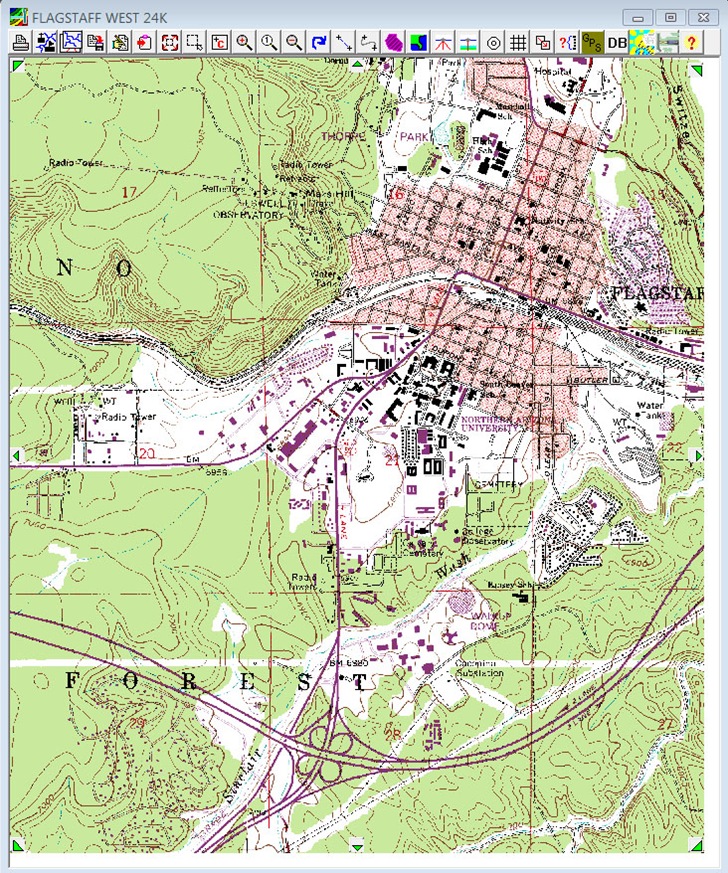
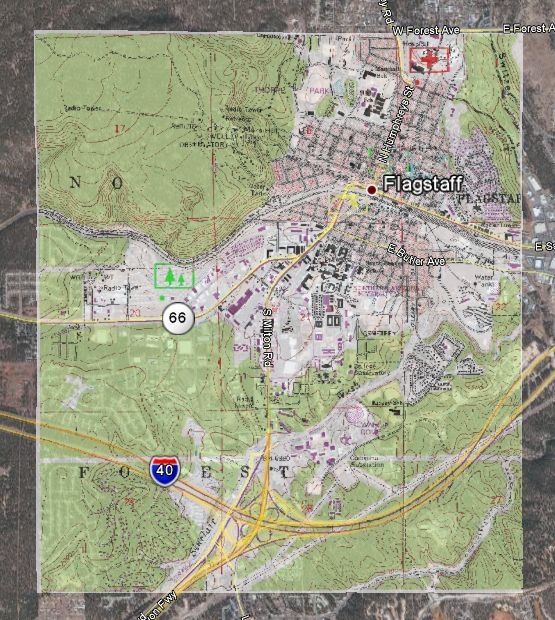
In a previous post, I used MicroDEM’s ability to create GIF Google Earth overlays with transparency to create selective overlays of MicroDEM terrain analysis products. But you can use this ability with any georeferenced raster image, including topo maps, as long as the areas of the graphic you want to have transparent are white. One example would be USGS 24K topo maps, but these often have large areas that aren’t white, as in this case:

Continue reading ‘Creating "Transparent" Topo Map Overlays For Google Earth’


Google Earth Ground Overlays With GIF Transparency

In a previous post, I talked about using MicroDEM to easily create Google Earth ground overlays, images draped over Google Earth terrain in the correct position, like this terrain-shaded topo map (viewed in Google Earth):

Terrain shaded topo map in Google Earth

But you can also create a Google Earth ground overlay in MicroDEM as a GIF with transparency, where any part of the image that’s white will be invisible in the Google Earth overlay. There are a number of MicroDEM analysis functions that can produce a graphic product with the data product in color and the background in white. One example would be the terrain category function, where you can select parts of terrain based on parameters like slope, elevation, aspect ratio, and relief. Suppose I have a DEM displayed in reflectance mode:

Continue reading ‘Google Earth Ground Overlays With GIF Transparency’


Creating Google Earth Ground Overlays From Georeferenced Images

In Google Earth, a ground overlay is an image that’s been imported into the program and “draped” over terrain as a substitute for the default imagery. In the Free and Plus versions of Google Earth, you have to position the overlay manually to put it in the right geographical context, stretching and rotating it until it’s properly positioned. Google Earth Pro is able to open some kinds of georeferenced images (like GeoTiffs), and automatically drape them in the correct geographic position, but at $400 it’s not for everyone. The free GIS program MicroDEM has recently added the ability to automatically create a Google Earth overlay from any georeferenced image it can open, including GeoTiffs, and formats like JPEG and BMP if they have worldfiles associated with them

Continue reading ‘Creating Google Earth Ground Overlays From Georeferenced Images’


Goofing Around With Pan-sharpening

Orbiting satellites often have two types of digital imaging sensors:

- Multispectral, i.e. different sensors for different colors (including IR), or different filters in front of the same sensor. Each individual band can be shown as a black-and-white image; multiple bands can each be assigned a color, and combined to form an RGB color image.

- Panchromatic, “meaning all the colors”, a single broad-spectrum sensor. This are usually displayed as a monochromatic image (i.e. black-and-white).

The panchromatic sensors usually have a higher spatial resolution than the multispectral. For example, on the Landsat 7 spacecraft, the 6 multispectral bands have a spatial resolution of roughly 30 meters (a seventh has 60 meters), while the panchromatic sensor has a resolution of about 15 meters. Here’s an example of an image created from three of the Landsat multispectral bands (data from the Global Land Cover Facility):

Continue reading ‘Goofing Around With Pan-sharpening’


Embedding And Extracting Worldfiles With MicroDEM

As described in a previous post, the TatukGIS Viewer has the ability to open image files along with their associated worldfiles, and then convert the image to a GeoTiff with the worldfile georeferencing data embedded it. It can also open a georeferenced image file like a GeoTiff or MRSid, and then save it in JPG, PNG, BMP or TIF formats while creating an associated worldfile. The two biggest drawbacks are that it stamps every exported image at the bottom with the message “Exported with the TatukGIS Viewer www.TatukGIS.com” in yellow-accented letters, and it can’t embed coordinate system and datum data in the GeoTiff (e.g. UTM, WGS84). MicroDEM can’t do everything that the TatukGIS viewer can, and isn’t as easy to use. But it has the ability to convert image files with worldfiles into GeoTiffs, and export image files with worldfiles, but without the stamped message at the bottom. It also has a limited ability to embed coordinate/datum data into the GeoTiffs along with the georeferencing data.

To convert an image file with a worldfile:

1. From the File=>Open menu, choose either “Open image” or “Open scanned map”

2. From the “Files of type” dropdown, choose “Imagery with world files”

3. Select the worldfile for the image you want to open (e.g. *.tfw, *.jgw, etc.)

4. The “Pick Projection Parameters” window will open. Here you can select the datum for the data, and the UTM zone for UTM coordinates. If the worldfile is in geographic coordinates (lat/long), the UTM Zone setting is irrelevant.

Capture8-14-2007-1.31.17 PM8-14-2007-10.47.04 PM9-11-2007-7.24.32 PM

5. Click OK, and the image will open onscreen, fully georeferenced. If you only want to export part of the image, you can select it with the subset and zoom button on the toolbar:

subsetandzoom

6. MicroDEM saves images in the screen resolution; to save in the full native resolution, you’ll have to zoom to 1:1; to do that, click on the “No zoom (1:1)” toolbar button:

zoom1to1

7. Choose File => Save map as image => GEOTIFF, screen scale. This will save the image as a GeoTiff, with the georeferencing data embedded, and with the coordinate system and WGS84 datum information also embedded. And no watermark stamp.

Limitations:

- JPG, BMP, GIF and PNG supported natively; MRSid is supported with add-ons, but isn’t easy to work with. Search the help file for “MRSid” for more info on how to set this up in MicroDEM.

- The only coordinate systems supported are geographic and UTM; no Lambert, SPCS, etc..

- The only datum data is exported in is WGS84, regardless of what datum the original data was in, and which datum you specified in step 4 above.

- GeoTiffs are exported in 24-bit color; 8-bit or indexed color is not supported.

If you want to go the other direction, converting a GeoTiff or MRSid file with embedded geodata into an image format with worldfile:

1. Open the GeoTiff/MRSid in MicroDEM

2. Select File => Save map as image => With worldfile

3. Select the desired image format (BMP, PNG or JPG), and save the file. The worldfile will be created automatically in the same directory.


Stand-Alone Map Projection Viewers III - MicroDEM

In addition to its primary terrain analysis functions, MicroDEM also has a number of map projection viewing features, accessible by opening a vector map from the File => Open => Vector Map menu, or clicking on the “Open vector map” button on the top toolbar:

vector

This brings up the “Map Projections” window:

Continue reading ‘Stand-Alone Map Projection Viewers III - MicroDEM’


Creating GeoTiffs From TerraServer Imagery With MicroDEM

TerraClient offers a fast and simple way to get TerraServer black-and-white aerial imagery covering large areas, but with no georeferencing data that lets it be used directly in a GIS. USAPhotoMaps offers a convenient and easy interface for downloading TerraServer topo and aerial imagery of smaller areas, with georeferencing data in worldfile format. But the USAPhotoMaps images are saved in JPEG format resulting in some minor image quality degradation, and the worldfile data doesn’t include information like the coordinate system and datum. For that, you’d want to have the TerraServer imagery saved in a format that embeds georeferencing, coordinate system and datum into the actual file format, like GeoTiffs. MicroDEM offers the ability to download TerraServer imagery and then save it in GeoTiff format. While the process and interface are a bit more convoluted than that for USAPhotoMaps or TerraClient, it’s not too bad.

Continue reading ‘Creating GeoTiffs From TerraServer Imagery With MicroDEM’