blankblank blank


Archive for the 'GIS' Category

Graphical Front End For The ogr2ogr Vector File Converter

ogr2ogr is a simple command line utility that converts between supported vector file formats. For those who don’t like dealing with command line programs, and need only limited conversion capability, Inventis has written a simple Windows front-end for ogr2ogr called ogr2gui:

og2gui front end for ogr2ogr

Documentation is limited, so it’s not clear which input formats are fully supported. For example, input shapefiles work, but I had problems getting E00 files to convert (see this post for an E00 to shapefile conversion process that does work). Hopefully documentation will improve with time along with functionality (this is already the fourth release).

Output formats are limited to:

  • Shapefile
  • MapInfo
  • KML
  • GML
  • CSV

Converting shapefiles to Google Earth’s KML format works as long as the shapefile is in latitude/longitude format, WGS84; attribute table data added to the placemark pop-up for point shapefiles, but not lines or areas. There are better converters for shapefiles to KML conversion like shp2kml, but this is a good choice for converting other less-well-supported vector formats into the supported output formats..


A Basic Raster Image GeoMetaData Extractor/Viewer

Many raster image formats commonly used in GIS applications have metadata embedded in them that georeferences the pixels (assigns them a coordinate location), and often includes other information like the coordinate system, origin, and datum. Some GIS programs will let you view some or all of this metadata, others won’t. I’ve written a simple GUI front-end program for the GDALInfo utility that will extract the metadata from a compatible image file, display it, and save it in a text file. Download the program folder here, and unzip it to your desired location; keep the executable and the GDAL subfolder in the same folder, otherwise the program won’t work. No installation required, just run the program. Choose the raster image file you want with the “Open File And Read MetaData” button:

Continue reading ‘A Basic Raster Image GeoMetaData Extractor/Viewer’


GISVM - A Virtual Ubuntu Linux GIS Workstation

GISVM is a Ubuntu 8.04 Linux distribution packaged as a virtual machine, an OS that can be run in a window inside of another OS like Windows, Mac OS X, or even another Linux distribution. It contains a number of open-source GIS packages already installed, including:

  • uDig
  • gvSIG
  • Kosmo
  • FWTools / OpenEV
  • MapServer
  • PostGIS

It’s a big 1 GB RAR file download that decompresses into 3 GB; if you don’t have a program that handles RAR compression, try the free program 7-Zip. To run the virtual machine, you’ll need to install either the VMWare Player or VirtualBox; I’d recommend the latter since it’s been released as open source by Sun, and also doesn’t require registration for the download. Players are available for Windows XP/Vista, Mac OS X and Linux for both platforms. Since you’ll be running two operating systems simultaneously, the demands on your computer can be significant. I wouldn’t run it in less that 1 GB of RAM for Windows XP or Linux, and 1.5 GB for Vista or Mac OS X.

From VirtualBox, use the Virtual Disk Manager in the File menu to Add the decompressed vmdk file to your list of hard disks:

9-28-2008-5.28.44 PM

Then create a New Virtual Machine using Virtual Box’s wizard. Choose Ubuntu as the OS:

9-28-2008-5.27.54 PM

In subsequent dialog windows, give it as much RAM memory as you can spare, and select the vmdk hard disk image as the Existing hard drive. Once you’re done, click on the Start button and the GISVM will open up in its own window, like the one below running on my Windows Vista system:

9-28-2008-5.06.11 PM

One thing you’ll discover quickly is that as soon as you click or type anywhere in the virtual machine window, all mouse/keyboard input is confined to the virtual window, and you won’t even be able to move the mouse cursor out of that window. Pressing the right Ctrl key on your keyboard will release this control, so that you can access your regular OS with the mouse/keyboard again. The infoGISVM*.txt file in the upper corner is worth a look, since it contains basic information about the installed programs, and the basic user passwords.

On my computer system (2.4 GHz Quad Core, 3 GB of RAM, 1 GB assigned to GISVM), the virtual OS machine is very responsive, and programs open up almost as quickly as they do running natively. Here’s qQIS in the virtual machine window:

9-28-2008-5.06.44 PM

I would have liked to play around with it a bit more, but I ran into a major issue: the largest screen resolution you can get in this virtual machine is 800 x 600, and it seems to be impossible to add additional resolutions. This might be a hardware-related issue, but I don’t think so, since the screenshots on the GISVM website also appear to be in this resolution. I haven’t run in 800 x 600 in 12 years, and I’m not about to go back to that now.

I’ve run into this problem before with Ubuntu 6 and 7, where you’re limited in your selection of screen resolutions if you’re running it as a virtual machine or on a remote machine using VNC with no monitor attached. It’s pretty retarded that this is still a problem in Ubuntu 8.04, and IMO another sign that Ubuntu isn’t ready yet for real people. Don’t tell me it can be fixed in the xorg.conf file; A, it can’t (I’ve tried), and B, regular non-techie users shouldn’t have to try to sudo fix this problem in an arcane text file.

If you can live with an 800 x 600 screen resolution, and want to try out Linux apps from Windows or Mac, GISVM is worth a look. If not, I’d wait until a version comes out that supports larger virtual screen resolutions.

Addendum: See the comments section for solutions to some of these problems.


ILWIS 3.5 Released

A bit more than a year after the 3.3 commercial version was converted to open source, with management turned over to 52 NorthILWIS 3.5 has been released. New features include:

  • A new installer
  • ILWIS as an OGC compliant WMS client: visualization of WMS layers (or combinations thereof) as raster maps.
  • Calculation tool for Surface Energy Balances (SEBS).
  • ILWIS as an MS Visual 2008 project.
  • Easy extension of analytical functions (so-called applications and applications UIs) based on a plug-in system.
  • Improved possibilities/capabilities for writing server side applications: separation of the user interface and analytical functionality.

ILWIS is a full-featured, highly sophisticated raster-oriented GIS program. See this earlier post for a longer list of some of its features, as well as links to extensive documentation (currently missing from the 52 North website).

Via SlashGeo.


Free Resources For ArcGIS 9.3

The Mapperz blog posts about ESRI’s new Models and Scripts Gallery, a resource for sharing and downloading geoprocessing models and scripts for ArcGIS 9.3. There are similar galleries available for .Net, Javascript and Java code:

And the old resource page for Arcscripts is still available as well.


Make Your Own Topo Maps For A Garmin GPS Unit

Well, the good news is that Garmin is finally starting to offer 1:24K scale US topographic maps for some of their GPS units. While they’ve had these maps for US National Parks in the East, Central and West for quite a while, they’re now issuing them for the US as a whole. These are different from the 1:100K Garmin topo maps available for a while, with the latest release coming in 2008. But there’s bad news as well:

- The datasets come on individual microSD cards, so they’re only compatible with units that support those cards

- Because they’re on microSD cards, you can’t load additional map data like CityNavigator or BlueChart data on the cards; you need to either do without or swap cards back and forth to get the dataset you want

- Cards cover various sections of the US, aren’t cheap ($100 list, typically available for about $60-70 street), and only a limited part of the US is currently covered:

(Note: Garmin also sells 1:100K topo maps on microSD cards, and you have to read the product description carefully to find that out; in any case, you’re almost always better off buying these 1:100K maps on a DVD; you can then upload selected maps to the GPS unit)

There are options that are cheaper, and cover areas not currently available from Garmin. The MiscJunk website has 1:24K topo maps for UT, MT and WY, with CA on the way, though there’s already a map file for the entire state of CA already available. Dan Blomberg’s  GPSFileDepot site has 1:24K topo mapsets for Arizona and Mississippi, and he’s automated the process to a point where I suspect more state mapsets will be coming in the future.

But Dan has also put up a full tutorial section on how to create your own 1:24K topo Garmin mapsets, with full links to data and software sources. While I wouldn’t describe the process as simple and easy, it can be done by anyone with reasonable computer skills. And even if you don’t need a full topo map, similar procedures can be used to create simple Garmin point, line and area maps from GPS and GIS data that can be overlaid on top of other mapsets.

Other data resources for creating your own Garmin GPS maps:

The Yahoo Map Authors forum

Creating Custom Topo Maps For A Garmin GPS

GPS Maps

Make Your Own GPS Maps From GIS Data (TravelByGPS website)

Make Your Own GPS Map

KeenPeople.Com Tutorial One, Tutorial Two

New Zealand Open GPS Project tutorial

Custom Maps For Garmin GPS Receiver Part One , Part Two

… and I hope to cover some other free options for creating Garmin GPS maps in the near future.


GIS On A Stick

Jo Cook of Oxford Archaeology has created a portable suite of Windows’ GIS applications that can be run from a thumb drive on any Windows XP/Vista system, or from your local hard drive, with no installation required. Applications include:

  • GRASS, a powerful but complicated GIS
  • Quantum GIS (version 10), a simpler GIS viewer/editor that incorporates some GRASS functionality
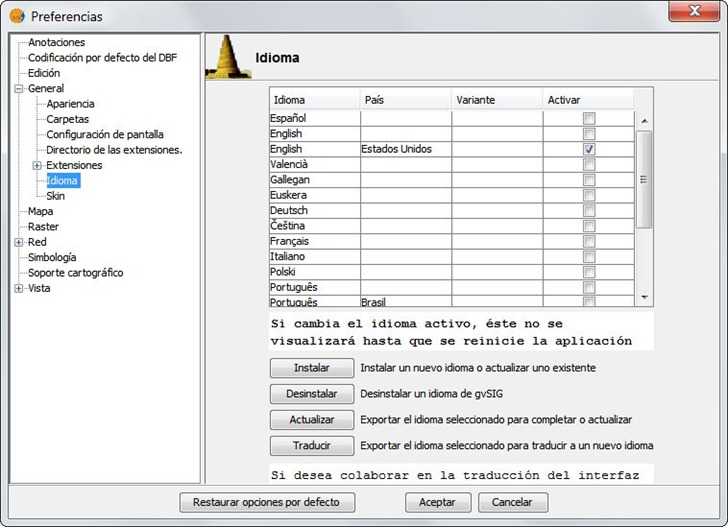
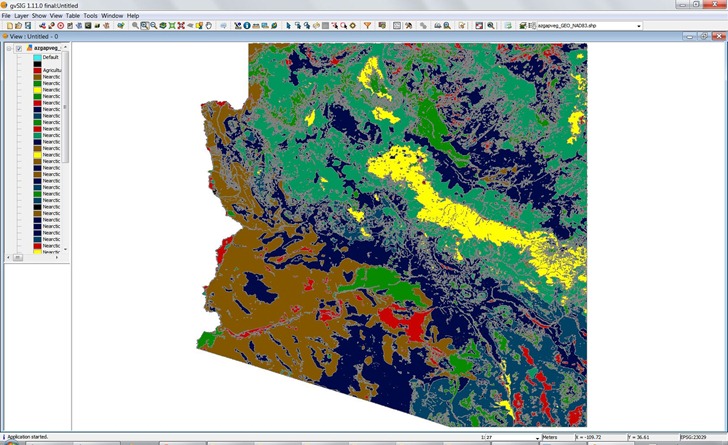
  • gvSIG, a full-blown GIS viewer/editor
  • GeoServer, a open-source map server
  • PostGreSQL with the PostGIS extensions, a relational database server (and Xampp, a portable version of the Apache server, to run it on)
  • FWTools, a full suite of command-line utilities for manipulating raster and vector data, along with the OpenEV raster image application  (note: I’ve been unable to get this one to work, but Jo thinks this may be a DLL conflict with an already-installed version of FWTools)

Download the Portable GIS zipped file here (warning: close to 500 MB even in zipped format). A few notes:

- You can run this from your hard drive as well as from a thumb drive, but you need to unzip it to a root hard drive directory, e.g. C:; unzip it to a subdirectory and it will have problems finding files.

- If you’re going to put it on a thumb drive, I’d recommend unzipping it first to a hard drive, then copying the files to the root directory of the thumb drive. Regardless, with about 20K files, it will take several hours to copy them over.

- In the current version (1.2), Portable GIS will only fit on a 2 GB or larger thumb drive in its default configuration. But with a bit of work, you can get it to fit onto a 1 GB thumb drive, and even have 250 MB of free space:

  • Right-click on the thumb drive’s icon, choose “Format”, and select the NTFS file system and Quick Format.
  • Once formatting is complete, close the Format window, right-click on the drive icon, and choose “Properties”
  • Check the box marked “Compress this drive to save disk space”, then click OK.
  • Unzip the Portable GIS files to your hard drive
  • Copy the files and directories over to the thumb drive, but in groups, not all at once; if you try it all at once, you’ll get a message saying there’s not enough room.

You’ll wind up with all the files you need to use Portable GIS, as well as extra space.

- For the thumb drive, double-click on the thumb drive icon; you’ll get a tray icon that clicking on will pop-up menu items for program configuration and running. If you’re running it from a hard drive, run the “PortableGISMenu.exe” app to create the tray icon.

- Before running GRASS, FWTools, or the Apache server using Xampp, run the appropriate setup program for each app to set system variables.

- Use the tray icon menu items to start up all the programs; use the same menu to shut down the GeoServer, Xampp and PostGreSQL applications (just closing the program windows may not work). GRASS, gvSIG and Quantum GIS can be shutdown normally.


The Big List Of Free Metadata Software II

Continuing on from the first post in the series

MetaCat: “Metacat is a flexible metadata database. It utilizes XML as a common syntax for representing the large number of metadata content standards that are relevant to ecology. Thus, Metacat is a generic XML database that allows storage, query, and retrieval of arbitrary XML documents without prior knowledge of the XML schema.”

ht to Matt Perry.

MetaLite: “MetaLite is a simple tool for collecting and validating Federal Geographic Data Committee (FGDC) compliant metadata. It allows a user to quickly document geospatial data while still adhering to FGDC Metadata Content Standards.” Features include:

  • Multiple Document Interface
  • Multi-Lingual
    • Spanish
    • French
    • Portuguese
    • English
  • Contact Information Templates
  • Platforms
    • Windows 95
    • Windows NT
  • Generate FGDC Clearinghouse-ready files
    • FAQ, HTML, Text, or XML!
  • Helper windows
    • Coordinate Converter
    • Calendar
    • Error Window
    • Contact Editor
    • Multilingual Keyword Lookup
  • Online Help
  • Duplicate Existing metadata entries
  • Validate data with MP (Metadata Parser)

Metascribe: “The NOAA Coastal Services Center’s MetaScribe tool is designed to reduce significantly the labor required to produce metadata compliant with the Federal Geographic Data Committee (FGDC) Content Standard for Digital Geospatial Metadata (CSDGM). This software tool takes advantage of the fact that, within a collection of records for a given data type, the records are generally very similar in content, with only a few fields or phrases changing from one record to the next. MetaScribe delivers the greatest savings when used to create a collection of similar records. In fact, this tool is not appropriate for the creation of multiple metadata records with little redundant content.”

Metavist: “Metavist 2005, a software tool for the metadata archivist, is used to create metadata compliant with two of the Federal Geographic Data Committee (FGDC) metadata standards—“FGDC Content Standard for Digital Geospatial Metadata” (FGDC 1998) and “FGDC Biological Data Profile of the Content Standard for Digital Geospatial Metadata” (FGDC 1999).” Can be ordered on CD, or downloaded directly here.

Morpho: “Morpho allows ecologists to create metadata, (i.e. describe their data in a standardized format), and create a catalog of data & metadata upon which to query, edit and view data collections. In addition, It also provides the means to access network servers, in order to query, view and retrieve all relevant, public ecological data.”

NPS Metadata Tools And Editor: “The NPS Metadata Tools & Editor (MTE) is a custom software application for authoring, editing, and managing National Park Service (NPS) metadata. The MTE operates either as an extension to ArcCatalog versions 8.3/ 9.x or as a standalone desktop application. The MTE is intended to be the primary editor for metadata that will be uploaded to the NPS Data Store and produces XML metadata based on the NPS Metadata Profile. Metadata editing is accomplished with editing stylesheets that transform an XML metadata file into an editable record.”

SHAME: “SHAME is a library that leverages editors, presentations and query interfaces for resource centric RDF metadata. The central idea of SHAME is to work with Annotation Profiles which encompasses:

  • how the metadata in RDF should be read and modified.
  • what input is allowed, e.g. multiplicity and vocabularies to use.
  • presentational aspects like order, grouping, labels etc.

These annotation profiles are then used to generate user interfaces for either editing, presentation or querying purposes. The user interface may be realized in a web setting (both a jsp and velocity version exists) or in a stand alone application (a java/swing version exists). ”

Three Tab Metadata Editor For ArcCatalog 8.* and 9.*: “The Three Tab Editor is a user interface for entering Federal Geographic Data Committee (FGDC) and ISO Metadata for ArcCatalog.

  • It is composed of only four simple data entry pages, so there is less hunting and pecking for the required metadata fields.
  • It writes the metadata to the ESRI metadata file found in any data set supported by ArcInfo 9.x (e.g. Coverages, Shape Files, Geo Databases, SDE Databases…)
  • It allows the user to input the contact information once, and then it populates all three contact information sections with this contact data (e.g.. metadata creator, data creator, and data request contact).
  • Pick lists are provided for most of the data entry fields. These pick list provide either a sample of the potential value, or a list of the potential domains that can be used in that field. These pick list can also be edited via the metadata.mdb file found in “C:\Program Files\ThreeTabEditor” directory
  • The theme keyword pick list used by this editor is compatible with those required by the ArcIMS Metadata Server.
  • Completion of the fields found in this editor will allow the user to meet the minimal ISO metadata standard.
  • The editor is designed to allow users who complete all fields to pass through the metadata parser (mp) with minimal errors.
  • The editor is linked to a Microsoft Access database that can be used to store your contact information and pull down lists. This database can be found in the tools installation directory (e.g. c:\Program Files\ThreeTabEditor).
  • On-line linkage exists to the Image Map of the Content Standard for Digital Geospatial Metadata (CSDGM) from the tools interface. This provides user with a quick reference of how to complete the fields. “

USGS Formal Metadata: A suite of metadata tools, including mp, cns, xtme, Tkme, mq, and DBFmeta. The last is a tool “designed to facilitate the documentation of data contained in DBF files”

GeoNetwork opensource: “GeoNetwork opensource is a standards based, Free and Open Source catalog application to manage spatially referenced resources through the web. It provides powerful metadata editing and search functions as well as an embedded interactive web map viewer. This website contains information related to the use of the software.”

ht to Grant McKenzie.